

Team
The Team page is where you manage the staff at your center: owners, admins, and teachers. You can invite new team members, change their roles, view their profiles, and remove them when someone leaves.
Viewing Your Team
Navigate to Team in the sidebar to see everyone at your center.
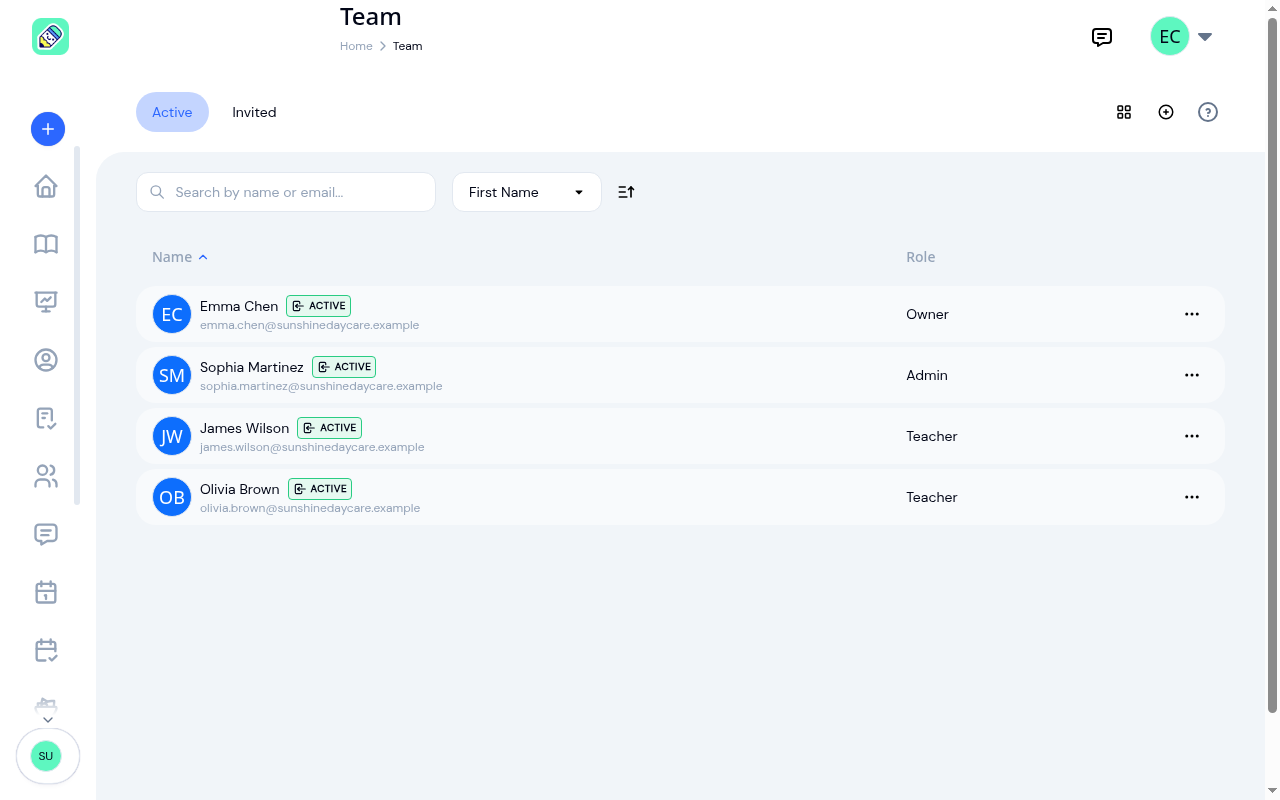
Each row shows the person's name, email, an Active badge, and their role (Owner, Admin, or Teacher).
Tabs
The Team page has two tabs:
- Active — everyone currently on your team
- Invited — invitations you've sent that haven't been accepted yet. Resend or cancel them from here
Searching and Sorting
- Search — type a name or email to narrow the list
- Sort — sort by First Name, Last Name, or Email
- Sort direction — the button beside the sort selector switches between ascending and descending
Both tabs page through longer lists in the standard way. See How lists work.
Inviting Team Members
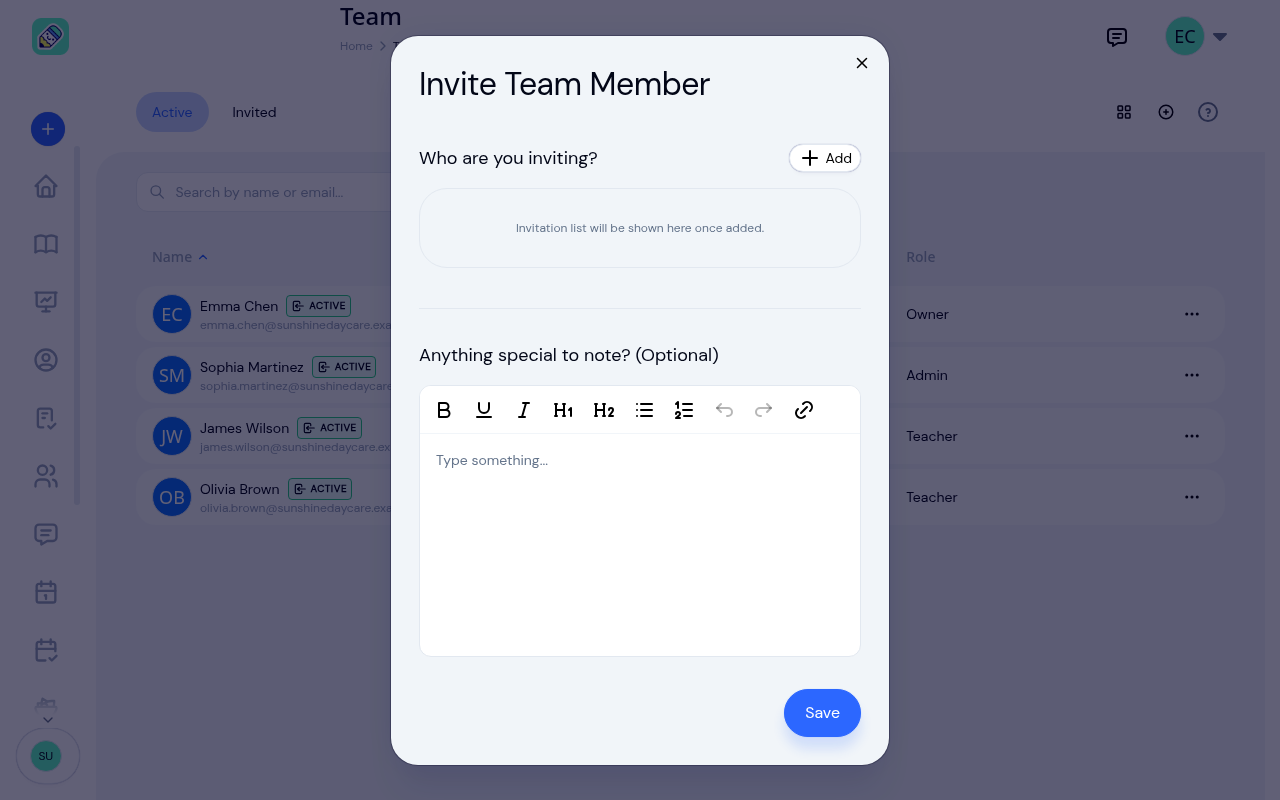
Open the invite window
Click the + (plus) button in the top-right corner of the Team page.
Add the people you're inviting
Click Add and fill in the first name, last name, and email, then choose what they'll be doing: Owner, Admin, or Teacher. If you're an admin, Owner isn't offered. Click Add to put them on the invitation list.
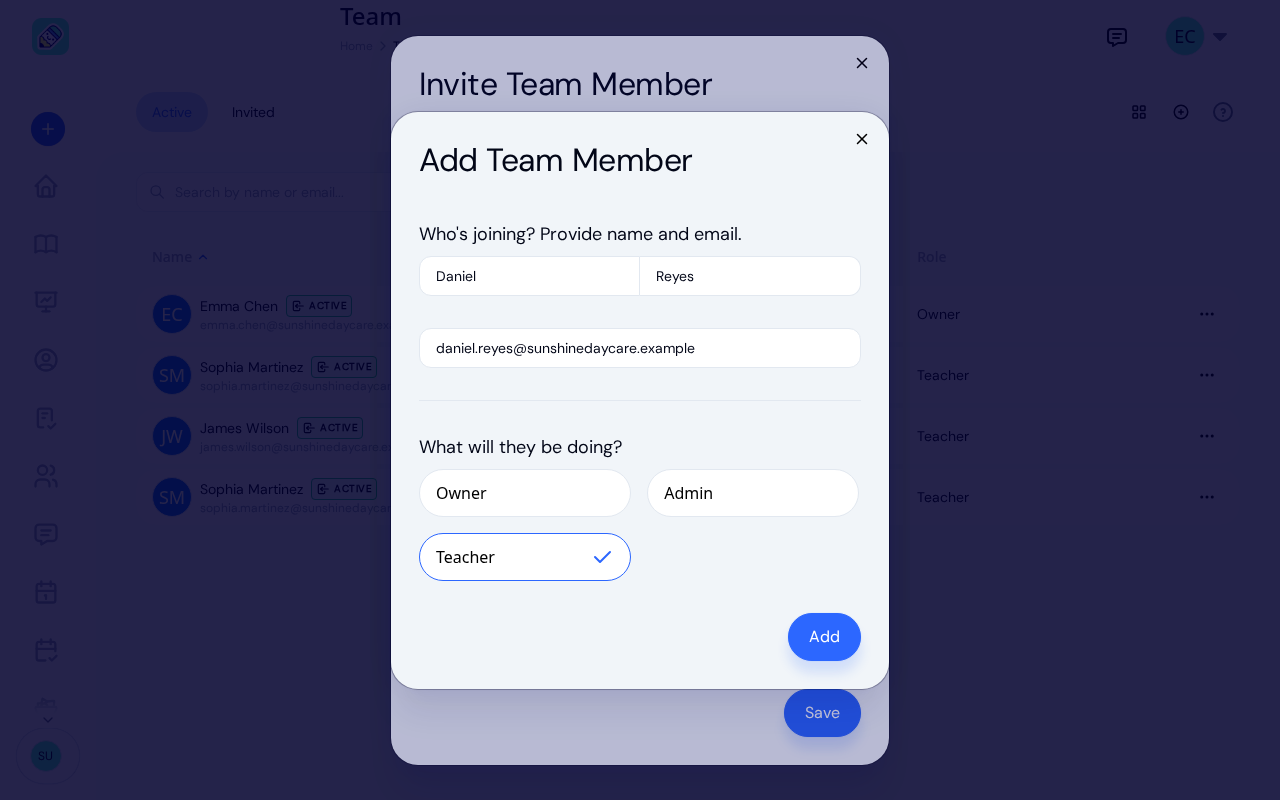
Repeat for each person. You can send one batch of invitations to several people at once, each with their own role.
Add a note (optional)
Use the Anything special to note? editor to add a message that goes out with the invitation.
Send the invitations
Click Save. Everyone on the list receives an email with a link to create their account and join your center. Until they accept, they appear on the Invited tab.
Team Member Actions
Click the ... (three dots) at the end of any row to see what you can do with that person.
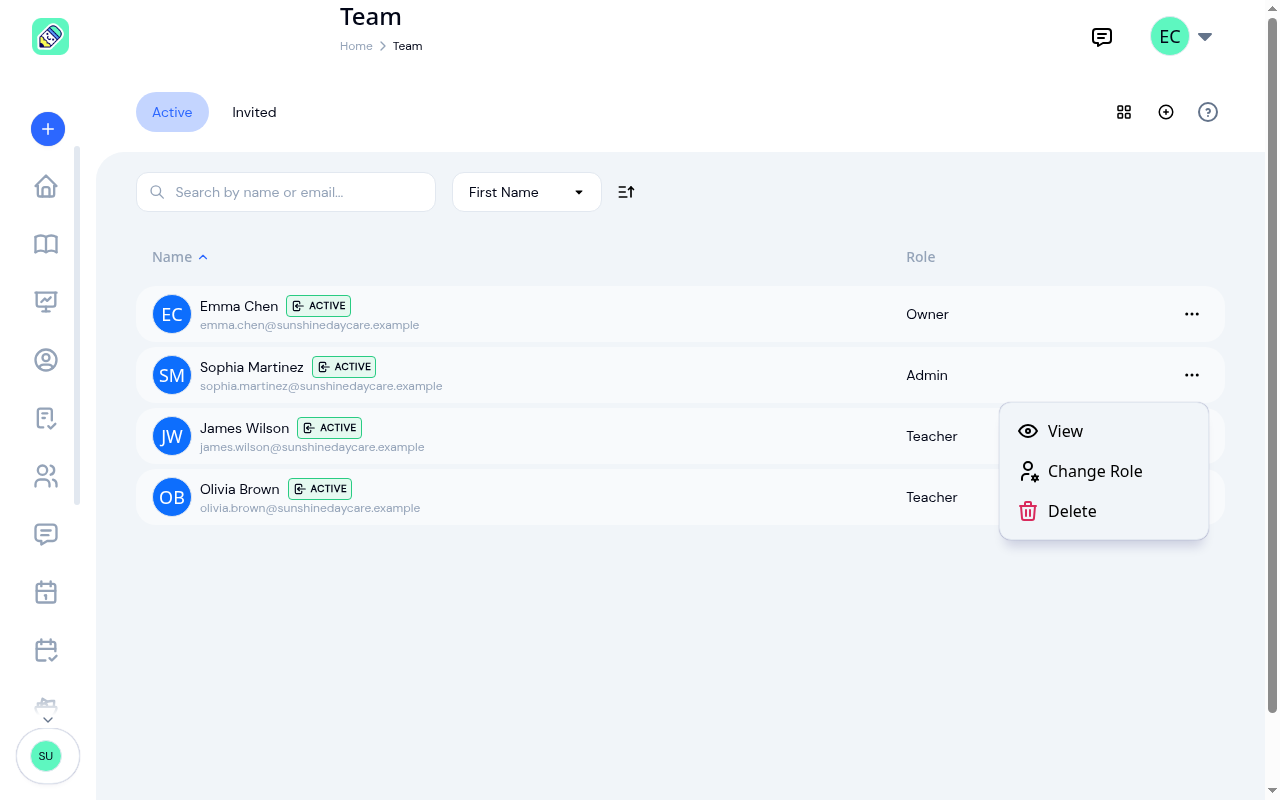
- View — open their profile page
- Change Role — switch them between Owner, Admin, and Teacher. Owners only
- Delete — remove them from your center
Changing a Team Member's Role
Open the role picker
Click ... → Change Role on the person's row.
Pick the new role
Choose Owner, Admin, or Teacher. Their current role is marked so you can see what you're changing from.
Confirm
Confirm the change. The new role takes effect straight away, and the person's row updates.
Viewing a Team Member's Profile
Click any row to open that person's profile.
The Overview section holds their age, phone number, preferred name, email, address, role, and join date. The pencil icon beside it opens the same details for editing.
Below that, Experience lists any education and certifications recorded for them. Use the pencil icon to add an entry, choosing Education or Certification and filling in what it is, who issued it, and when.
Removing a Team Member
Start the removal
Click ... → Delete on the person's row.
Read the warning
A confirmation appears. If the person is assigned to classrooms, it tells you those assignments will be removed too.
Confirm
Confirm to remove them. Their classroom assignments are cleared automatically.
Removing someone unlinks them from your center. Their KidzLog account stays active, so if they also work at another center, they keep their access there.
Frequently Asked Questions
Three: Owner (full access including the subscription), Admin (full access except the subscription), and Teacher (classroom-scoped access). Only an owner can invite someone as an Owner; admins can invite Admins and Teachers. See Roles & Permissions for what each one can do.
An Owner invitation also has to be from someone who is still an owner when it's accepted. If it isn't, the person you invited is told to ask an owner to invite them, and an owner can send a fresh invitation.
Yes. If they already have an account, for example because they work at another center, the invitation links them to your center with the role you chose. They switch between centers from the sidebar.
No. KidzLog won't let you send an invitation to your own email address.
Removing them unlinks them from your center and clears their classroom assignments. Their user account stays active and they keep access to any other center they belong to.
Yes. Open the Invited tab, find the invitation, and use its ... menu to cancel it. You can also resend it if the person says it never arrived.
In your account menu, not on this page. See Accepting Invitations.