

Payments
The Payments page in your Parent Portal shows every invoice your center has sent — what's paid, what's outstanding, and what's overdue. Each invoice opens into a full slip with a printable PDF download.
How to Access
Tap Payments in the bottom navigation on mobile, or click the Payments link in the sidebar on desktop. You'll see every invoice your center has sent you, sorted by due date.
What You See
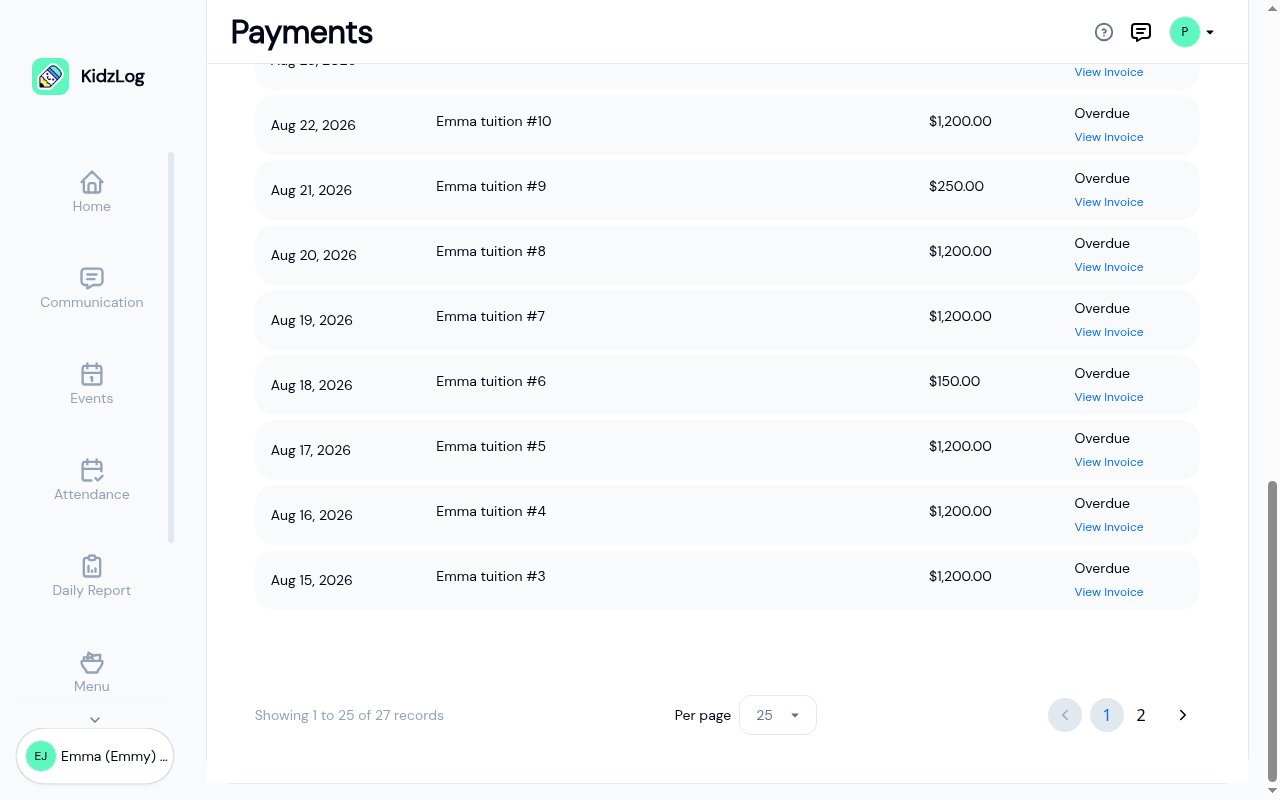
Each row shows four pieces of information:
- Due Date — when the payment was due
- Note — any message your center added to the invoice. Shows N/A if none.
- Amount — the total invoice amount in your center's display currency
- Status — Paid (closed out), Sent (outstanding), or Overdue (past due)
The columns are sortable. Click a header to sort ascending or descending.
If you have a lot of invoices
Under the list, a line tells you which invoices you're looking at and how many you have in total, for example "Showing 1 to 25 of 27 records". Use the page buttons beside it to reach the rest, or the Per page selector to show more at once.
Every invoice addressed to you is in this list, however many there are, and however many other families the center bills. See How lists work.
Viewing an Invoice
Click View Invoice on any row to open the full slip.
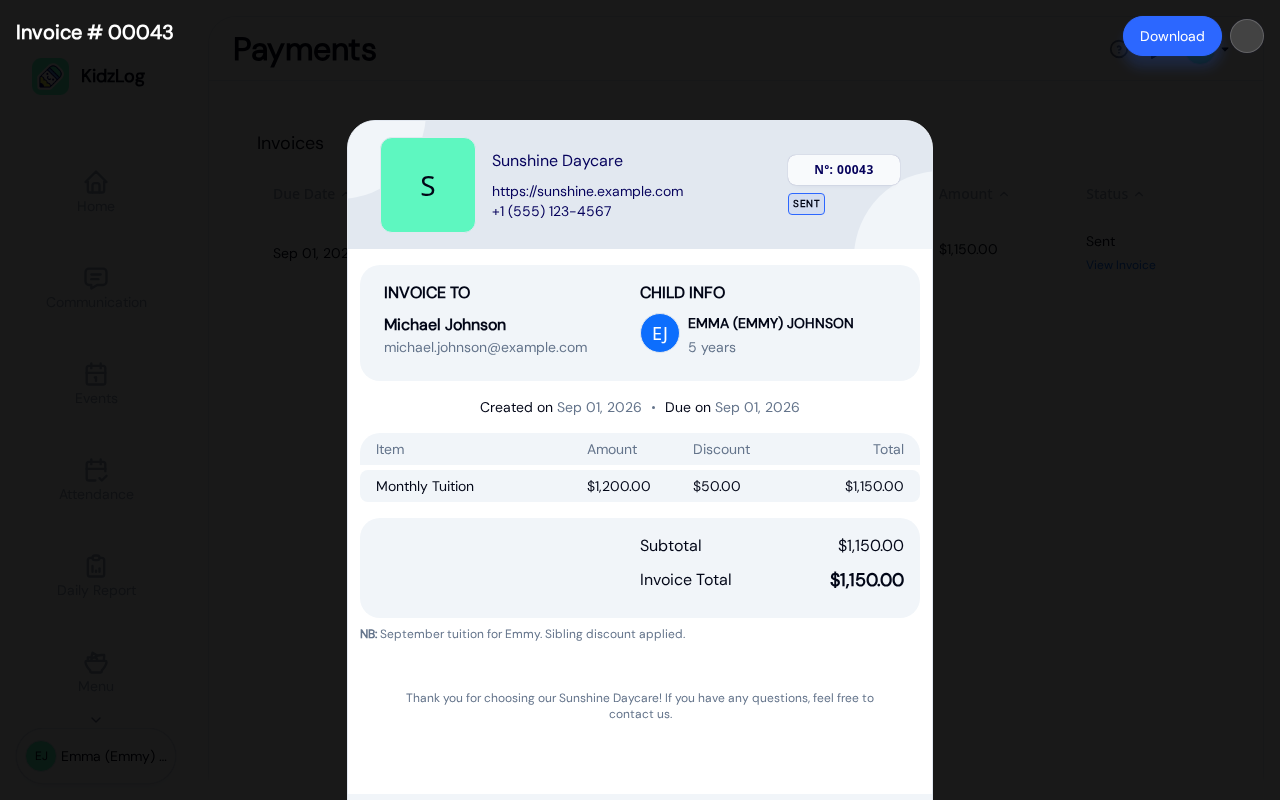
The slip includes:
- Center information — name, website, phone number
- Invoice number and status — visible top right
- Bill to — your name and email
- Child info — the child the invoice applies to
- Dates — when the invoice was created and when it's due
- Line items — each charge with its amount, any discount, and the resulting total
- Invoice total — the sum at the bottom
Downloading a PDF
Click Download in the top-right corner to save a PDF copy of the invoice. The PDF matches what you see on screen and is suitable for your records, reimbursement claims, or tax filings.
Making a Payment
KidzLog does not collect payments directly in the Parent Portal. Pay your center using whichever method they accept — e-transfer, bank transfer, cheque, or in-person — and they'll mark the invoice as paid in their dashboard. Once they do, the status updates here and you'll receive a receipt email.
Notifications
You'll receive an email whenever:
- A new invoice is sent to you
- An invoice is marked as paid (the receipt email)
The Notify me of new invoices switch on the My Settings tab of Settings controls both. Turning it off silences invoice notifications but does not change anything about how the invoices themselves are tracked.
Mobile View
On phones and small tablets, the table collapses to a vertical card layout. Tap any card to open a bottom sheet with the full details and the View Invoice action.
Related
- Parent Settings — turn invoice notifications on or off
- Parent Portal Overview — navigating the rest of your portal