

Managing Enrolments
The Enrolments page is where you manage which children are enrolled in which programs. From here you can enrol children, track active and completed enrolments, and manage status changes.
How to Access
Navigate to Enrolments in the sidebar.
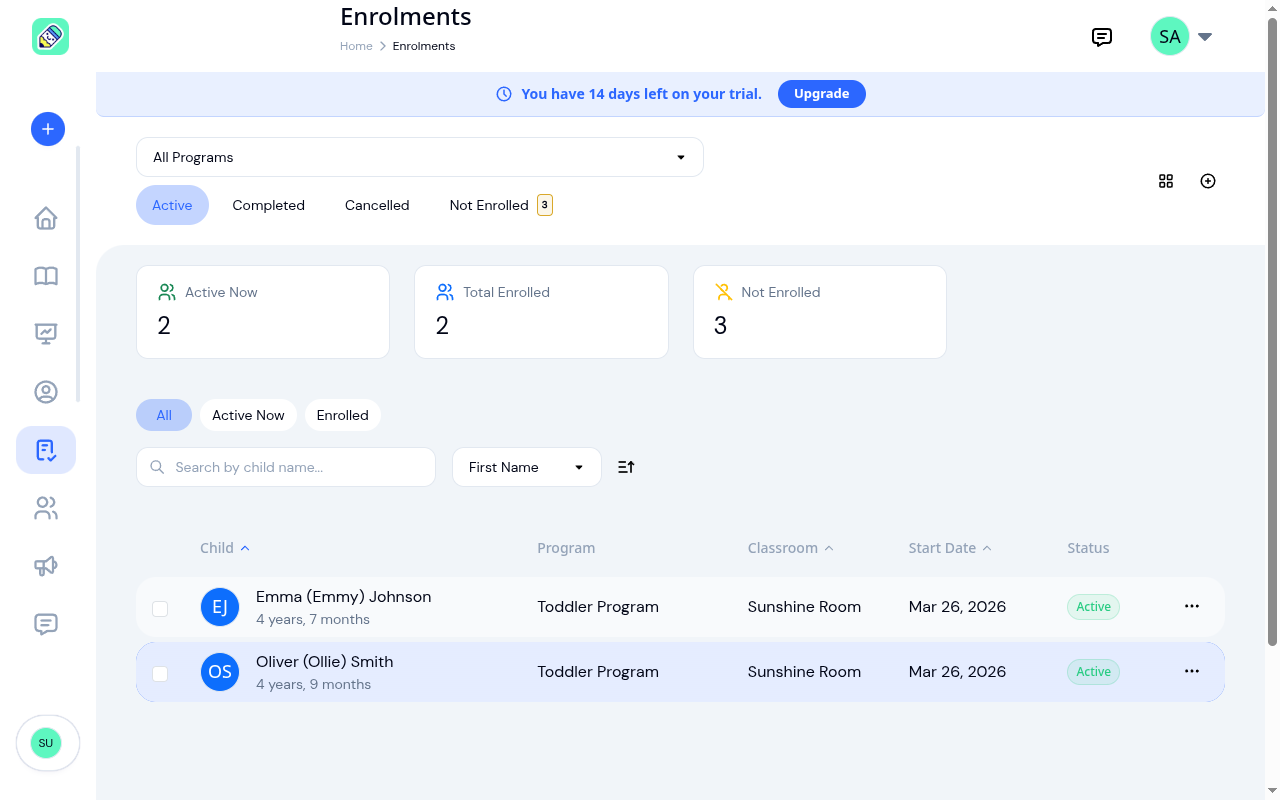
Page Layout
Program and Classroom Filters
Use the program dropdown at the top to filter enrolments by a specific program, or select All Programs to see everything. Pick a program and a classroom dropdown appears beside it, listing that program's rooms.
Both dropdowns list every one of your programs and rooms, however many you have. Longer lists of enrolments page in the standard way. See How lists work.
Status Tabs
- Active — currently enrolled and attending
- Completed — enrolments that have ended (end date passed or manually completed)
- Cancelled — enrolments that were withdrawn
- Not Enrolled — children at your center who are not enrolled in any program (shows a count badge)
- Applications — submitted applications waiting for review. This tab only appears when the application pipeline is turned on, and shows a count of applications still pending.
Stats Cards
Summary cards appear at the top of the Active tab:
- Active Now — children currently enrolled and attending
- Enrolled — enrolments with a future start date (only shown when there are upcoming enrolments)
- Total Enrolled — all current enrolments
- Not Enrolled — children without any enrolment (only shown when there are unenrolled children)
Enrolment Table
Each row shows:
- Child — name, age, and avatar
- Program — which program the child is enrolled in
- Classroom — assigned classroom
- Start Date — when the enrolment began
- Status — Active, Enrolled, Completed, or Withdrawn
- Actions (...) — manage the enrolment
Enrolling a Child
You can enrol a child from three places:
From the Enrolments page
Click the + button in the top-right corner to open the enrolment form. Search for and select a child, choose a program and classroom, set the start date, and confirm.
From a child's profile
On a child's profile, click the Enroll button in the Enrolments section. This pre-fills the child and lets you choose the program.
From a program's detail page
On a program's detail page, click the Enroll button in the availability sidebar. This pre-fills the program.
When filling out the form, you can also set an optional end date and, if an end date is set, choose to archive the child automatically when the enrolment ends (see Auto-Complete and Auto-Archive).
Enrolment Statuses
| Status | Meaning |
|---|---|
| Enrolled | The child is enrolled but the enrolment hasn't started yet (future start date) |
| Active | The child is currently attending the program |
| Completed | The enrolment period has ended |
| Withdrawn | The enrolment was cancelled (shown as "Withdrawn" on status badges) |
Managing an Enrolment
Click the ... menu on any enrolment row for quick actions:
- View — open the full enrolment detail page
- Edit — change the start/end date, fees, or classroom
- Move to Room — transfer the child to a different classroom within the same program
- Switch Programs — move the enrolment to a different program entirely
- Withdraw — cancel the enrolment
The Edit, Move to Room, Switch Programs, and Withdraw actions are only available on active enrolments. Completed and withdrawn enrolments show only the View action in this menu.
A child can hold only one active enrolment per program at a time. Switching rooms or programs always updates that existing enrolment. You can't give a child a second, overlapping enrolment in the same program to line up a future room in advance.
Click the row to open the enrolment detail page, which shows full enrolment information, a timeline of changes made to the enrolment, and additional actions:
- Complete Enrollment — mark the enrolment as finished (irreversible)
- Re-enroll — reactivate a previously withdrawn enrolment
Bulk Actions
Select multiple records using the checkboxes on the left, then use the bulk action bar at the bottom of the screen. The available actions depend on which tab you're on:
- On the Active, Completed, or Cancelled tabs, you can Move to Room (move all selected children to a different classroom) or Withdraw all selected enrolments.
- On the Not Enrolled tab, you can Enroll all selected children in a program at once.
The bulk action bar also lets you Select All on the current page or Clear your selection.
Reviewing Applications
Some centers collect enrolment applications and review them before a child is officially enrolled, rather than enrolling children directly. When this is turned on, an Applications tab appears on the Enrolments page with a count of applications waiting for review. Applications your team enters and applications families submit through your website both arrive here.
Families apply online through your center's own application link. See Applying Online (for Families) for what they see and what they're told after submitting.
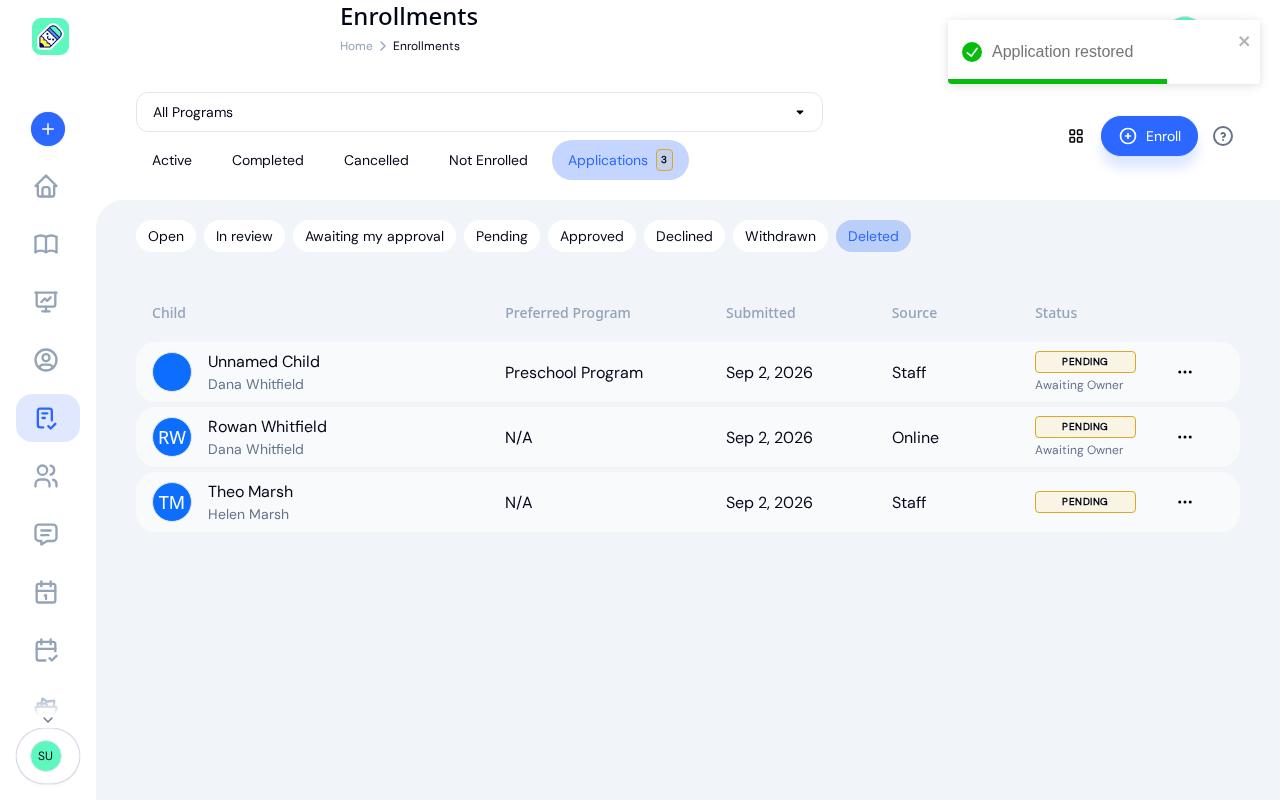
The Applications tab has its own filters. Open is where you start: it shows everything still awaiting a decision. Pending, Approved, Declined, and Withdrawn narrow to a single status. Deleted, last in the row, lists applications your team has removed from the queue (see Deleting and restoring an application).
Each row shows the child and the guardian who applied, the preferred program, when it was submitted, where it came from, and its status.
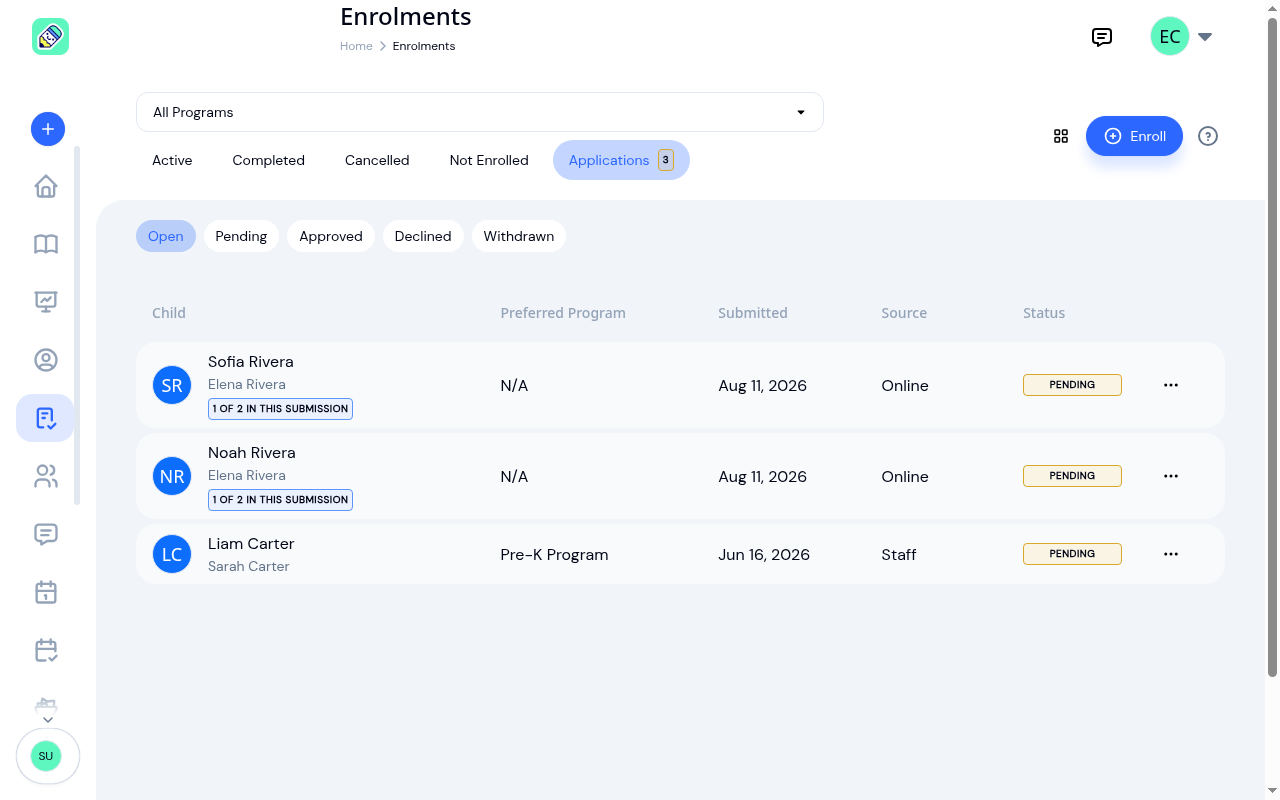
Where an application came from
The Source column says how the application reached you:
- Staff — someone on your team entered it
- Online — a family submitted it themselves through your public application form
Both land in the same queue and are reviewed the same way.
Two badges can appear under a child's name:
- 1 of 2 in this submission — a family applied for more than one child at once. Each child gets their own row so you can decide on them separately, and the badge is there so you know they arrived together
- Possible duplicate — this child's name and date of birth match another application from a different submission. It's a flag for you to look at, not a block. Every submission is accepted, so a family who submits twice never gets an error
Reviewing and deciding
Click an application to open its full details: the preferred program, desired start date, and guardian contacts.
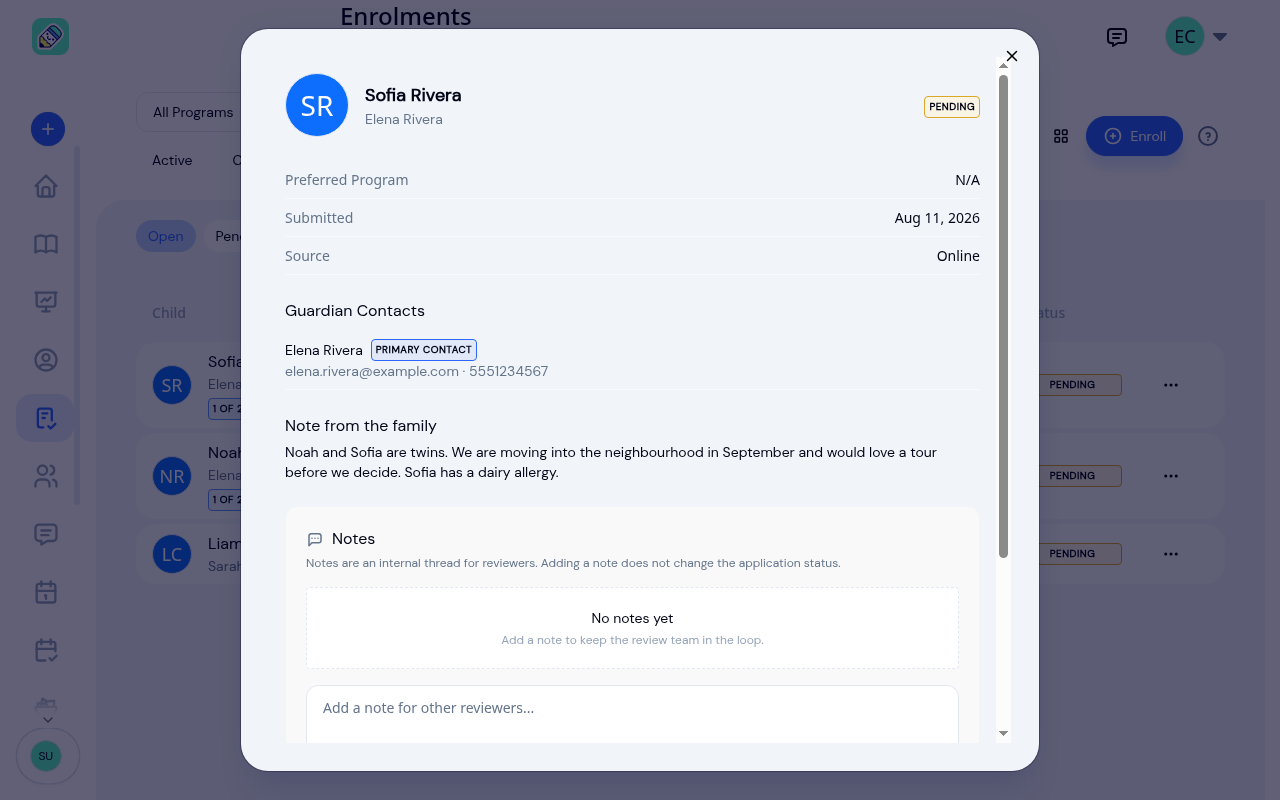
Two separate sets of notes appear here, and it's worth keeping them apart:
- Note from the family — whatever the family typed on the public form. Read-only, and only present on an online application
- Notes — an internal thread where your reviewers leave comments for each other. Families never see it, and adding a note doesn't change the application's status
From an application — either the ... menu on its row or the detail view — you can:
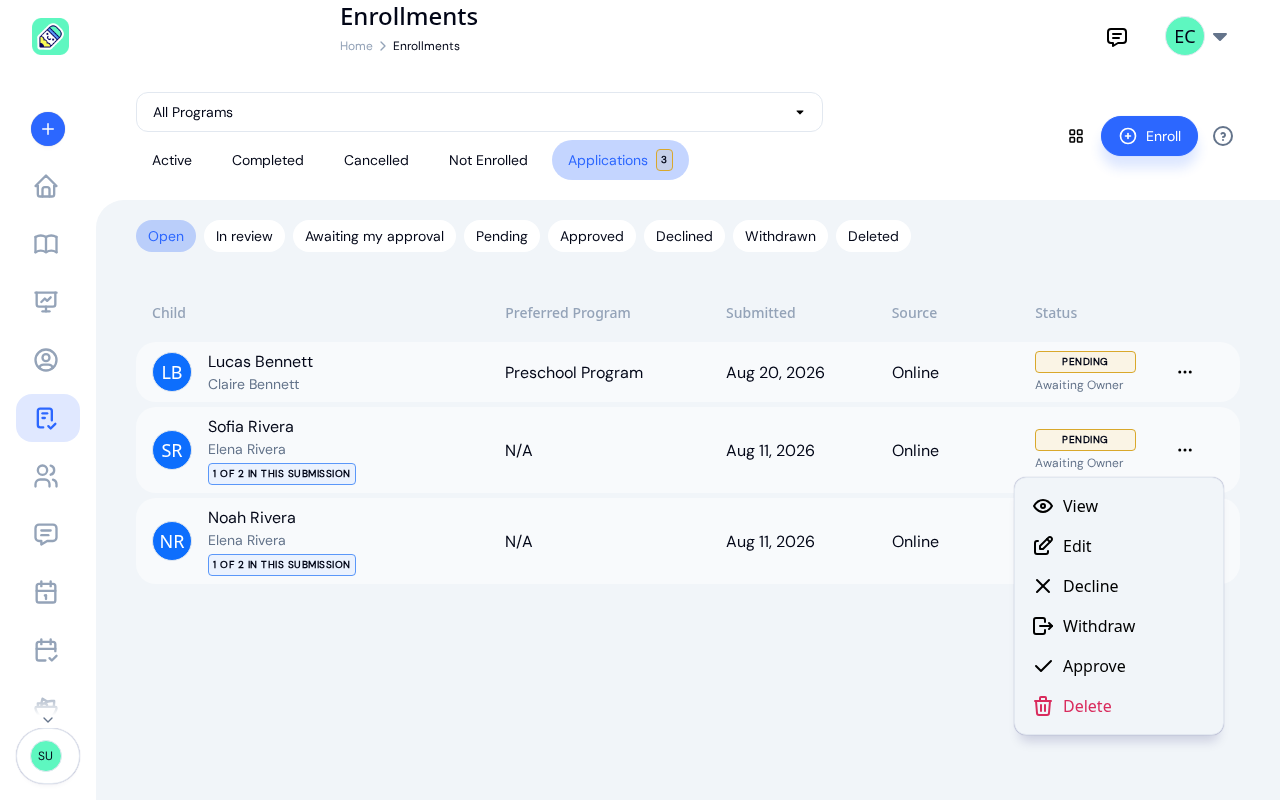
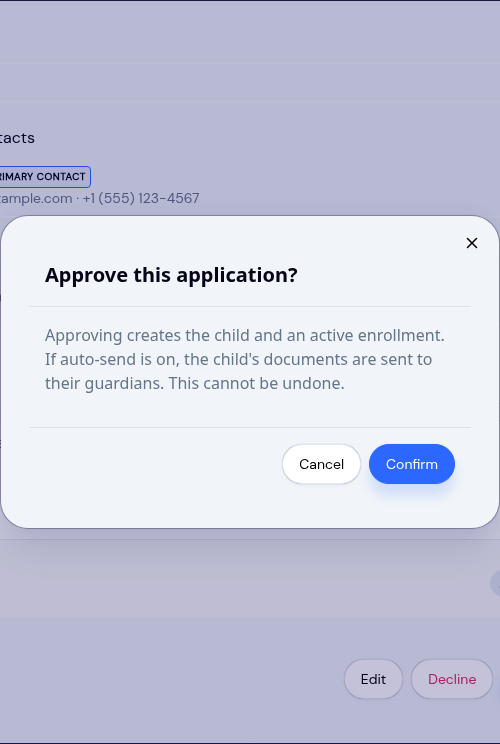
- Approve — creates the child and an active enrolment. If document auto-send is turned on, the child's documents are sent to their guardians at the same time.
- Decline — turn down the application. You'll be asked for a reason, and whether to let the family know (see below).
- Withdraw — discard the application so it no longer appears in the review queue.
- Edit — update the application's details before you decide (see below).
- Delete — remove the application from the queue. Unlike the others, this can be reversed (see below).
Approving and withdrawing ask you to confirm first, since they can't be undone.
Declining, and telling the family
Decline opens a dialog asking for a reason. The reason is for your reviewers: it is kept with the application and never sent to the family.
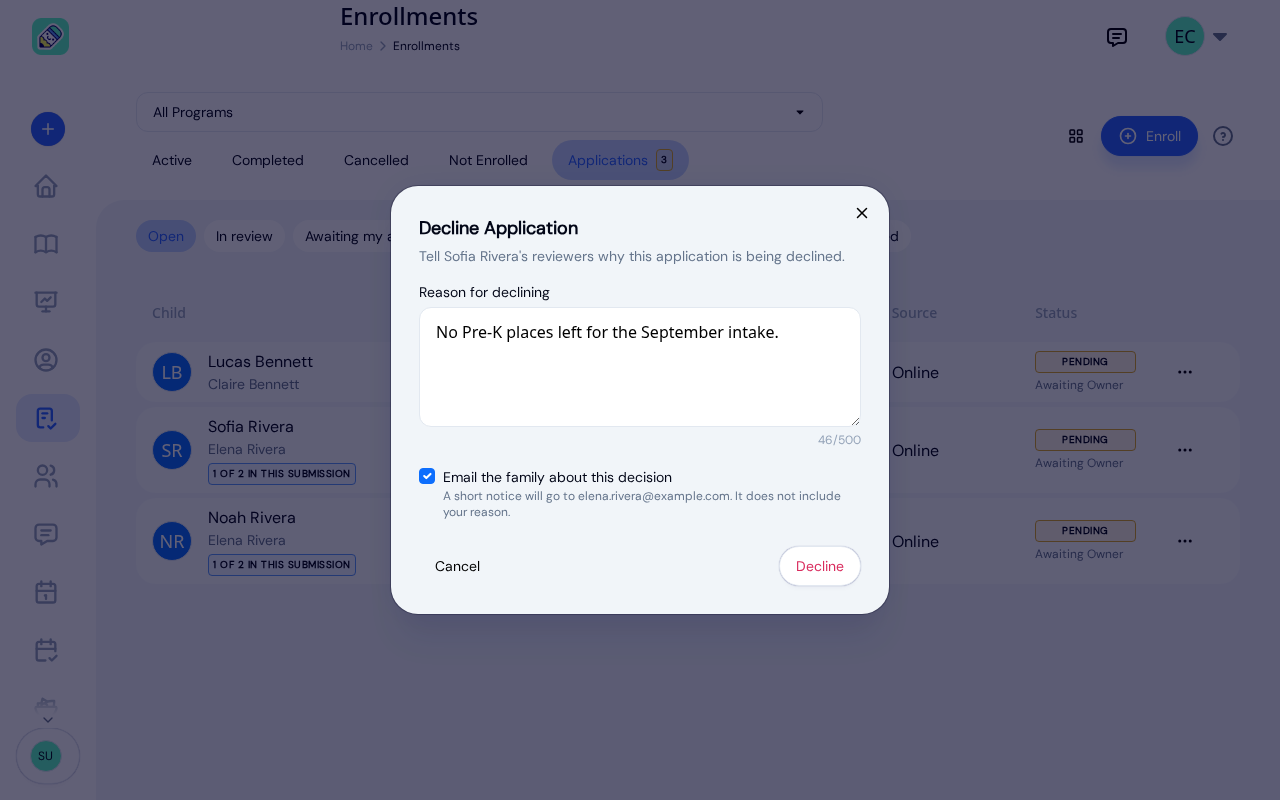
Under the reason box, Email the family about this decision controls whether the family hears from you. When it is ticked, the guardian gets a short, neutral email saying the application was not accepted, and the dialog names the address it will go to. A family that applied online was promised the team would be in touch, and this is what keeps that promise when the answer is no.
The box starts ticked or unticked according to your center's setting under Settings → Enrollment, and you can change it for this one decision without changing the setting. If no contact on the application has an email address, the dialog says No email on file for this family, so nobody will be notified. and there is no box to tick.
Deleting and restoring an application
Use Delete to clear an application out of the queue: a duplicate, a test entry, or a family that has told you they are no longer interested. It is available on every application except an approved one, since an approved application has already created a child and an enrolment and stays with them.
A confirmation asks Delete this application? and explains that the application will leave the review queue and can be restored from the Deleted filter. Click Delete to confirm.
Deleted applications drop out of every count, including the badge on the Applications tab, and appear only under the Deleted filter.
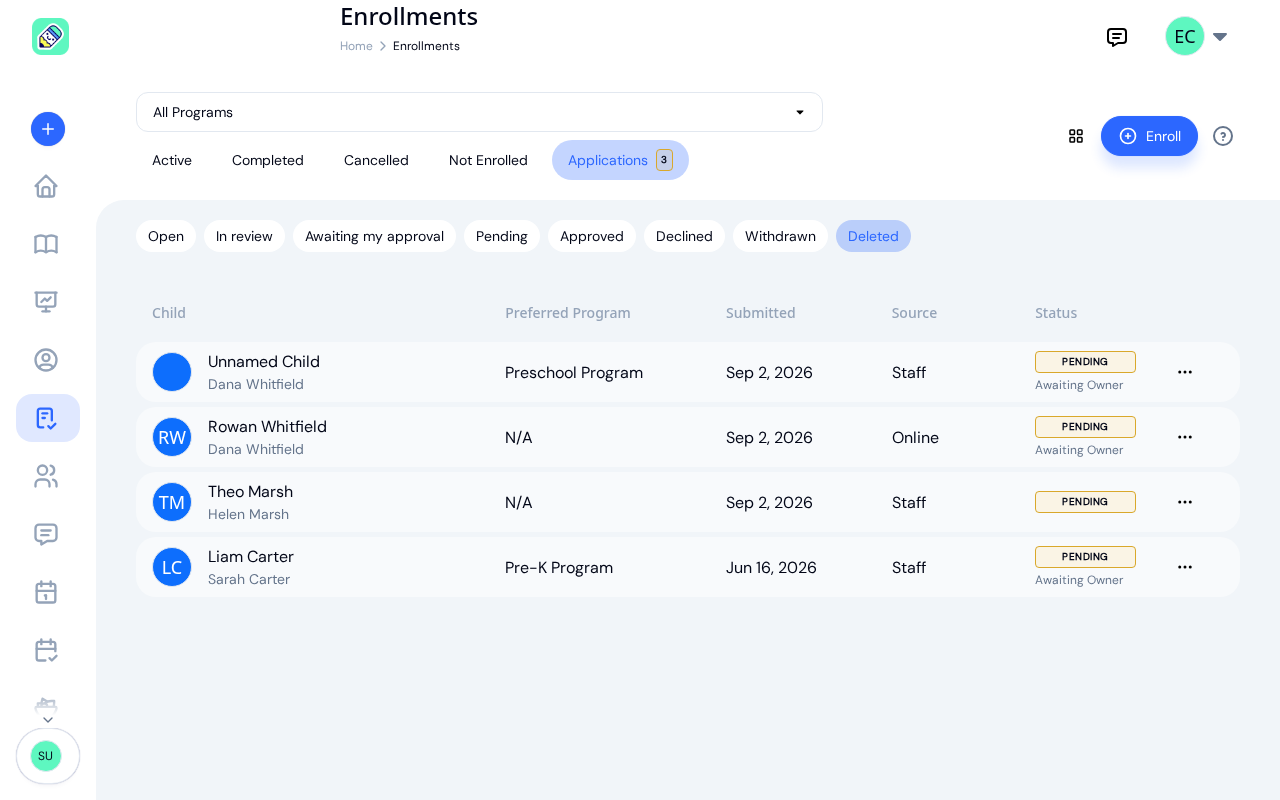
On that filter, the ... menu offers just View and Restore. Opening a deleted application shows a red Deleted chip beside its status at the top and a Deleted on date; the notes thread is there to read but you cannot add to it, and the only button, at the bottom, is Restore.
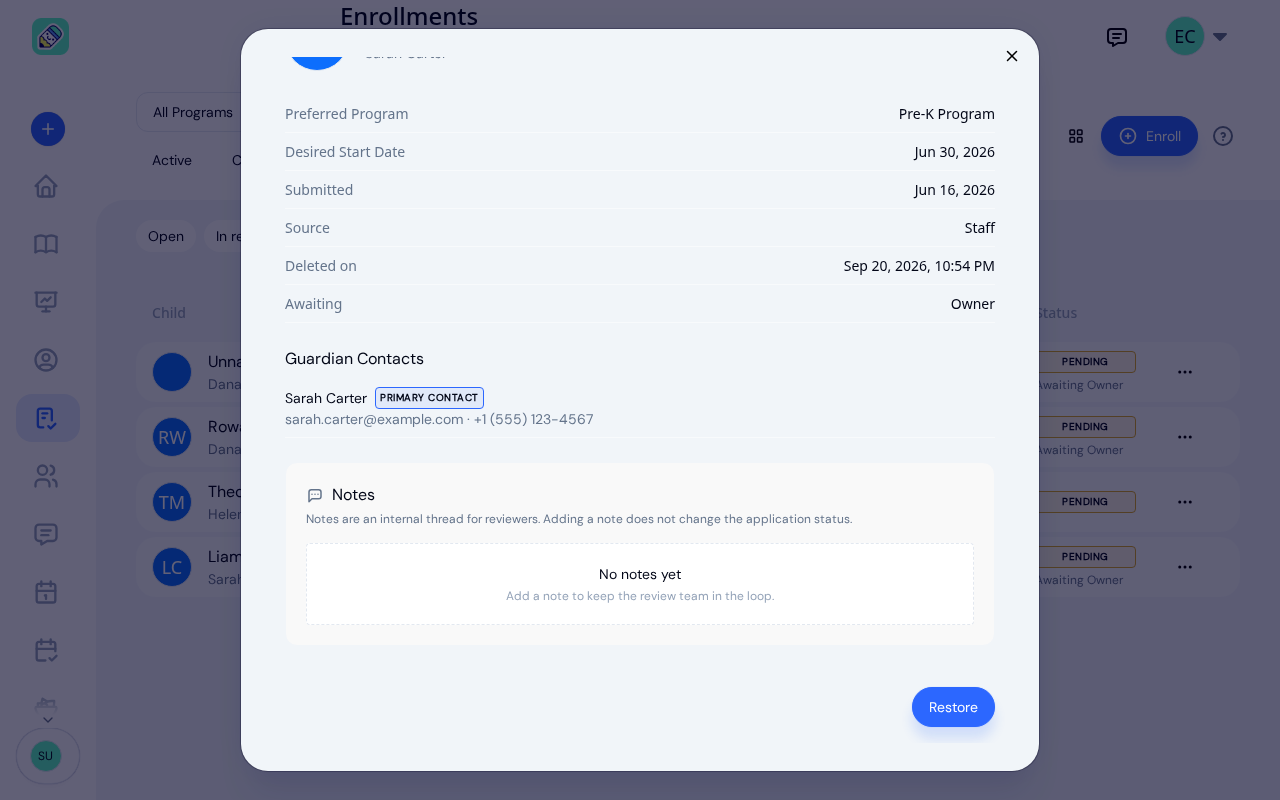
Restore needs no confirmation. The application goes straight back to the filter it came from, exactly as it was, and a toast reads Application restored.
When more than one person has to sign off
If you've set up approval steps, approving works its way along the chain instead of finishing in one click. Signing off at a step that isn't the last one moves the application on rather than enrolling the child.
Two extra filters appear on the Applications tab in that case:
- In review — part-way along the chain, with at least one sign-off done
- Awaiting my approval — the ones sitting on your desk right now. This only shows if you hold a role that's named in the chain
A part-signed application's status tells you whose turn it is, reading Awaiting Admin or similar. If it reads No Admin to approve this, the chain names a role nobody at your center currently holds, and the application is stuck until you either add someone in that role or change the chain under Settings.
The child is only created, the enrolment only made, and the family only contacted when the last step signs off.
Editing an application before approval
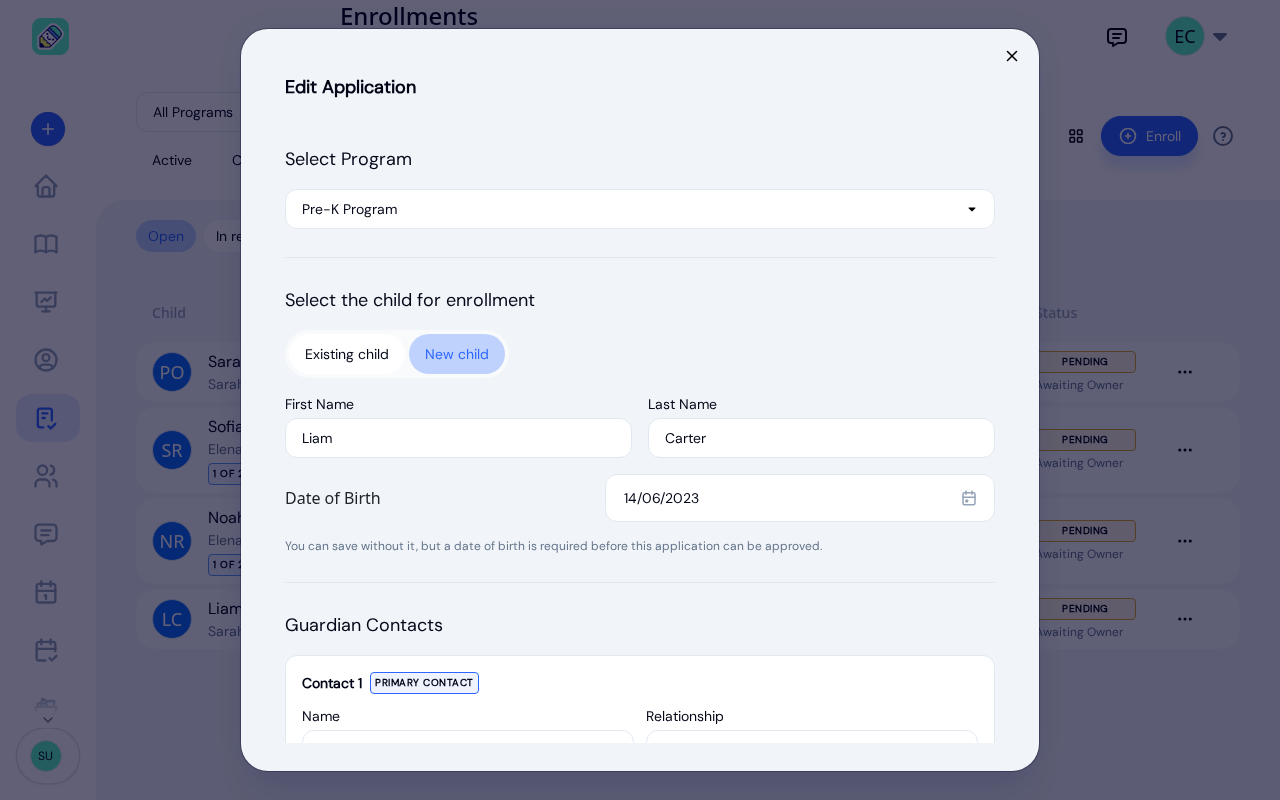
Use Edit to fix or complete an application while it's still pending — for example, to correct a guardian's email address or add a missing date of birth. You can change the program, the child's name and date of birth, the guardian contacts, and the desired start date.
A child's date of birth is required before you can approve a new-child application. You can save the application without it, but approval stays blocked until it's filled in. If you try to approve without a date of birth, KidzLog asks you to edit the application and add it first.
Opening Enrolments from an Email
Enrolment emails to your team link straight to the record they're about, in the center it belongs to:
- New enrollment application and Enrollment application awaiting your approval open the Applications tab with that application's details already open, whatever its status is by the time you click. When a family applied for several children at once, the email opens the Applications tab so you can see them all.
- Enrollment Approved and Enrollment Cancelled open the enrolment's detail page. Parents who receive these emails land on their child's page instead.
If you're signed out, sign in and you land on the same record. If your center has switched to enrolling children directly, there's no Applications tab, so an application link opens your enrolment list.
Auto-Complete and Auto-Archive
KidzLog can wrap up enrolments for you when they reach their end date.
Auto-complete on end date
When auto-complete on end date is turned on for your center, any enrolment that passes its end date is automatically marked Completed — you don't have to complete it by hand. Turn this on under Settings → Enrollment.
Archive the child when the enrolment ends
When you set an end date on an enrolment, you can also tick Archive child when this enrollment ends. With this option selected, the child is archived once the enrolment ends, unless they still have another enrolment scheduled. This is handy for children who are leaving your center for good.
Frequently Asked Questions
The enrolment status changes to Withdrawn. The child remains in the system but is no longer counted toward the program's capacity. Any active attendance records are unaffected.
Yes. Use the Re-enroll action on a withdrawn enrolment to reactivate it, or create a new enrolment for the child in the same or a different program.
Yes. Only enrolled children appear on the Attendance page for their program. If a child is not enrolled in any program, they won't appear in attendance tracking. A child whose enrolment has a future start date shows as Enrolled but won't appear on attendance, roll call, or staff-to-child ratios until their start date arrives.
No. Moves apply immediately, so make the change on the day it should take effect. Setting a future start date on the child's current enrolment is not a workaround: a future-dated enrolment drops the child from that room's attendance, roll call, and ratio counts until the start date, so it doesn't hold their place in the current room.
Approving an application creates the child's profile and an active enrolment in one step. If your center uses document auto-send, the child's documents are sent to their guardians at the same time. Approving can't be undone, so you're asked to confirm first. If the application is missing the child's date of birth, edit it to add the date before approving.
Events
Build a shared calendar of holidays, closures, meetings, and special days, scope each event to the right families, set events to repeat, and let everyone add them to their own calendar.
Applying Online (for Families)
How families apply to your center through its online application form, and what happens after they submit.