

Attendance Reports
The Attendance Report gives you a complete picture of check-ins, check-outs, and absences across your center. Use it to review historical records, spot attendance trends, and export data for your records.
How to Access
Open the Reports page
Click Reports in the sidebar navigation.
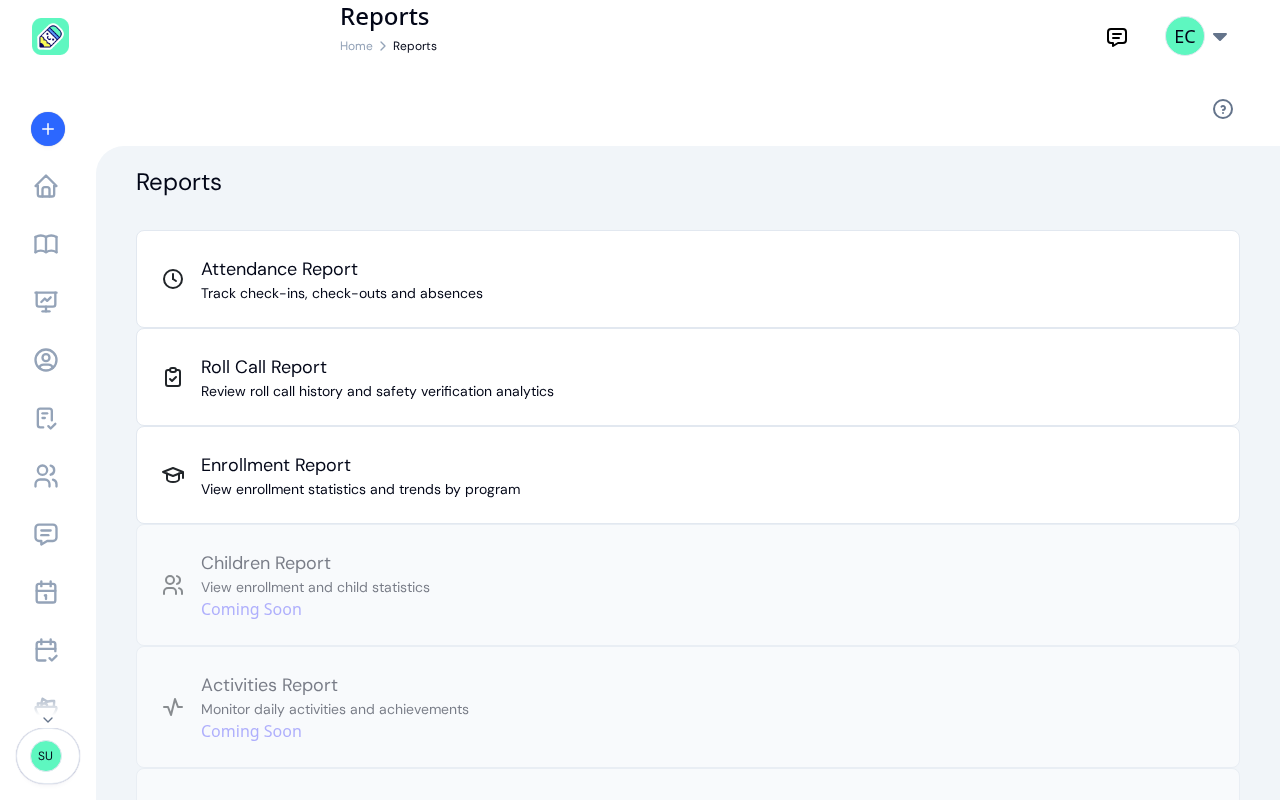
Click Attendance Report
Select the Attendance Report card to open the report.
History Tab
The History tab is the default view. It displays a table of children with their attendance for each day in the selected date range. The first column (Child Name) stays fixed as you scroll horizontally, so you always know which row you're reading.
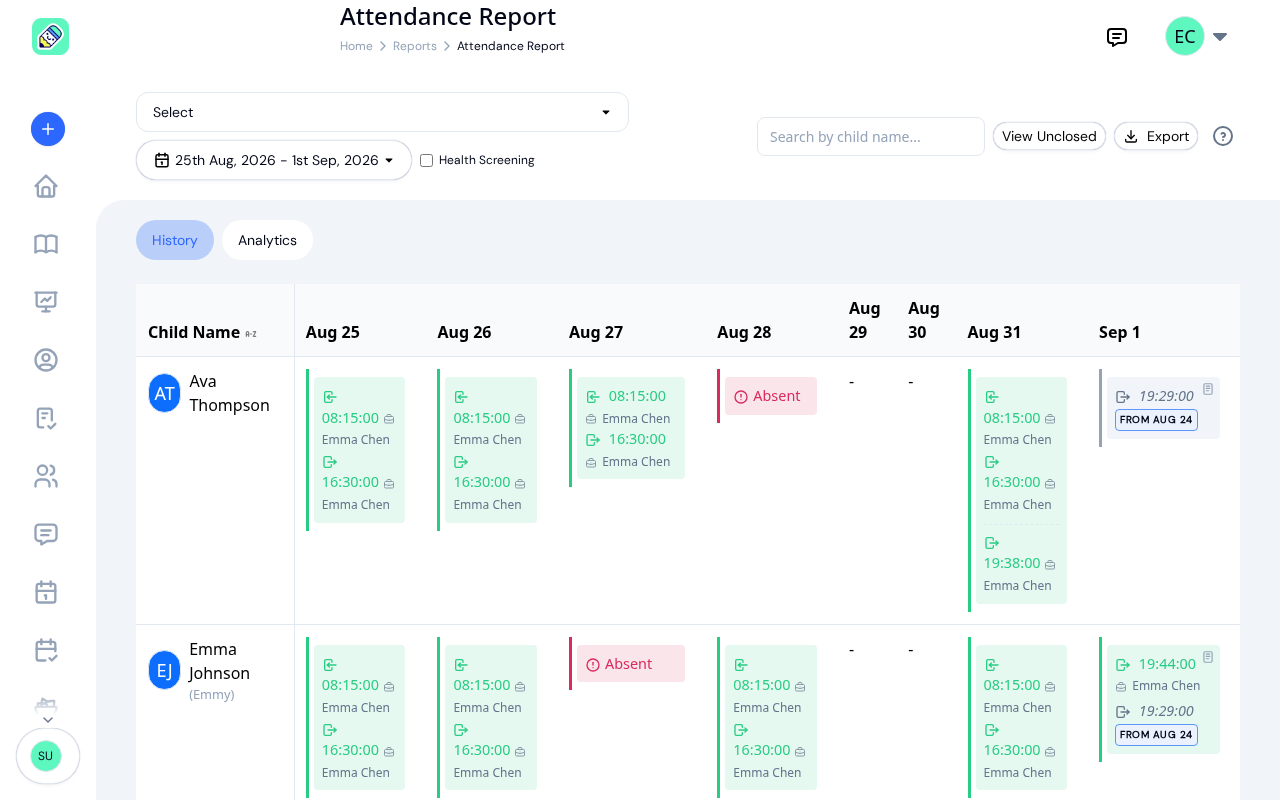
Each cell in the day grid shows:
- Check-in time with the name of the staff member or parent who recorded it. A briefcase icon marks staff actions; a person icon marks parent actions
- Check-out time with the same attribution
- A coloured pill if the record needs extra context (see Status Pills below)
- A dash (-) for days with no record
Filtering and Search
Use the controls above the table to narrow your results:
- Program — show only children in a specific program. Until you pick one, the box reads Select and the report covers every program; choose All Programs to go back to that. Every program at your center is listed
- Classroom — appears once you pick a program, and lists every room in it
- Date range — set a custom range or use a preset: Today, Yesterday, Last 7 days, or Last 30 days
- Health Screening — tick this to include health screening pass and fail results in the report
- Search — type a child's name to narrow the list
Days With More Than One Stay
A child who is collected at lunchtime and brought back in the afternoon has two stays in one day. The report shows both, in the order they happened, in the table cell, in the detail view, and in every export. Nothing is chosen for you and nothing is dropped.
Each stay carries its own status, so one day can show a stay that closed normally and a second one that's still open.
Days a Child Was Marked Absent and Then Arrived
If a child is marked absent and then turns up, the day shows both: Absent on its own line, then the arrival underneath with its usual times and status.
The day itself doesn't count as an absence, because the child came in. Its colour follows the stay, and the absence keeps its red text so you can still see it was recorded. Everything you see here is in the exports too.
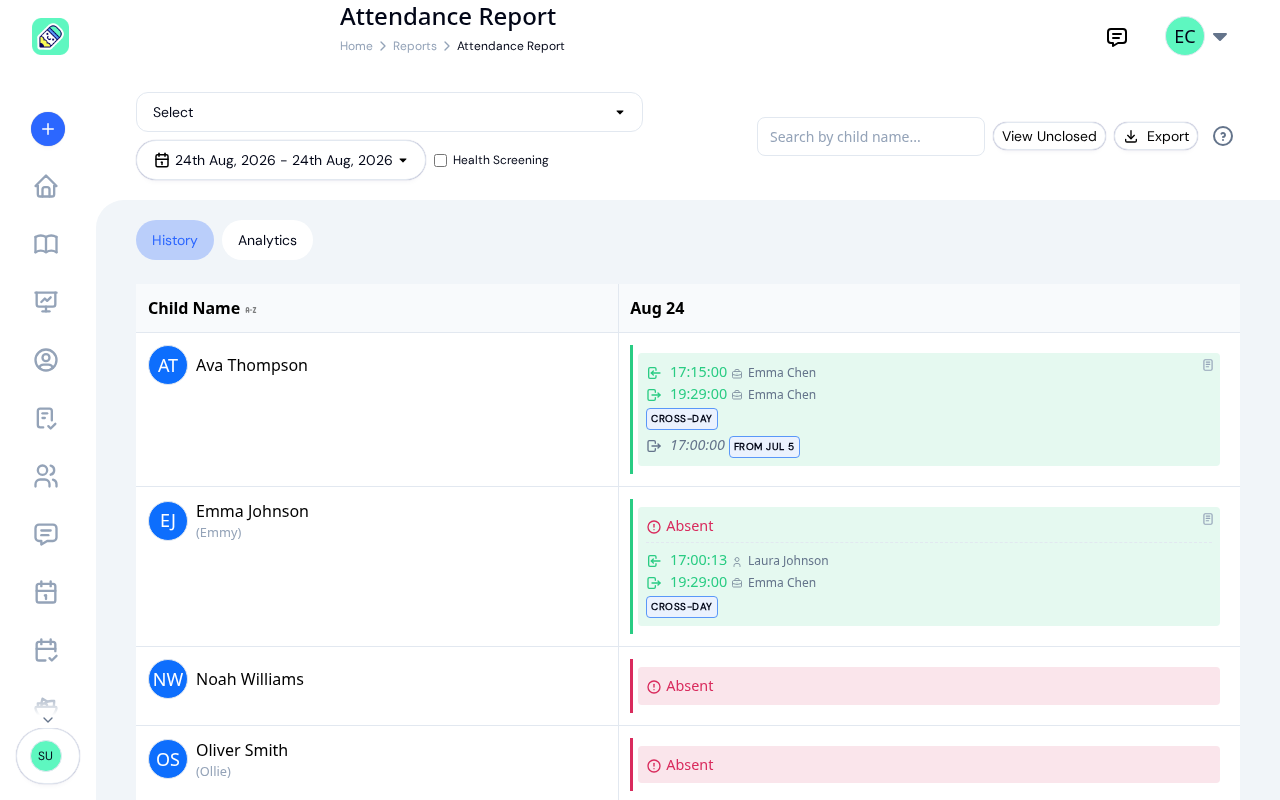
This is the everyday Safe Arrival shape: the child is marked absent automatically when the check-in window closes, then arrives late and is checked in at the kiosk. There's nothing to correct.
Check-Outs That Close an Earlier Day
When a check-in from one day is closed on a later one, that check-out is shown on the day it actually happened, labelled From with the date the stay began. It isn't counted as that day's departure, because the child didn't arrive that day.
This is what you see after a check-in that was left open overnight and closed the next morning, not only for genuine overnight care.
Status Pills
When a record needs context beyond the time, a small coloured pill appears in the cell:
- Still Present (amber) — child checked in but not yet checked out
- Cross-Day (blue) — the stay was checked out on a later day, like an overnight stay or a check-in closed the next morning
- Auto-Closed (amber) — a check-in that was left open and closed automatically after a long period, like a child who was never checked out
- Absent (red) — child was marked absent and didn't arrive
Viewing a Child's Detail
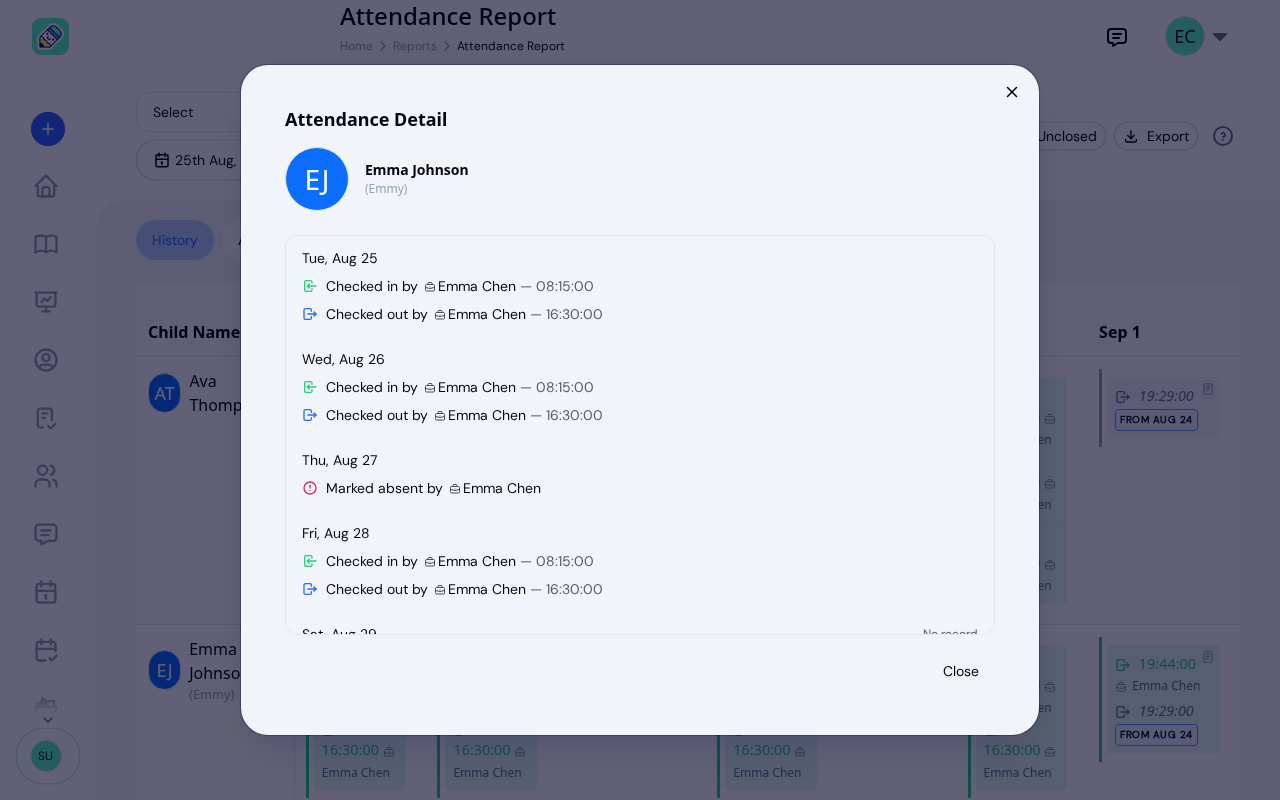
Click any row to open the Attendance Detail modal. This shows a day-by-day breakdown for that child, including:
- Who checked them in or out and at what time, with an icon showing whether the action was taken by a staff member or a parent
- Any notes recorded during check-in, check-out, or absence
- The same status pills (Still Present, Cross-Day, Auto-Closed)
- Health screening results (pass or fail) if health screening was enabled
- A No record label for days the child was neither checked in nor marked absent
Analytics Tab
Switch to the Analytics tab to see summary statistics and trends for the selected date range and filters.
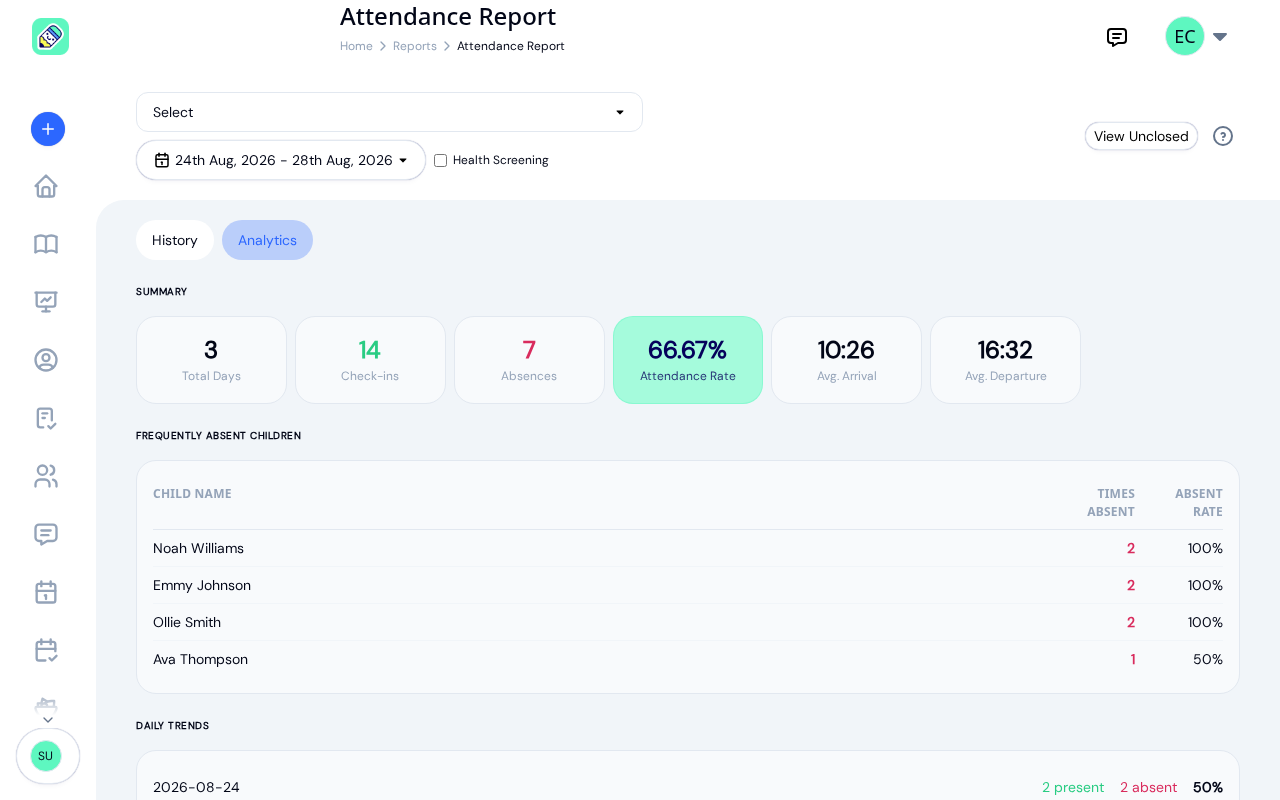
The analytics view has three sections:
Summary
Six cards across the top:
- Total Days — Days in the selected range that contained attendance data
- Check-ins — Total check-ins recorded (green)
- Absences — Total absences recorded (red)
- Attendance Rate — Percentage of children who were present, highlighted in the green hero card
- Avg. Arrival — Average check-in time across all records
- Avg. Departure — Average check-out time across all records
Frequently Absent Children
A table listing children sorted by how often they were absent during the selected period. Each row shows the child's name, the number of times absent, and the absence rate as a percentage.
Daily Trends
A day-by-day breakdown showing how many children were present, how many were absent, and the attendance rate for each day.
Exporting Data
From the History tab, click the Export button to download your attendance data. Three formats are available:
- Export Excel — Downloads an
.xlsxspreadsheet - Export CSV — Downloads a
.csvfile - Export PDF — Generates a PDF document
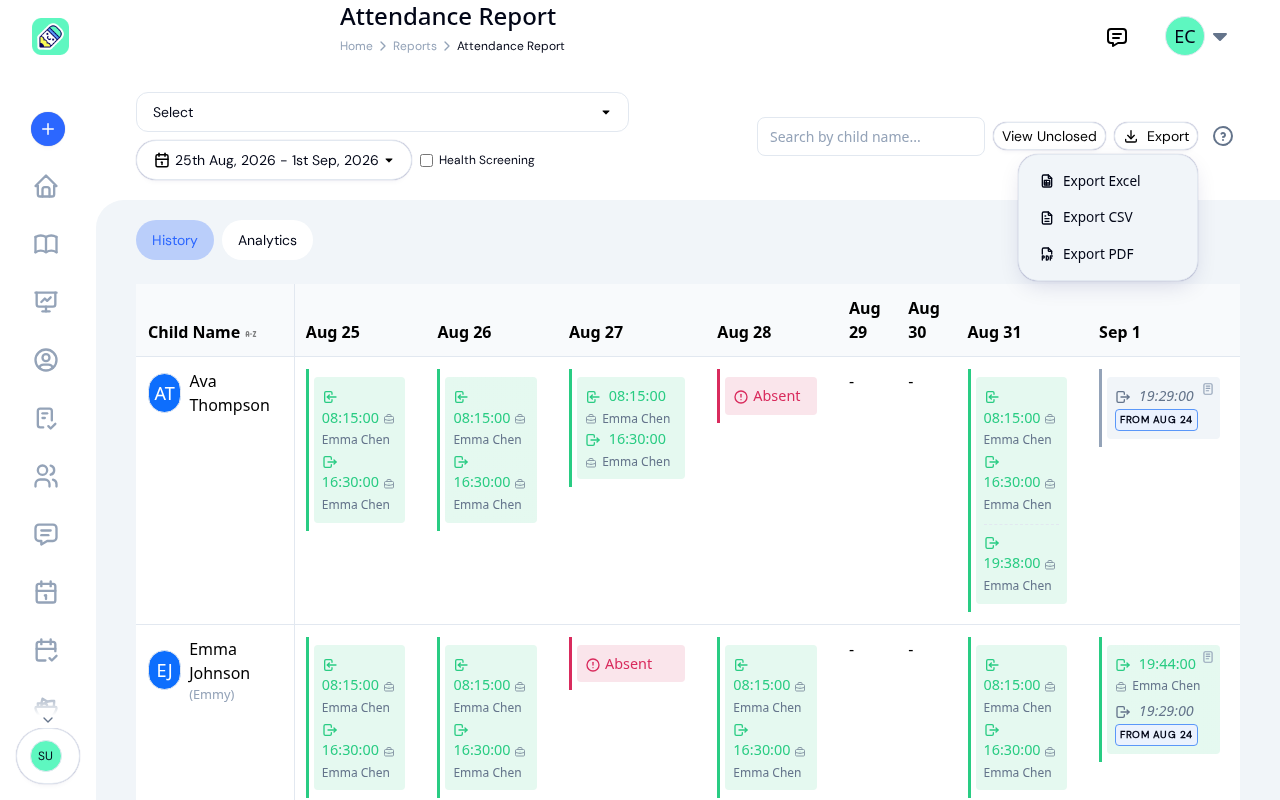
The exported file covers every child and day matching your active filters and date range, not just what fits on screen.
Unclosed Check-Ins
If any children are still checked in from a previous day, click the View Unclosed button in the toolbar to review and manually close those records.
Frequently Asked Questions
A dash means no attendance action was taken for that child on that day — they were neither checked in nor marked absent.
No. To edit a record, go to the main Attendance page, navigate to the date in question, and use the edit option on the child's record.
When enabled, the report includes a pass/fail indicator for each check-in that included a health screening. This is useful for tracking compliance with your center's health screening requirements.
You can view attendance data for any date range. Use the date picker to select custom start and end dates, or choose a preset like Last 30 days.