

Classrooms
Classrooms represent the physical or logical rooms at your center where children are grouped. Each classroom belongs to a program and can have teachers and children assigned to it.
Viewing Classrooms
Navigate to Classrooms in the sidebar to see the rooms at your center.
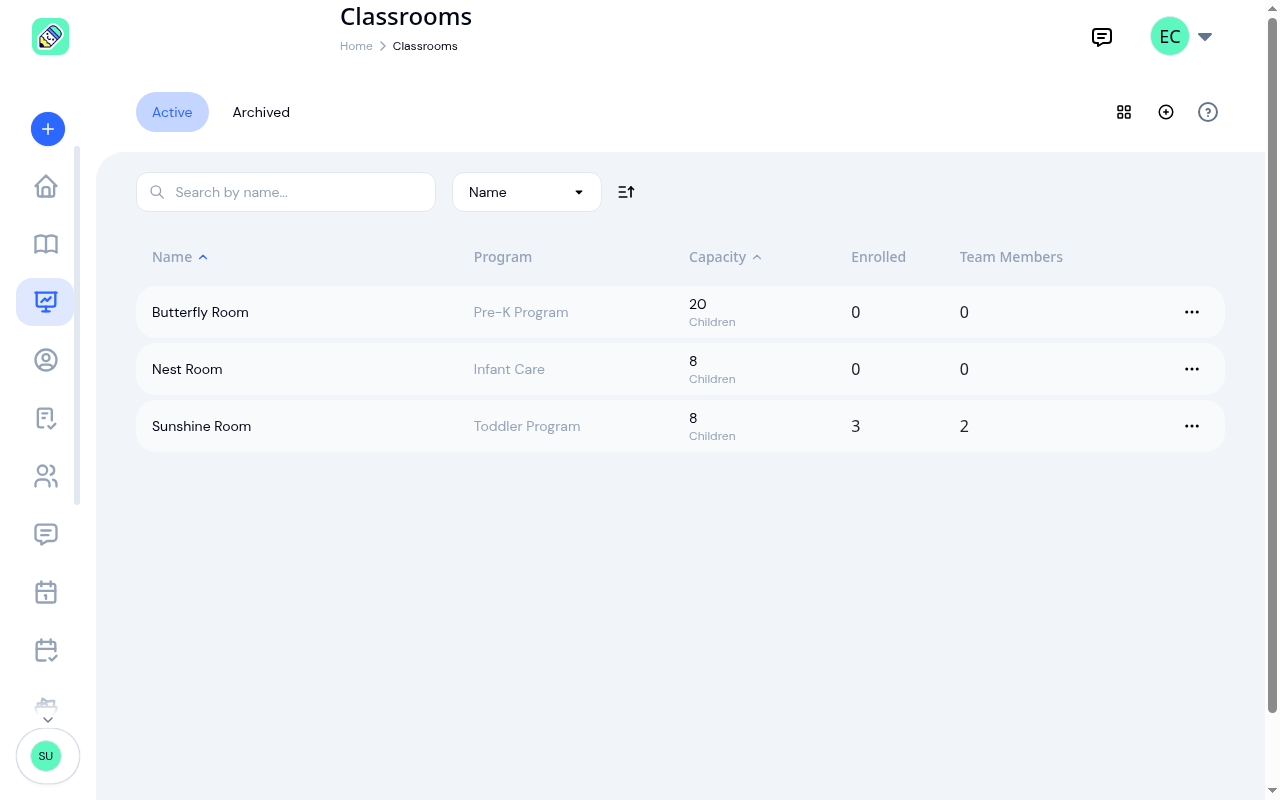
Each row shows the classroom's name, program, capacity, number of enrolled children, and how many team members are assigned to it.
Tabs
- Active — the rooms you're using. This is what everything else in KidzLog means by "your classrooms"
- Archived — rooms you've closed. See Archiving a Classroom
Searching and Sorting
- Search — narrow the list by classroom name
- Sort — sort by Name or Capacity
- Sort direction — the button beside the sort selector switches between ascending and descending
- Display mode — switch between list and grid views with the toggle button
Longer lists page in the standard way. See How lists work.
Creating a Classroom
Click the + (plus) button in the top-right corner to open the creation form. Fill in:
- Program (required) — Select which program this classroom belongs to
- Name (required) — The classroom's name
- Capacity (optional) — Maximum number of children
- Max children per staff (optional) — The most children one staff member can supervise in this room. KidzLog uses this to flag when a room is over its staff-to-child ratio. Leave it blank if you don't want ratio tracking for this room.
- Description (optional)
- Choose Teachers (optional) — Assign teachers to the classroom
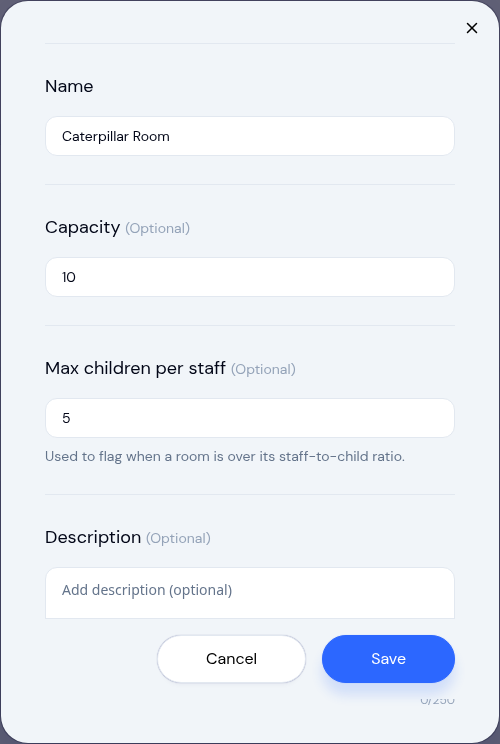
Click Save to create the classroom.
Viewing Classroom Details
Click any classroom in the list to open its detail page.
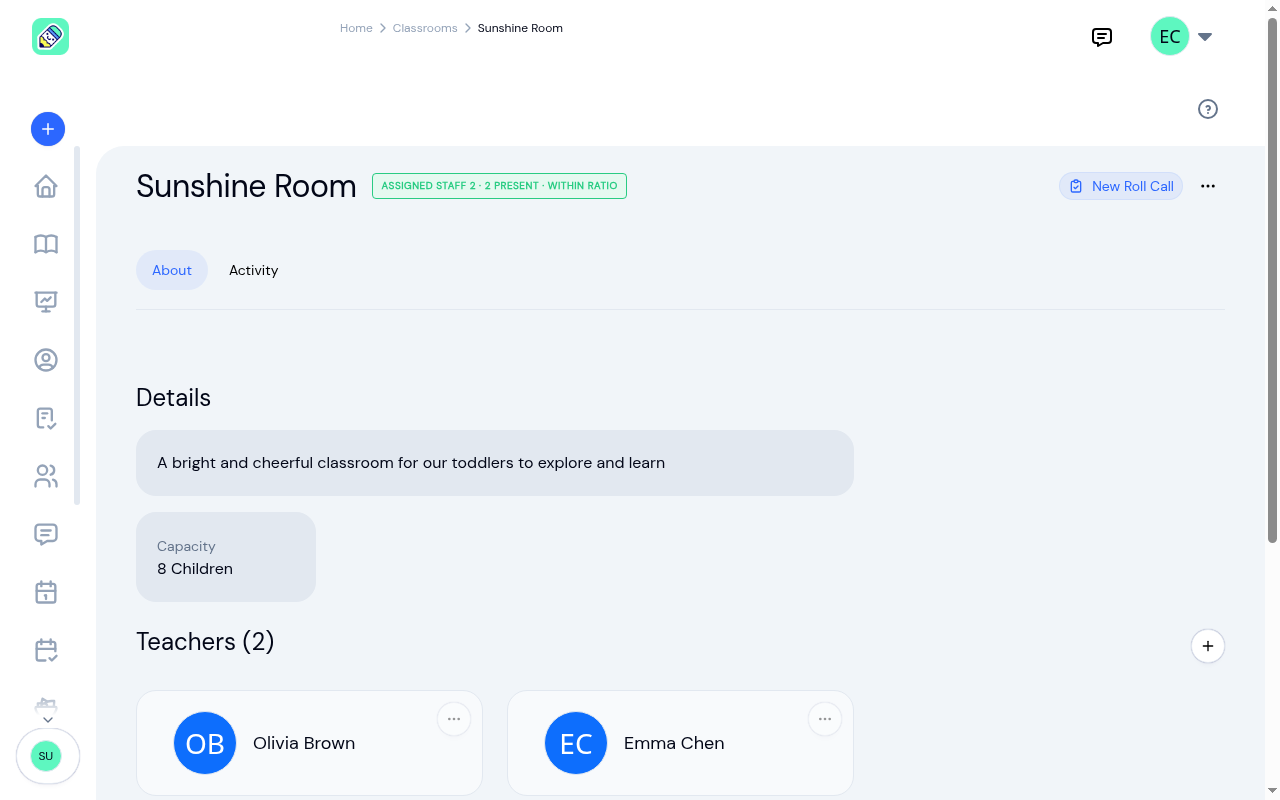
The detail page has two tabs:
- About — Classroom details, assigned teachers, and enrolled children
- Activity — Activity feed for the classroom
Staff-to-Child Ratio
Next to the classroom name you'll see a status badge that compares the staff assigned to the room against the children currently checked in, for example Assigned staff 1 · 0 present · within ratio. The status is one of:
- Within ratio (green) — there is enough assigned staff for the children currently present.
- Over ratio (red) — more children are present than the assigned staff can cover.
- No staff assigned (red) — children are checked in but no staff member is assigned to the room.
- Ratio not set (gray) — no children-per-staff limit has been set for this room yet.
To turn the badge on for a room, set its Max children per staff value (edit the classroom) and assign at least one teacher in the Teachers section below.
Details Section
Shows the classroom's capacity. If the classroom has a description or image, those are displayed here as well.
Teachers Section
Lists all teachers assigned to this classroom. Click + to assign additional teachers. Use the ... menu on a teacher card to remove them from the classroom.
Children Section
Lists all children enrolled in this classroom. You can:
- Click + to enrol a single child
- Click Bulk Enroll to enrol multiple children at once
- Click any child card to view their profile
- Use the ... menu on a child card for additional actions
Actions Menu
Click the ... button next to the classroom name to:
- Edit — change the classroom name, capacity, children-per-staff limit, description, or image
- Archive — close the room but keep its history. On an archived room this reads Unarchive instead
- Delete — permanently remove the classroom
The ... menu on a row in the classroom list is shorter: View and Archive (or Unarchive on the Archived tab).
Archiving a Classroom
Archiving is how you close a room you're no longer using without erasing it. Use it when a room is seasonal, when you've reorganized, or when you've built your own rooms and no longer need the sample one.
Start the archive
Click ... → Archive, either on the row in the classroom list or on the classroom's own page.
Read what happens
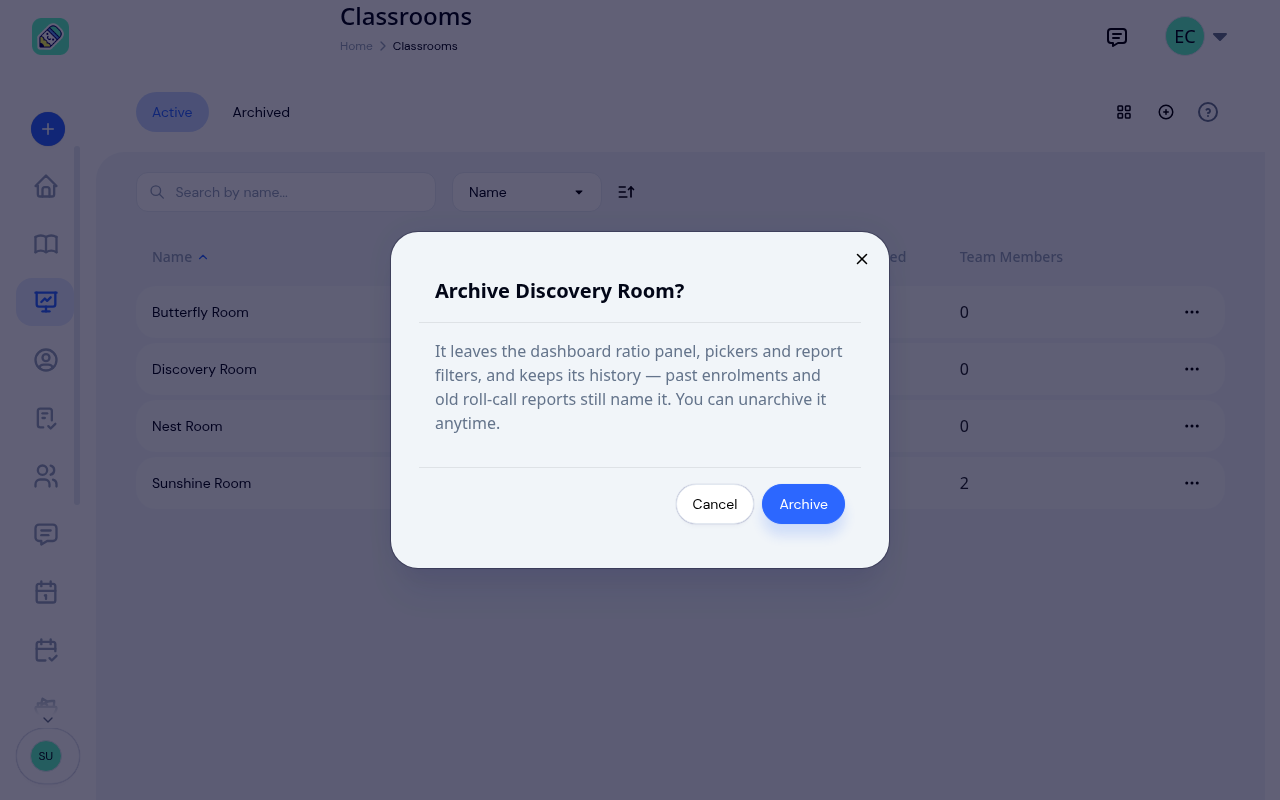
An archived room leaves the Staff-to-child ratios panel on your dashboard, the classroom pickers you see when creating things, and the classroom filters on reports. What it keeps is its history: past enrolments, old roll-call reports, and your activity history all still name it.
Confirm
Click Archive. The room moves to the Archived tab.
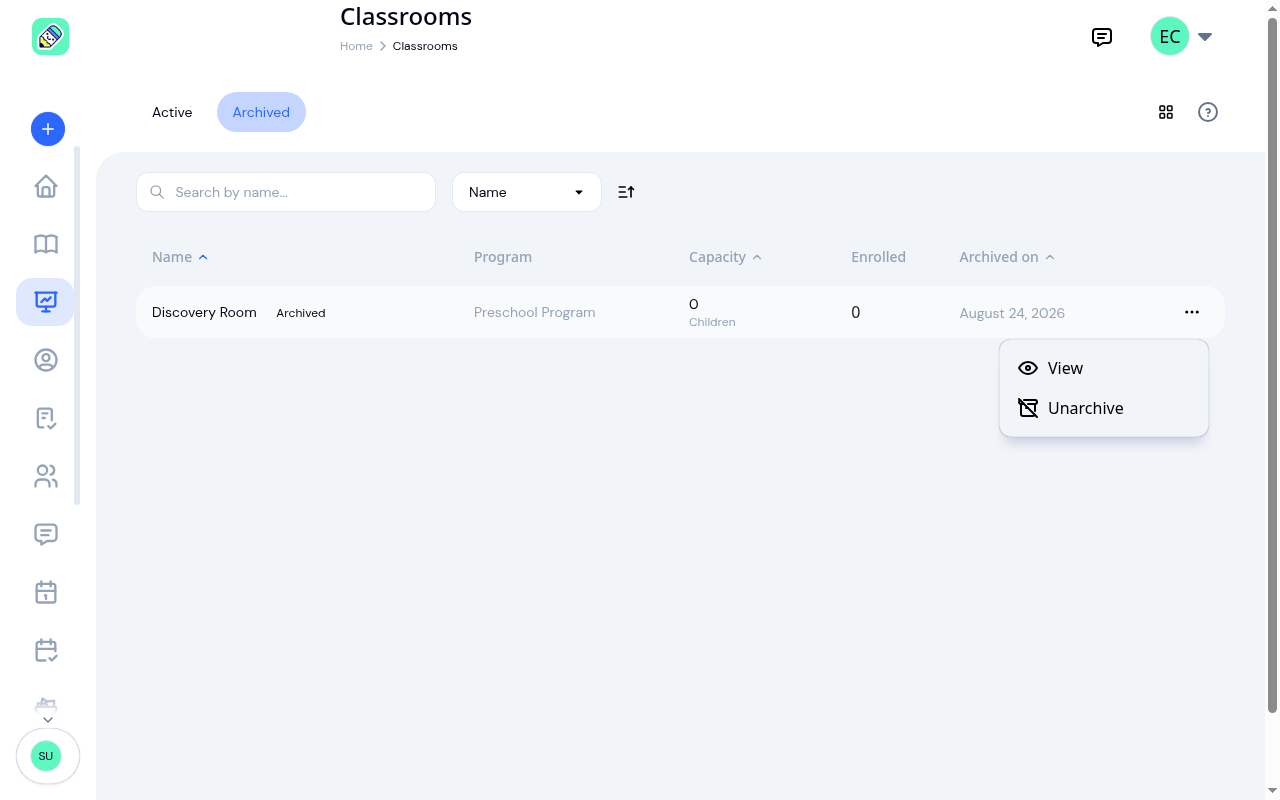
On the Archived tab, each room carries an Archived pill and an Archived on date. To bring one back, use ... → Unarchive. It returns to the Active tab and reappears everywhere it used to.
If children are still enrolled
You can't archive a room that children are still enrolled in. If you try, KidzLog names them so you know exactly who to move:
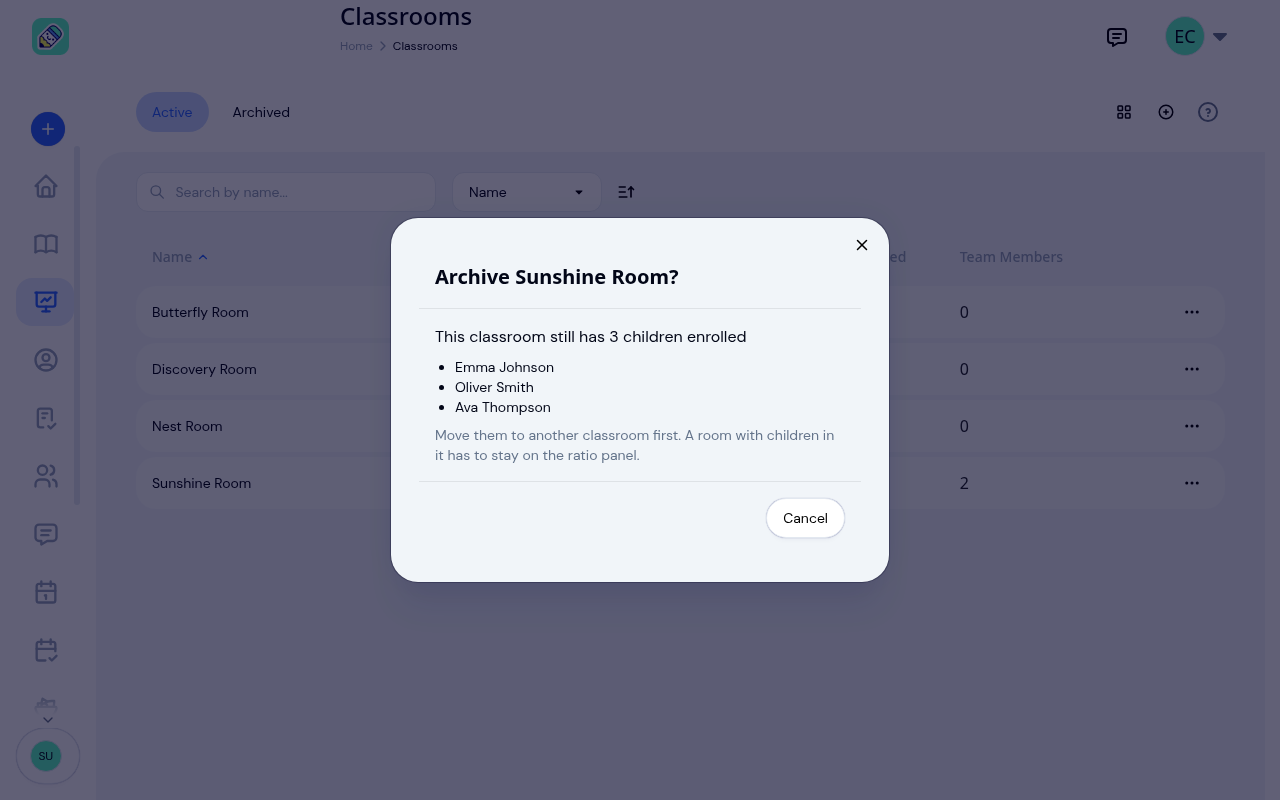
Move those children to another classroom first, then archive the room. See Managing Enrolments.
Deleting a Classroom
Deleting is on the classroom's own page, under ... → Delete. The confirmation tells you how many active enrolments will be cancelled before you commit.
Teacher Access
Teachers see a filtered list showing only their assigned classrooms. They can view classroom details, enrolled children, and the activity feed, but cannot modify classroom settings or manage assignments.
Frequently Asked Questions
No. Each classroom is linked to exactly one program. If you need similar rooms across programs, create separate classrooms for each.
KidzLog shows a warning indicator when the number of enrolled children exceeds the classroom's capacity. This is informational — it does not prevent additional enrolments.
Yes. You can move a child's enrolment to a different classroom from the child's profile page or from the enrolment detail page. See Managing Enrolments for details.