

Programs
Programs represent the different services your center offers — such as a Toddler Program, Pre-K Program, or Infant Program. Each program can have its own age group, capacity, fee structure, languages, and classrooms.
Viewing Programs
Navigate to Programs in the sidebar to see all programs at your center.
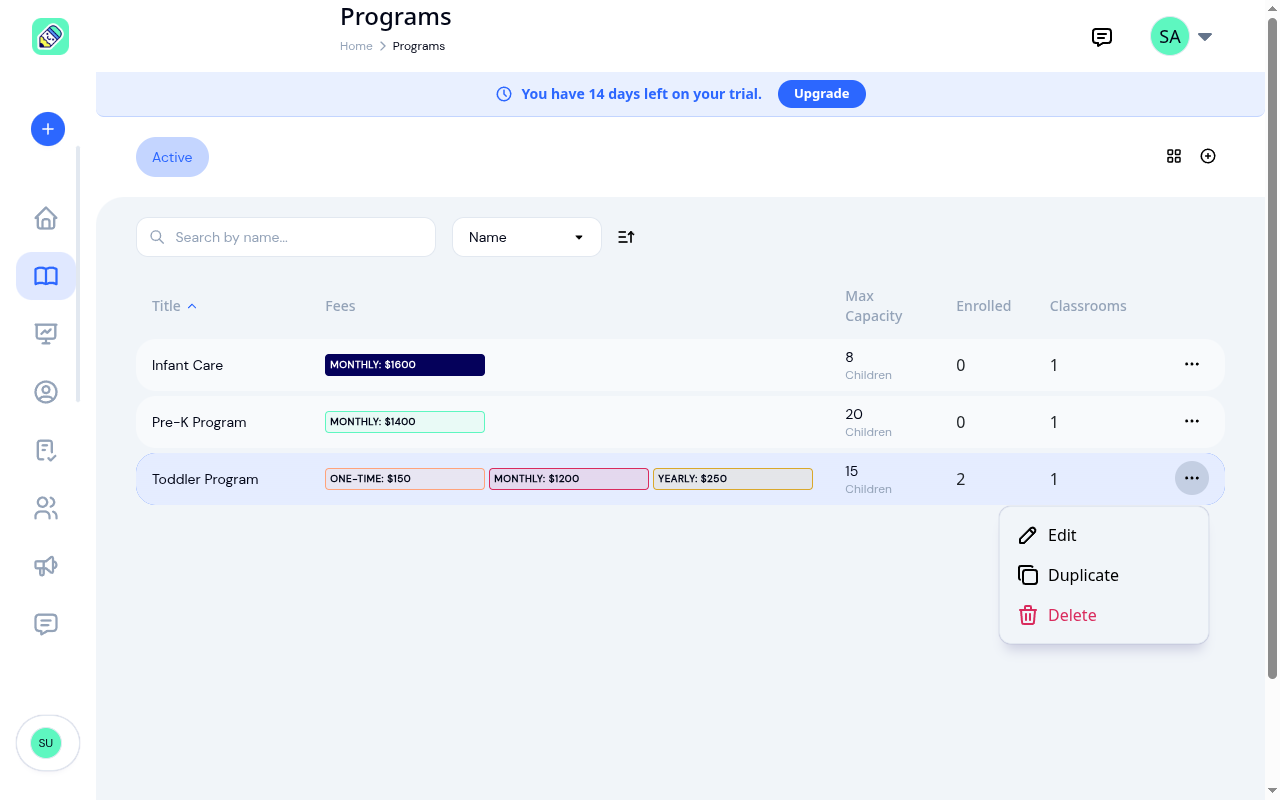
The list displays each program's name, fees, capacity, number of enrolled children, and classrooms count. You can switch between list and grid views, and search or sort by name.
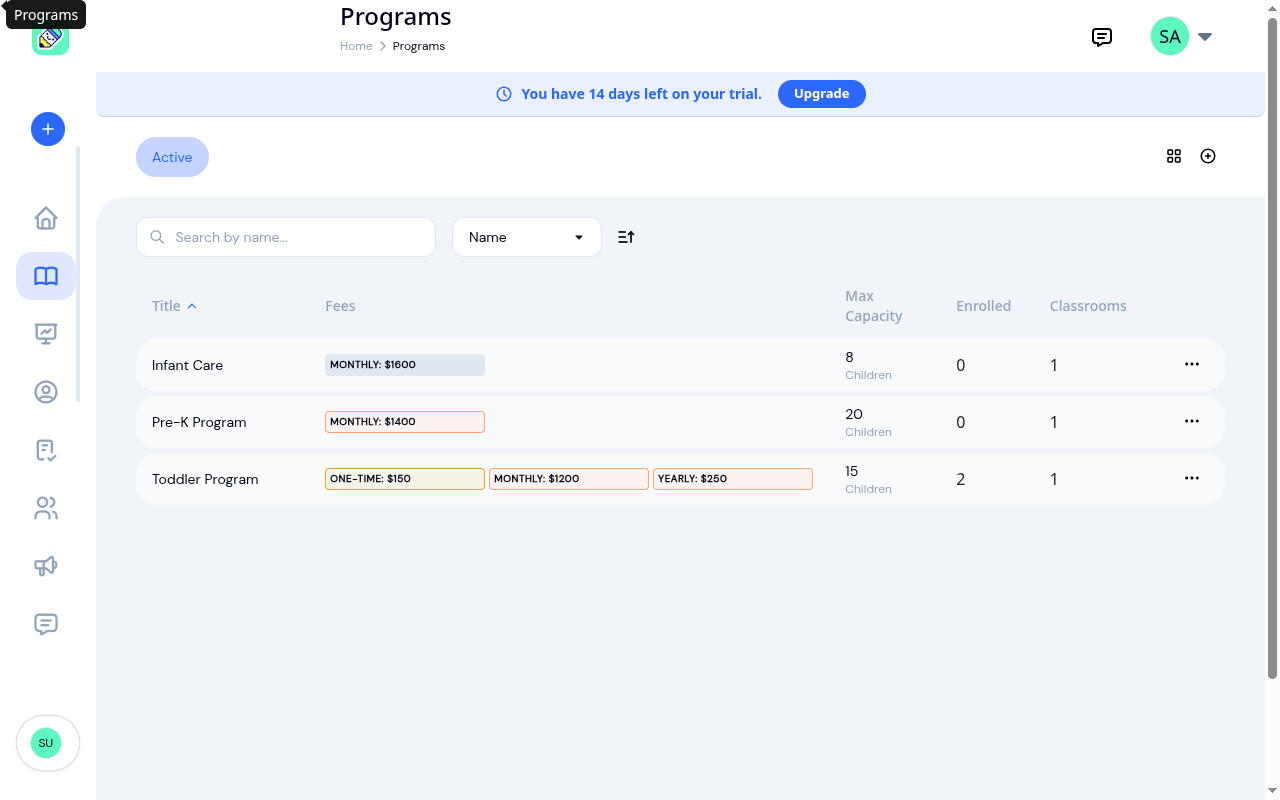
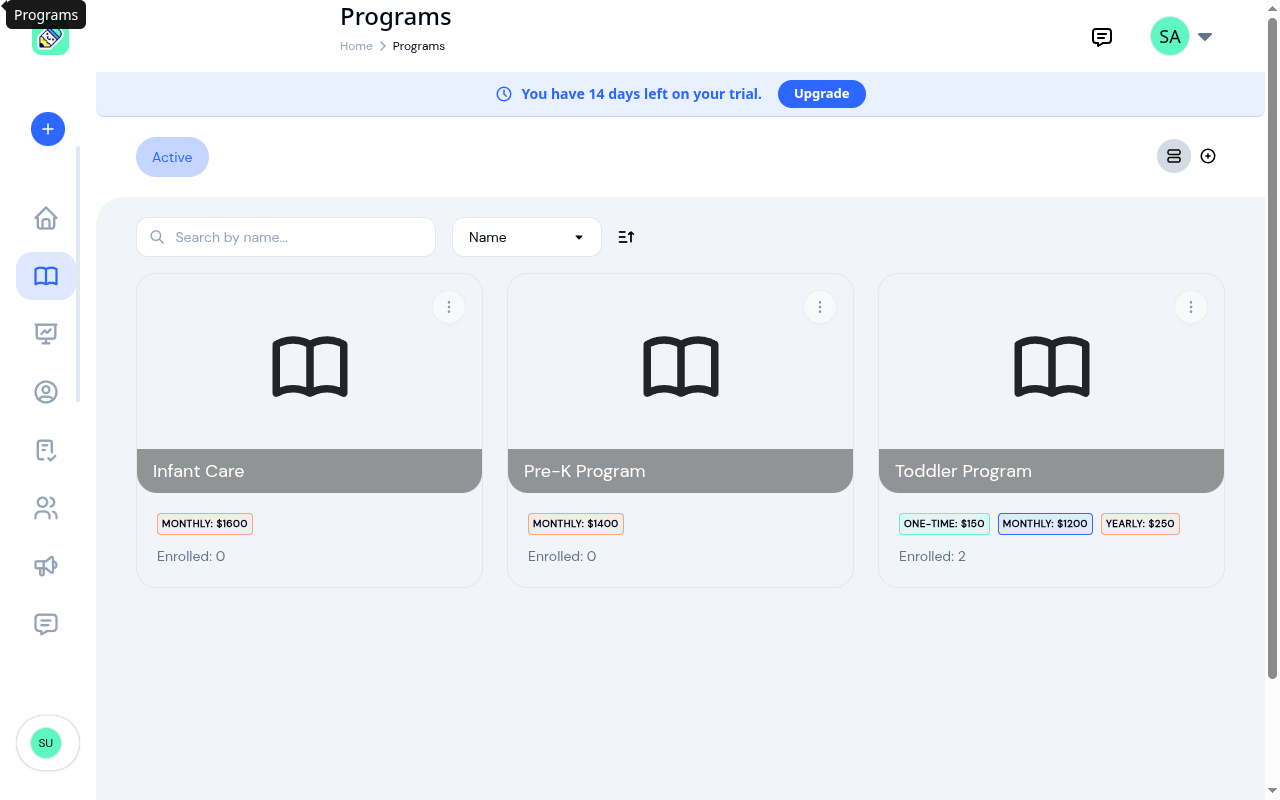
You can switch to grid view using the toggle in the top-right corner to see program cards instead.
Creating a Program
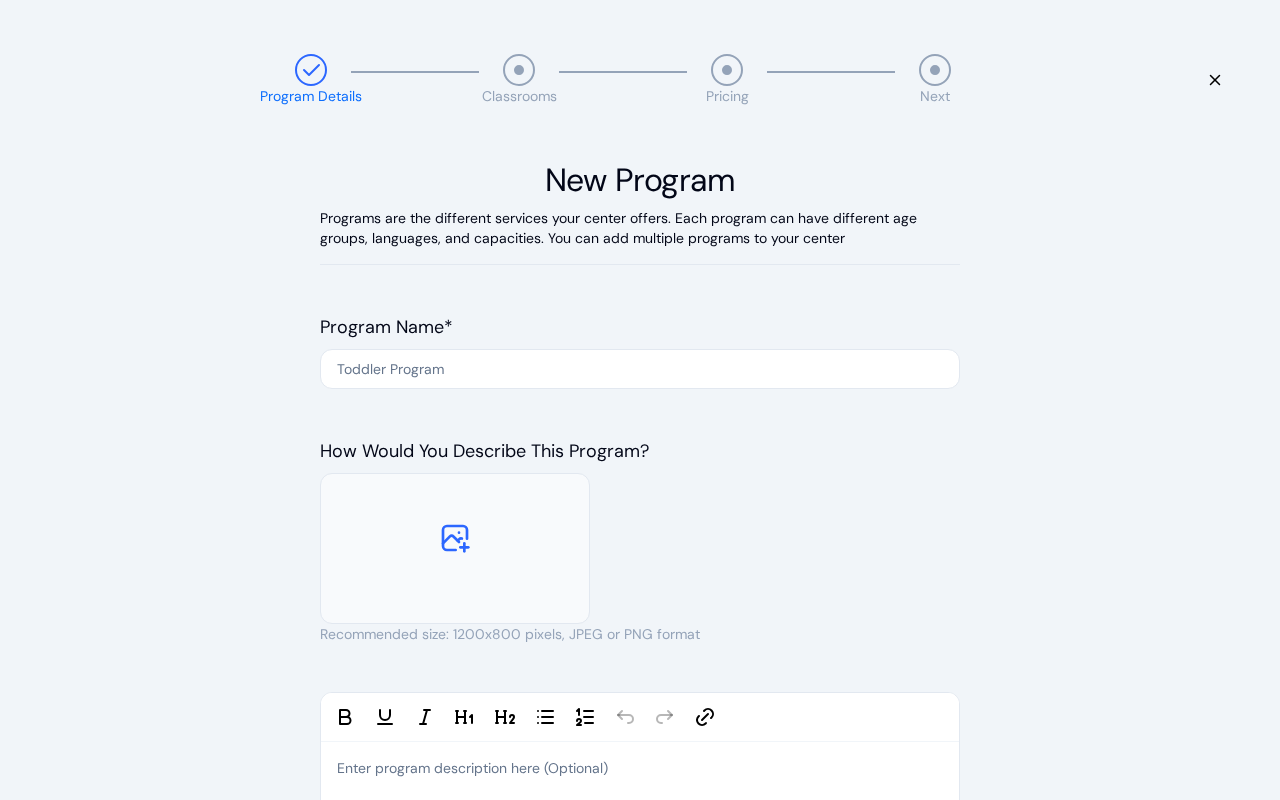
Creating a program is a multi-step wizard with 4 steps.
Step 1: Program Details
Click the + (plus) button on the Programs page to start. Fill in:
- Program Name (required)
- Description (optional) — Describe what the program offers
- Image (optional) — Upload a program photo
- Capacity (required) — Maximum number of children
- Age Group (required) — Minimum and maximum age in months
- Languages (required) — Select which languages the program is offered in
Click Next to continue.
Step 2: Classrooms
Add at least one classroom to your program. For each classroom, provide:
- Add Classroom Name (required) — the room's name
- How would you describe this class? (optional)
- How many children? (required) — the room's capacity
- Max Children Per Staff (optional) — the most children one staff member can supervise here. KidzLog uses it to flag when a room is over its staff-to-child ratio. Leave it blank to skip ratio tracking for the room
- Choose Teachers? (optional) — assign teachers to the classroom
Click Next to continue.
Step 3: Pricing
Add fees for your program. Each fee includes:
- Title (required) — e.g., "Monthly Tuition", "Registration Fee"
- Amount (required)
- Schedule — One Time, Daily, Weekly, Bi-Weekly, Monthly, Quarterly, or Yearly
- Description (optional)
You can add multiple fees. Click Next to finish.
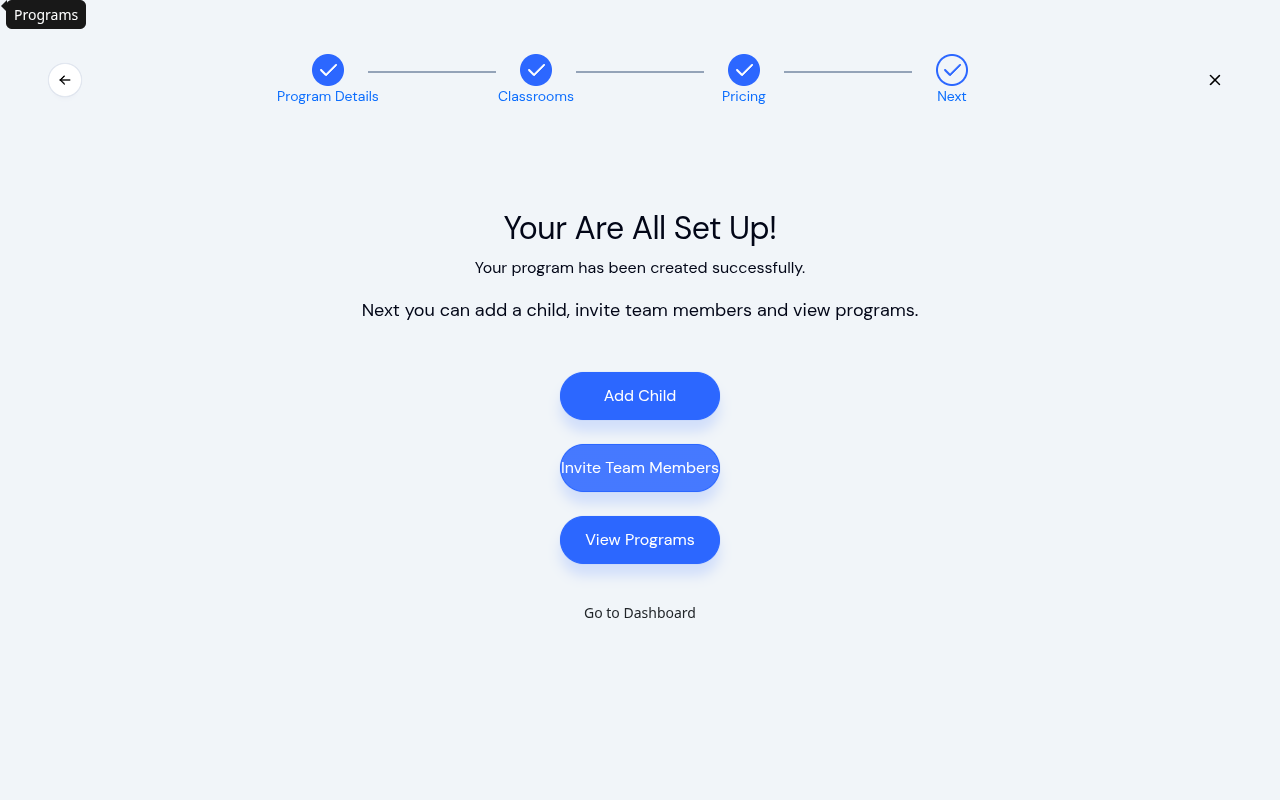
Step 4: Confirmation
A success screen confirms your program has been created. From here you can add a child, invite team members, view programs, or go to the dashboard.
Viewing Program Details
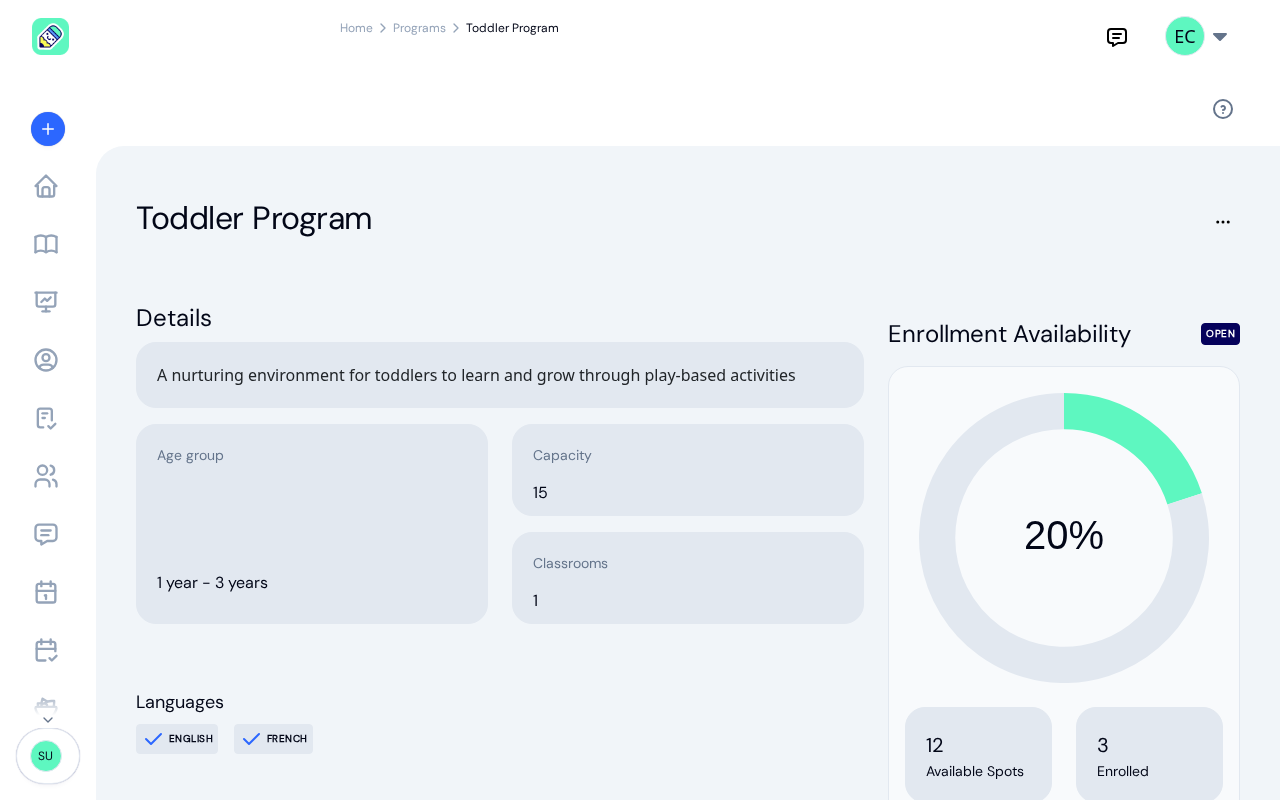
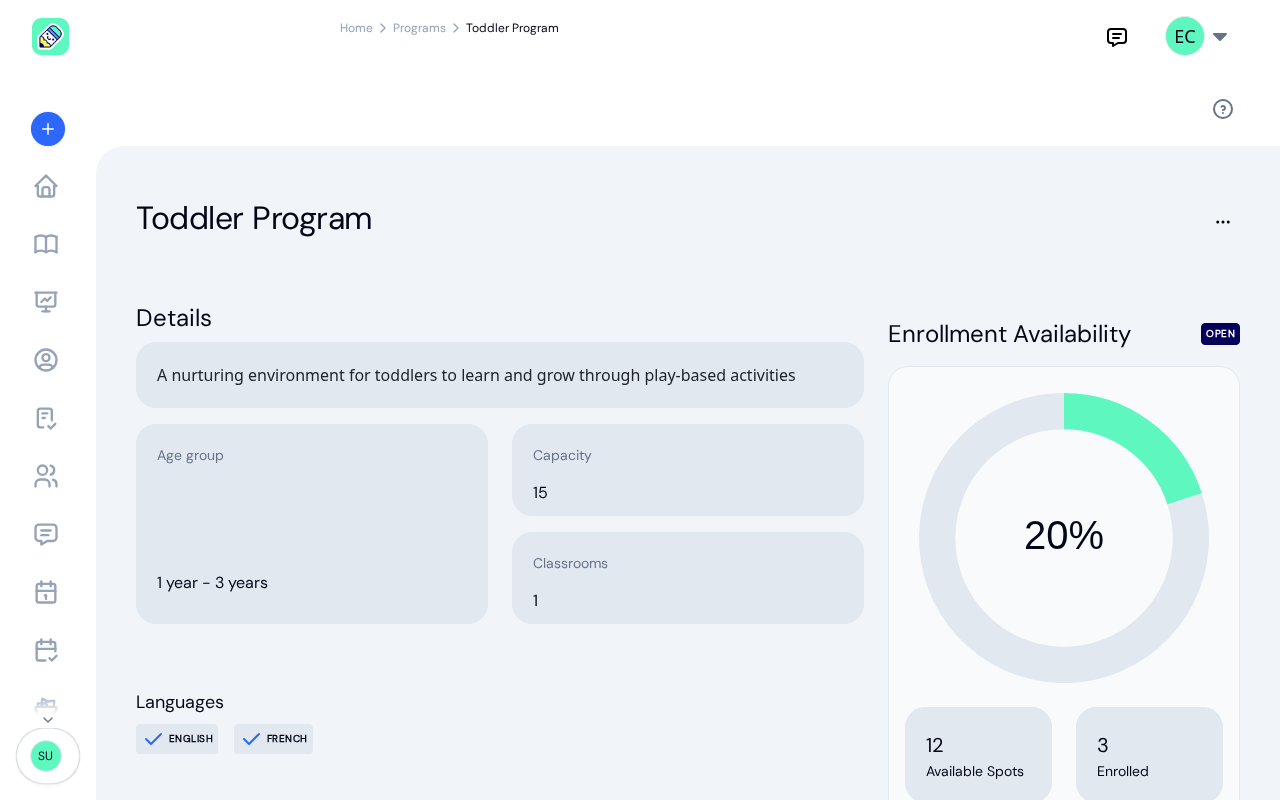
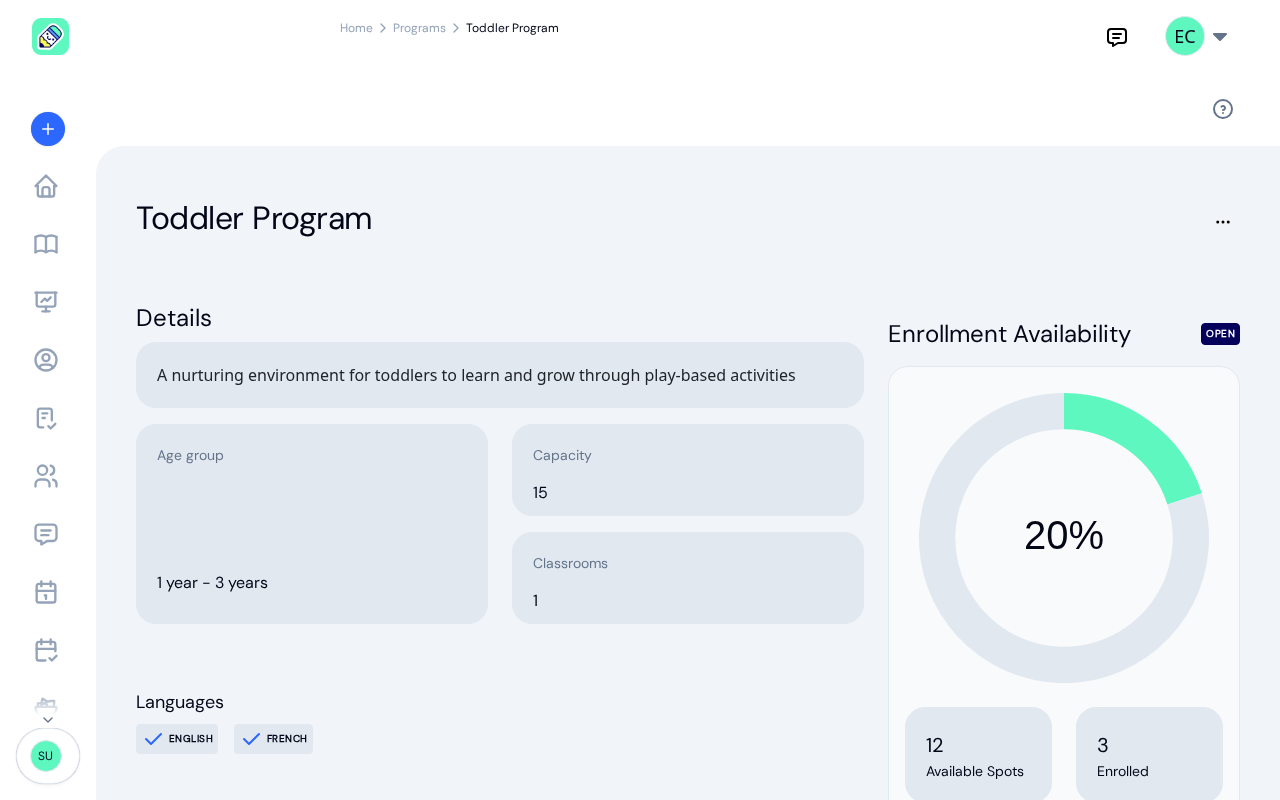
Click any program in the list to open its detail page. The page shows the program details on the left and the enrollment availability sidebar on the right.
Details Section
- Program description
- Age group range (e.g., "1 year - 3 years")
- Capacity and classroom count
Languages
Lists all languages the program is offered in.
Fees
Displays fee cards showing each fee's title, amount, and schedule. You can add, edit, or delete fees from here.
Classrooms
Shows all classrooms linked to this program. You can add new classrooms from this section.
Enrollment Log
Lists all children currently enrolled in this program. You can enrol additional children or withdraw existing ones.
Enrollment Availability (Sidebar)
A donut chart shows enrollment status with available spots and enrolled count. The Enroll button lets you add a child to this program.
Editing a Program
Click the ... button next to the program name and select Edit. This opens the same multi-step wizard pre-filled with the program's current data.
Duplicating a Program
Click ... → Duplicate to create a copy of the program. The wizard opens with the same details, allowing you to modify anything before saving as a new program.
Deleting a Program
Click ... → Delete. If the program has enrolments or classrooms, a confirmation dialog shows the impact (e.g., "This will cancel 5 enrolments and delete 2 classrooms"). You must type "DELETE" to confirm.
Frequently Asked Questions
Yes. You can add as many classrooms as needed to a program, each with its own capacity and teachers. Children are enrolled in the program and assigned to a specific classroom.
Changing the capacity doesn't affect existing enrolments. If the number of enrolled children exceeds the new capacity, a warning indicator will appear, but no children will be automatically removed.
Yes. You can add, edit, or delete fees at any time from the program's detail page using the Fees section.