

Activity History
Activity History records every meaningful action taken at your center: profile edits, attendance check-ins, enrolment changes, settings updates, kiosk PIN resets, and more. Use it to investigate questions like "Who updated this child's medical record yesterday?" or "When was the auto-close setting changed?".
How to Access
Activity History is intentionally not in the main sidebar. Open it from the avatar menu in the top-right corner of any page.
Open the avatar menu
Click your avatar in the page header. The menu opens with your name and role, a language selector, and links to Setup guide, Settings, Profile, Activity History, Invitations, Support, and Logout.
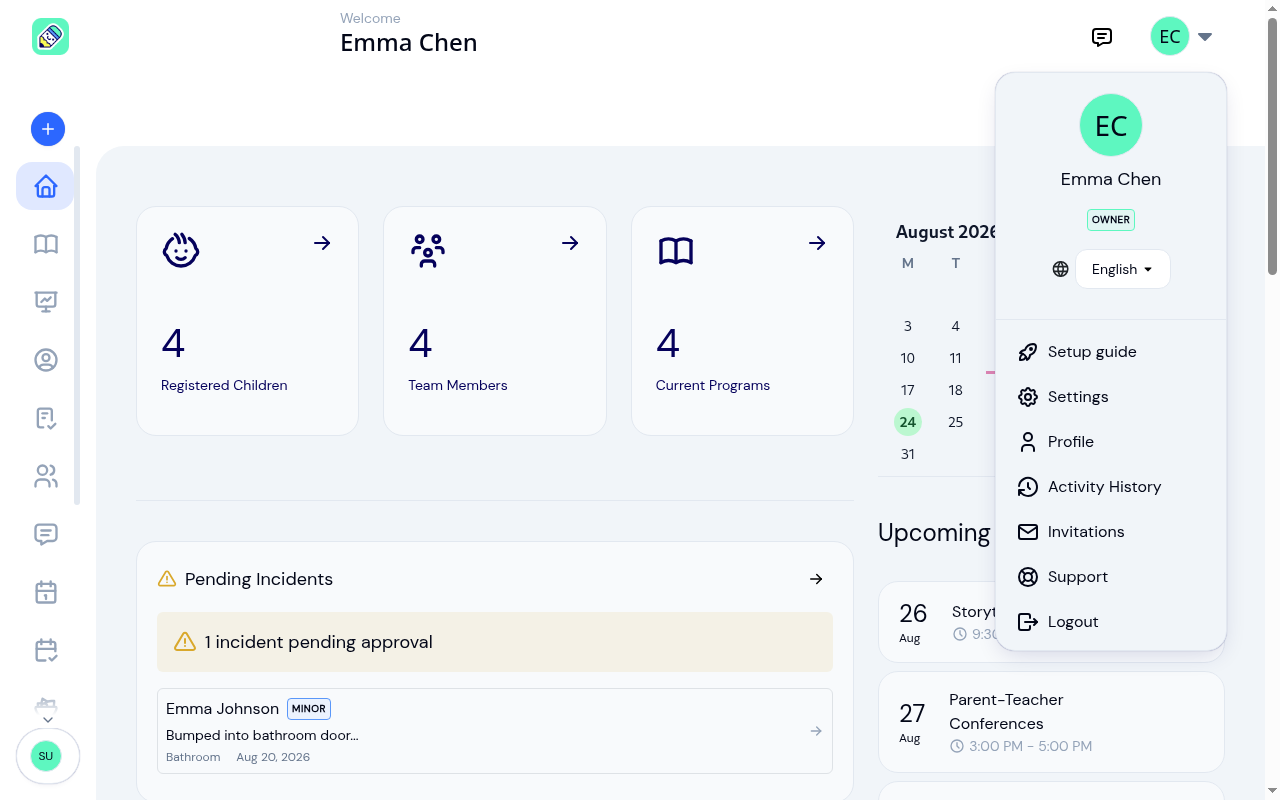
Click Activity History
The page opens on the most recent events, newest first. Older events are on the following pages. See How lists work.
What You See
The table shows six columns:
- Time — when the event was recorded, in your center's timezone
- User — the staff member, parent, or system that performed the action
- Action — Created, Updated, Deleted, Checked in, Pin Reset, and so on
- Entity — what was acted on (Activity, Parent, Center setting, Menu, Enrollment, etc.)
- Details — a short summary of what changed
- Severity — Info, Warning, or Critical
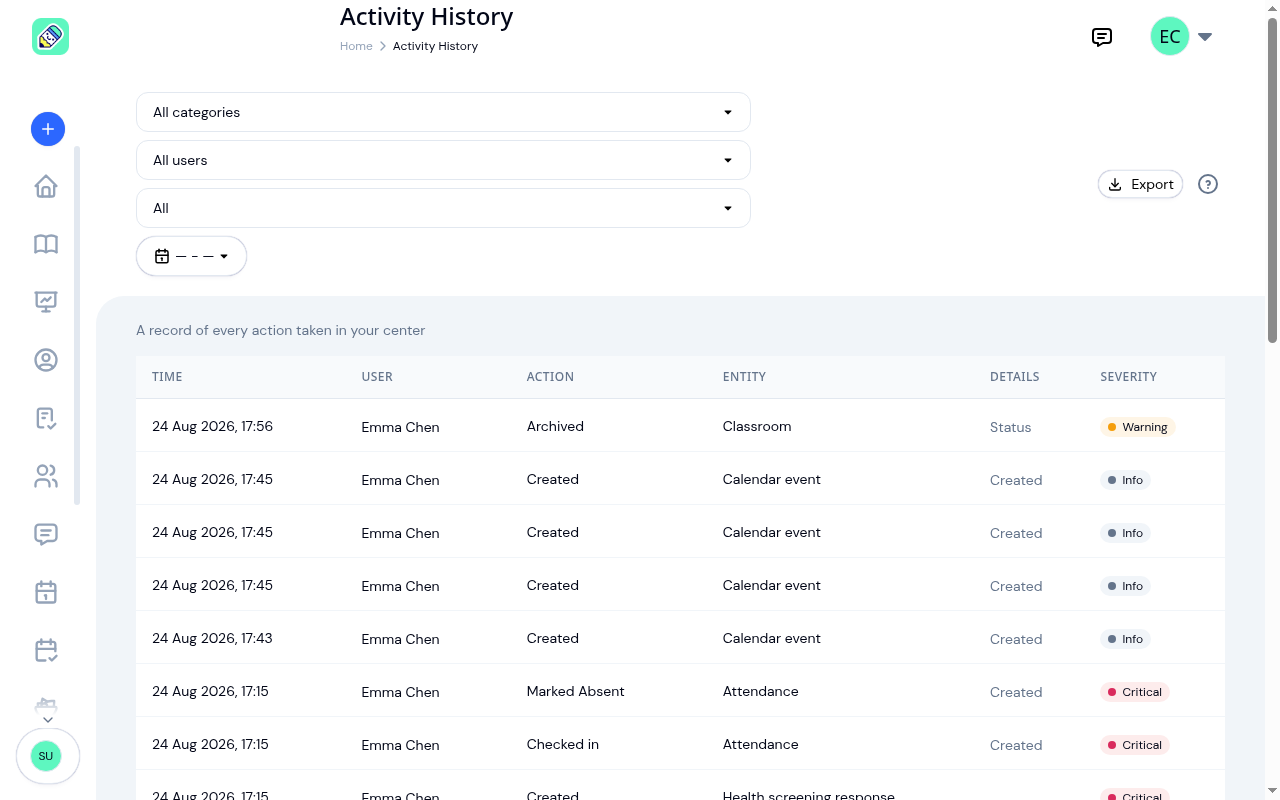
Click any row to open the full event details.
Filtering Events
The toolbar above the table holds four filters. Apply any combination. Results refresh as you change each one, and you're returned to the first page.
- Category — narrow to a single area such as Attendance, Child profile, Medical, Emergency contact, Activity, Enrollment, Menu, Roll call, Calendar event, Authentication, or Billing
- User — see only events performed by a specific team member
- Severity — show only Info, Warning, or Critical events
- Date range — pick a custom window or use the presets (Last 7 days, Last 30 days, Last 90 days)
Both ends of a date range are included in full. Picking the 1st to the 8th returns everything recorded on the 8th right up to midnight, not just up to the start of that day, so you don't need to pick an extra day to catch the most recent events.
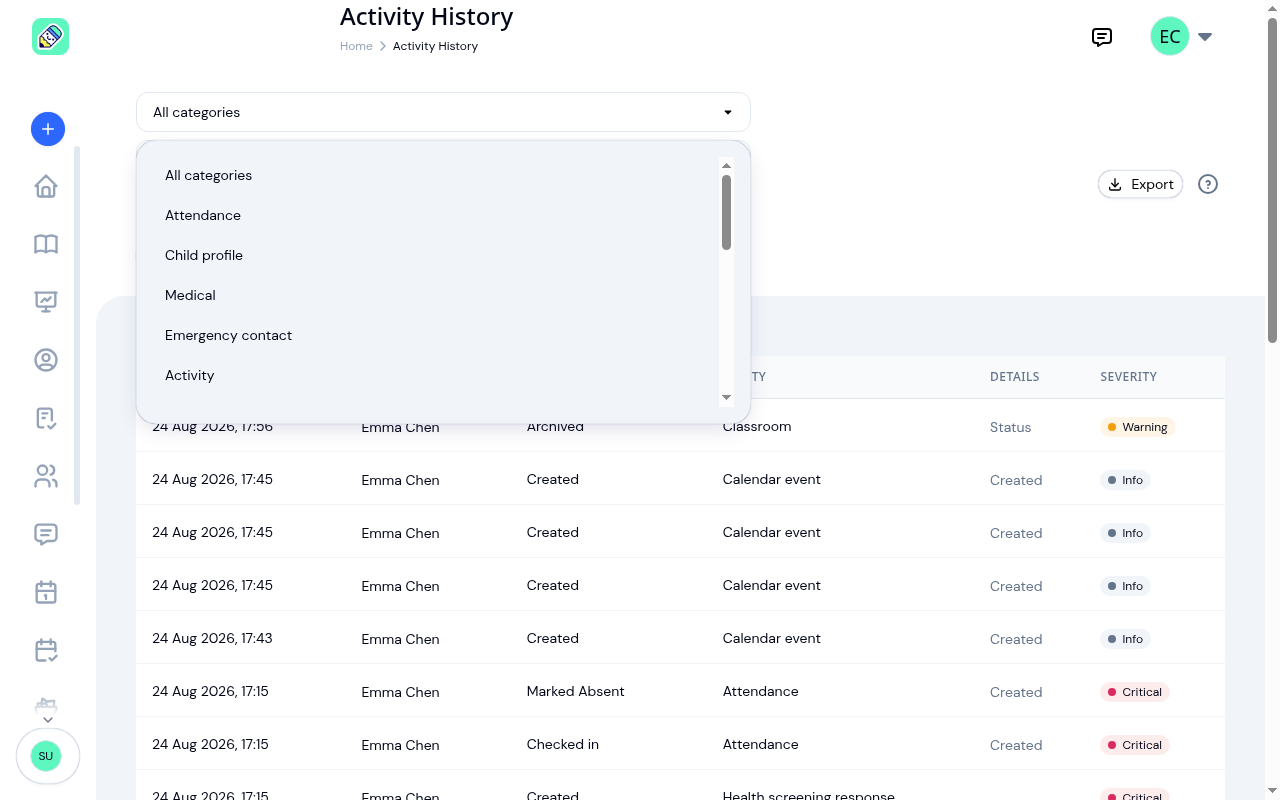
When at least one filter is active, a Reset filters button appears so you can clear everything in one click.
Event Details
Click a row to open the detail panel. It shows everything KidzLog recorded for that event.
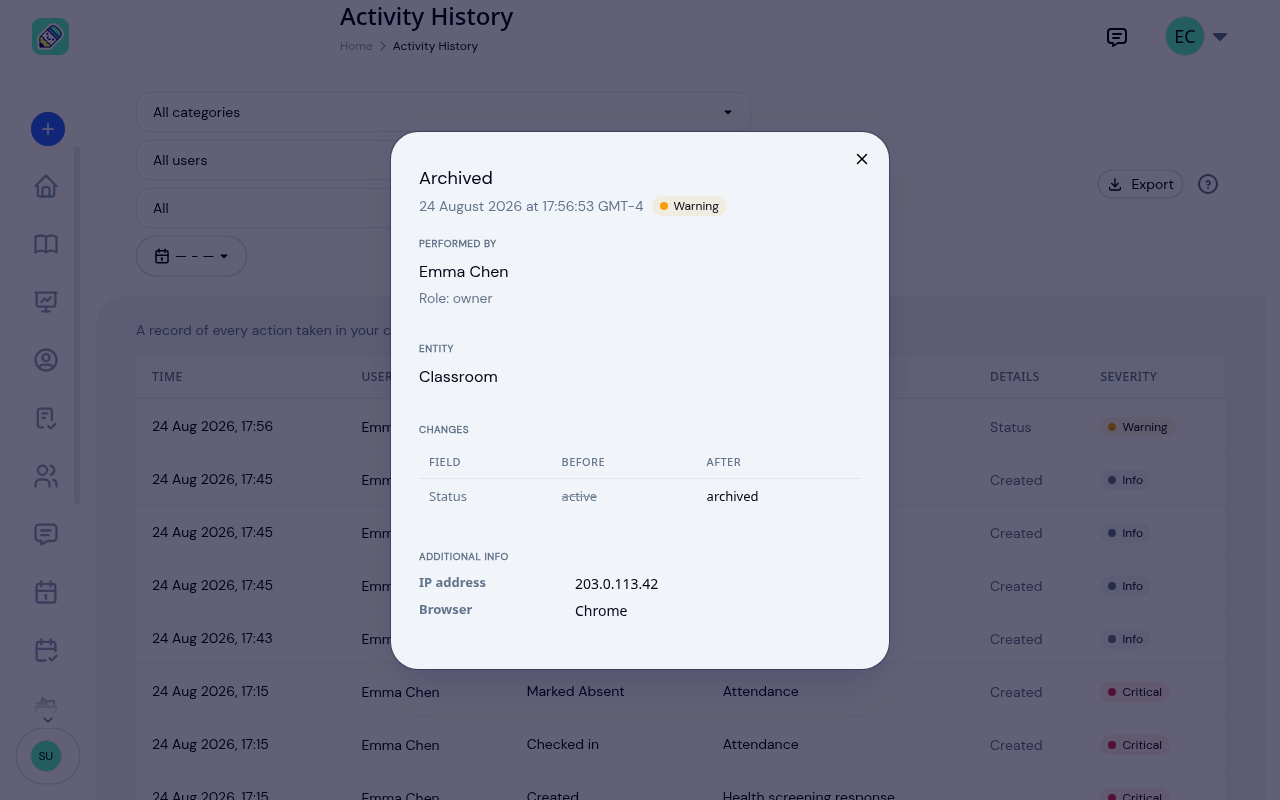
The detail panel always includes:
- Performed by — the user's name and their role in the center at the time
- Entity — the record that was acted on
- Changes — a before/after view of every field that was updated, or just Created / Deleted for create/delete events
- Additional info — when available: a reason note, bulk-operation marker, IP address, and browser
For updates, the Changes section lists each field with the previous value on the left and the new value on the right. Fields that contain sensitive data are redacted automatically and never appear in detail or in exports.
Invoice changes
Invoice entries are in the Billing category, so only owners see them. The Entity reads Invoice: followed by the child's name, and the Changes table shows what was edited, such as the status, due date, note, or discount. Amounts appear as plain figures, for example 150.00.
When the items on an invoice change, two rows show the item list before and after the edit. Items Removed holds the items as they were and Items Replaced holds the items as they are now, each written as its name and amount. An item that was kept appears in both lists.
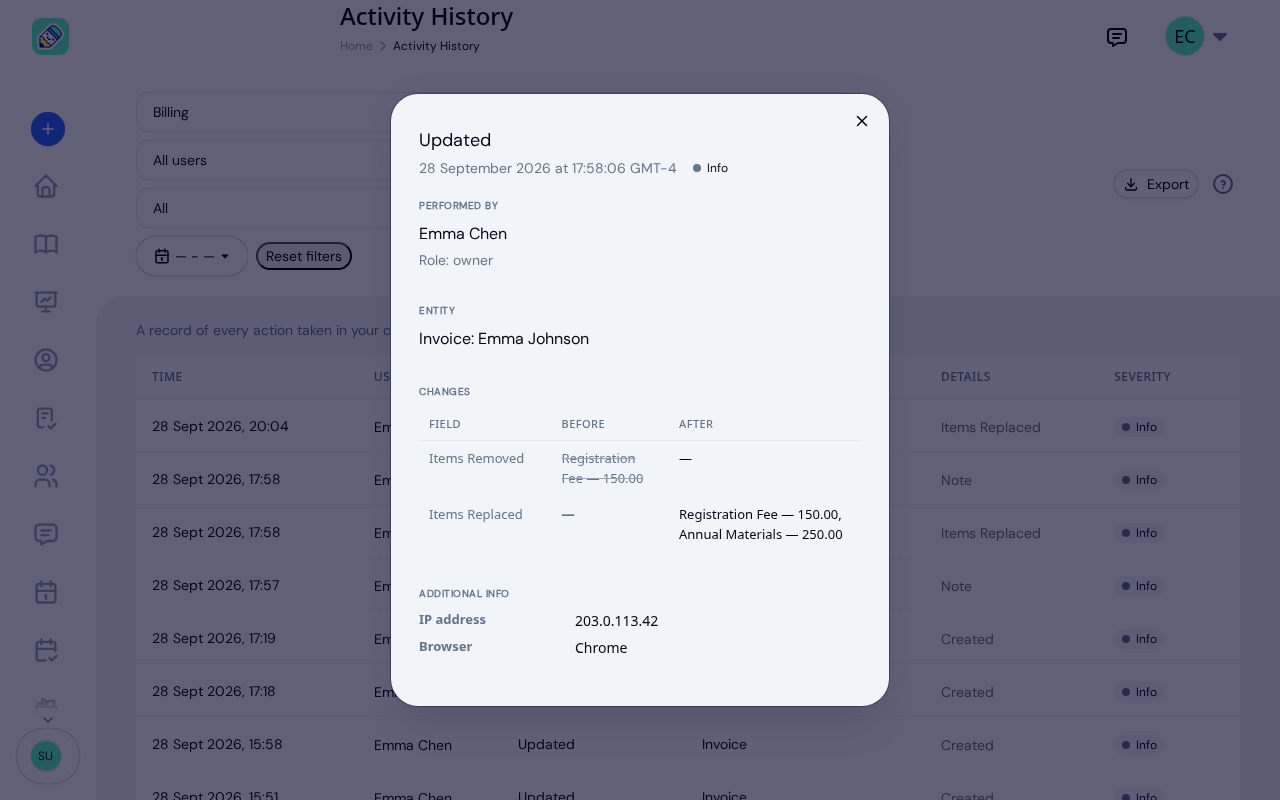
In this example, Annual Materials was added to an invoice that already held the Registration Fee.
Exporting
Click Export in the top right to download the current filtered results.
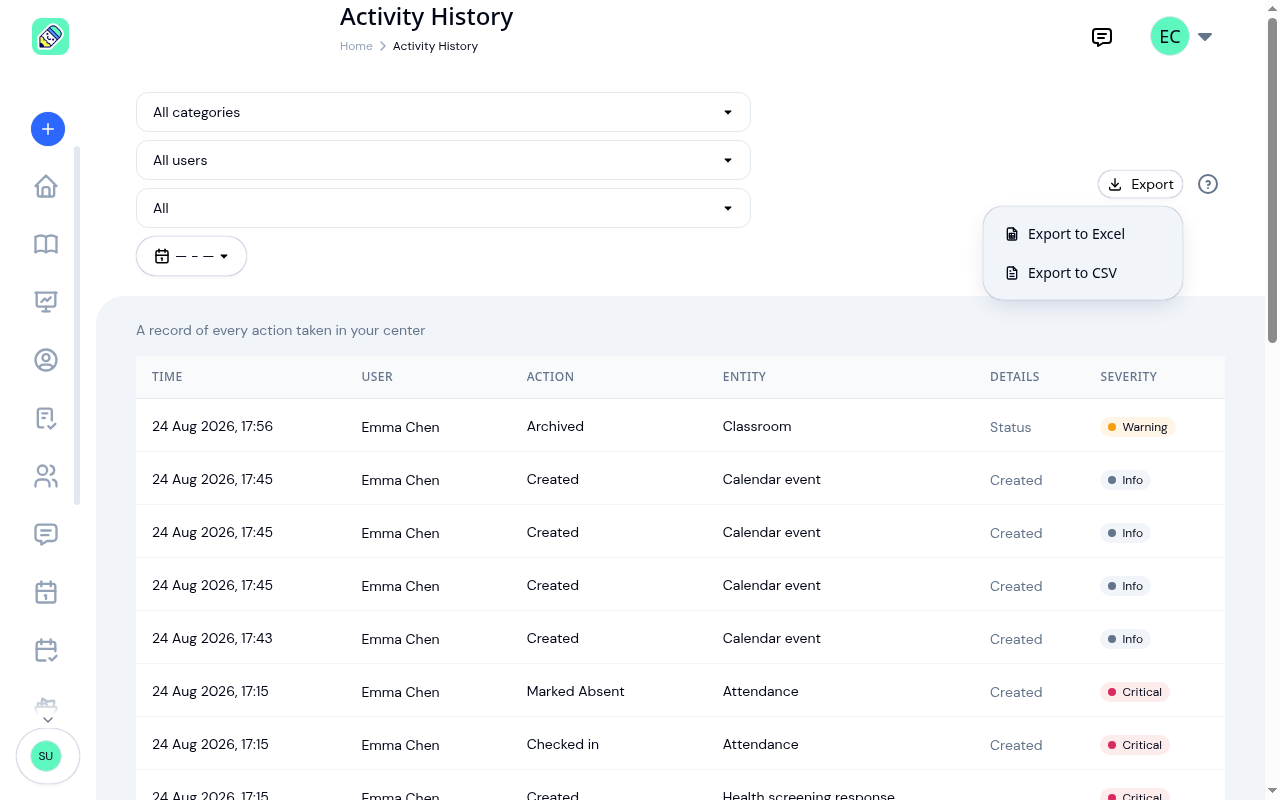
Two formats are available:
- Excel — a
.xlsxfile ready to open in Excel, Numbers, or Google Sheets - CSV — a plain comma-separated file for licensing inspectors, finance reviews, or further analysis
Exports respect every filter you've set, and the file holds every entry that matches, not just the page you were looking at.
The date range on an export
An export always covers a date range, and that range can be at most 30 days.
- You picked a range — the export covers exactly that.
- You picked one end only — the export covers 30 days from the date you chose.
- You picked neither — the export covers the last 30 days, and the confirmation tells you so: "Exported the last 30 days. Pick a date range to export a different period."
- You picked more than 30 days — the export is refused with "An export covers at most 30 days. Narrow the date range and try again." Narrow the range and export again.
If nothing matches, KidzLog says so rather than handing you an empty file.
What Each Role Sees
- Owners see every event in the center, including billing and subscription changes.
- Admins see every event except those in the Billing category. Subscription, invoice, and payment events are owner-only.
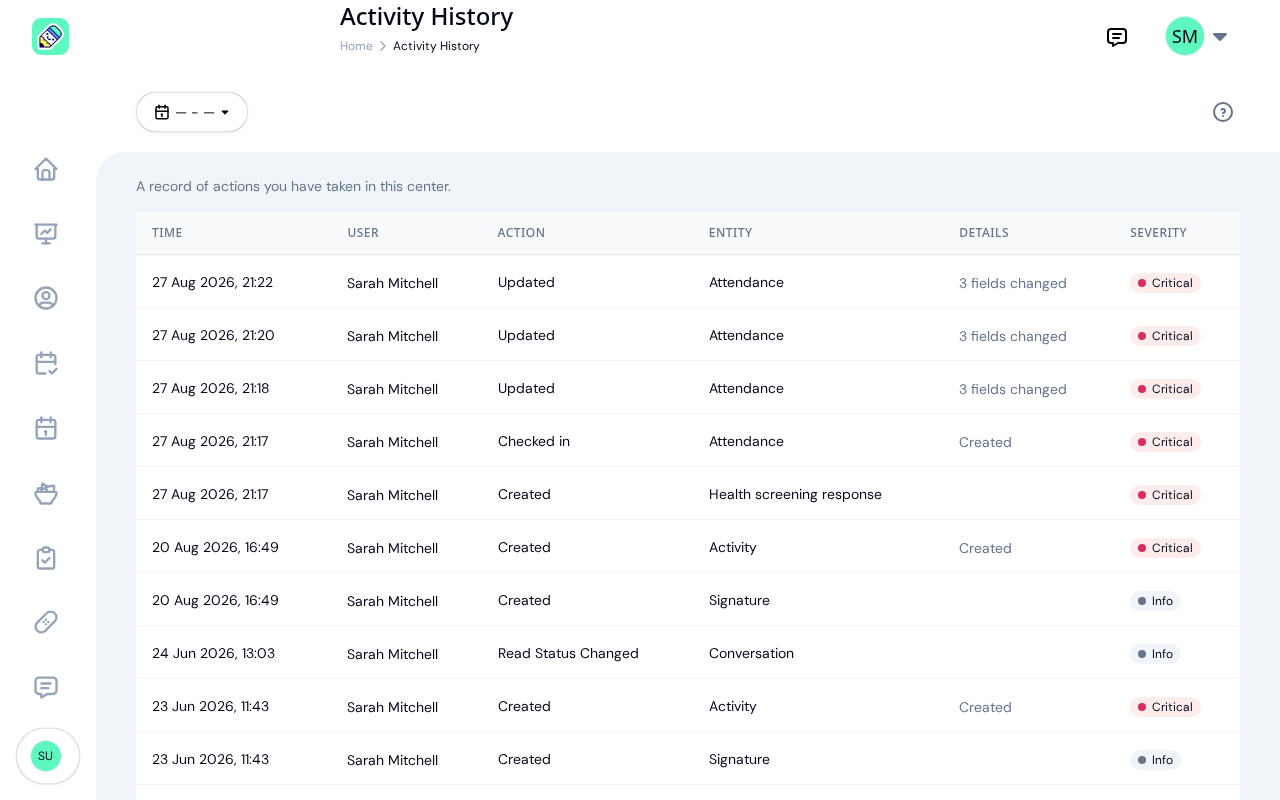
- Teachers see only their own actions — the activities they logged, the children they checked in, the settings they updated. The filter toolbar is reduced to a date range picker.
- Parents have their own version of this page in the Parent Portal. It covers account and attendance events for their children only — never internal admin activity.
Teacher view
Teachers land on the same Activity History page from their avatar menu, but the data is scoped to actions they personally performed. There is no Category, User, Severity, or Export — only the date range picker.
Frequently Asked Questions
Activity History keeps every event recorded since your center was created. There is no automatic pruning today, so even multi-year-old events remain searchable.
Activity History tracks account, settings, and attendance events. Daily care notes — meals, naps, learning, mood, bathroom — live on each child's Daily Report, which is built for hour-by-hour care tracking.
See Activity Logging and Logging Activities for the daily report.
No. Parents only see events that directly affect their own children — check-ins, profile updates, immunization edits. They never see other parents' or other children's events, and they never see internal admin activity such as settings changes or PIN resets.
No. Sensitive fields like passwords, PIN codes, and access tokens are excluded from both the in-app detail view and the Excel/CSV exports. The event itself is recorded, but the value is not.
Some events happen automatically — an enrolment that completes on its end date, an attendance check-in that KidzLog closes automatically overnight, an email confirmation that lands during the night. These are shown as performed by "System" rather than a specific person.