

Communication
SMS Log
View the history of all SMS messages sent from your center.
The SMS Log is a read-only history of every SMS message sent from your center. It helps you track what was sent, to whom, and whether it was delivered successfully.
How to Access
Open the Communication hub and click the SMS Log tab.
Admin/Owner only: The SMS Log tab is only visible to admins and owners. Teachers and parents do not have access.
What the Log Shows
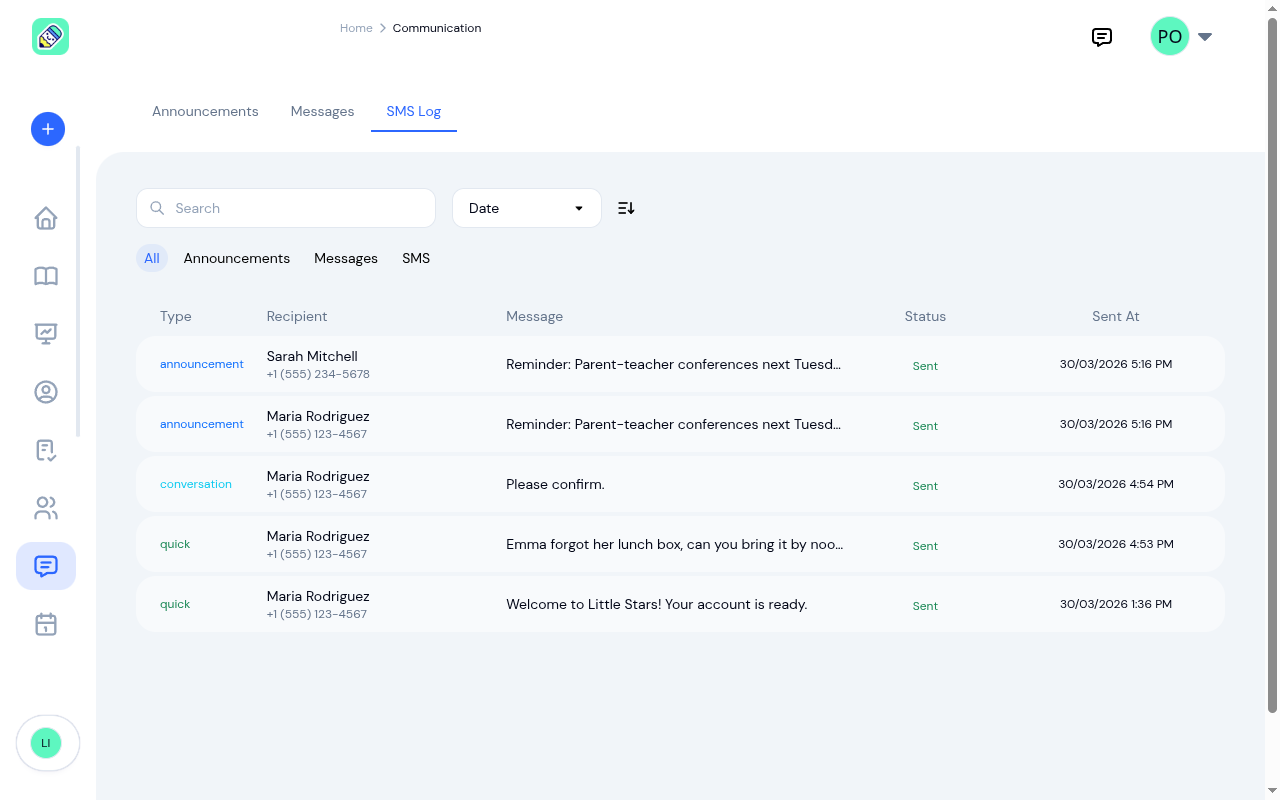
Each row in the log displays:
- Type — Where the SMS originated from, shown as a color-coded label:
- announcement (blue) — Sent as part of an announcement with SMS alerts enabled
- conversation (cyan) — Sent from the SMS button in a message thread
- quick (green) — Sent from a parent profile or other quick-send action
- Recipient — The recipient's name and phone number
- Message — A preview of the SMS body (first 60 characters)
- Status — Delivery status in green ("Sent", "Delivered") or red ("Failed")
- Sent At — The date and time the message was sent
Filtering
Use the context filter buttons above the table to narrow the view:
- All — Show all SMS messages (default)
- Announcements — Only announcement-triggered SMS
- Messages — Only SMS sent from message threads
- SMS — Only quick SMS (from parent profiles)
Search and Sort
- Search — Type in the search bar to filter messages by recipient name or content.
- Sort — Use the dropdown to sort by Date (default) or Status. Click the arrow button to toggle ascending/descending order.
Moving through the log
Older messages are on the following pages. The footer under the log tells you which records you're looking at and how many there are in total, and lets you show more per page. See How lists work.