

Attendance Overview
The Attendance page is where you track which children are at your center each day. You can check children in and out, mark absences, view attendance metrics, and manage historical records.
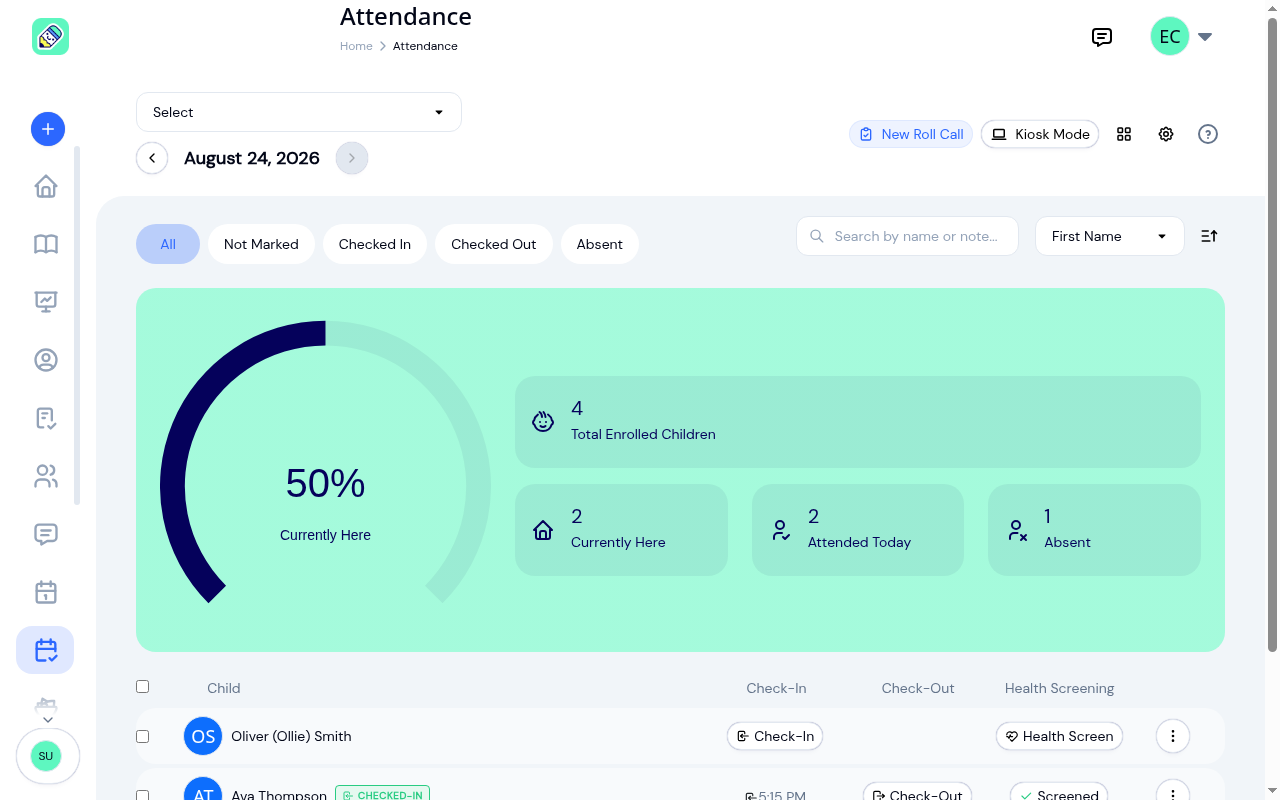
Page Layout
Top Bar
- Program filter — filter by a specific program, or view all programs
- Date navigator — view today's attendance or browse historical records
- New Roll Call — start a head-count roll call
- Kiosk Mode — enable self-service check-in/out for parents (see Kiosk Mode). It shows when Use Kiosk Mode is on in Attendance Settings, and only on today's date
- Layout toggle — switch between list and grid (card) view. This toggle appears on larger screens; on tablets the roster always uses the card view (see below)
- Settings — jump to Attendance Settings
Attendance Metrics
The metrics widget shows today's numbers at a glance:
- Total Enrolled Children — children expected today based on program enrolment
- Currently Here — children checked in right now
- Attended Today — children who came in at all today. A child who has since been checked out still counts here, which is why this number is usually higher than Currently Here
- Absent — children marked absent who never turned up
Attended Today and Absent never overlap. A child who was marked absent and then arrived counts as attended, not absent, so the two can't add up to more than your enrolled total.
The doughnut chart on the left visualizes the percentage of children currently at the center.
Staff-to-Child Ratio
When you narrow the view to a single classroom, a staff-to-child ratio badge appears just under the metrics widget for that room. Pick a program in the first filter, then a classroom in the second, and the badge shows that room's staff against the children currently checked in, for example Assigned staff 1 · 0 present · within ratio.
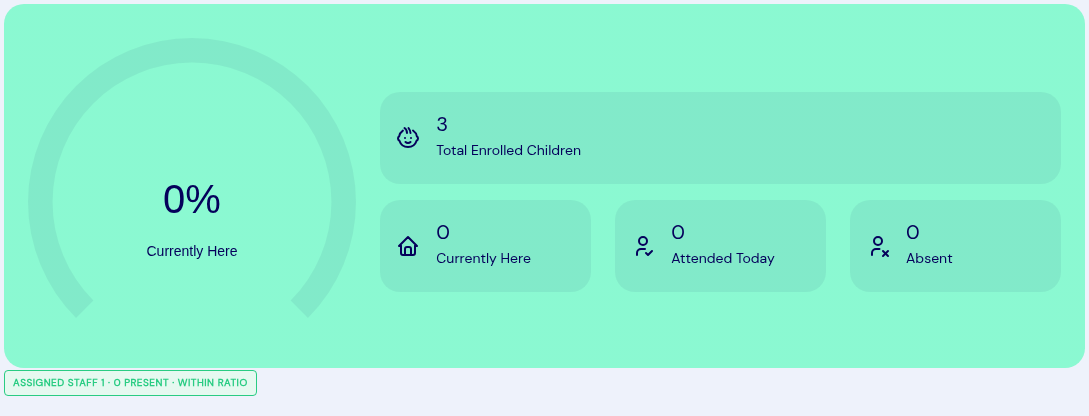
The badge turns red when a room is over ratio or has no staff assigned, so you can spot a coverage gap while you're checking children in. It's based on the staff assigned to the classroom, not staff check-in times, and it only appears for a single classroom. Viewing all programs or all classrooms hides it, since the ratio is per-room.
To set a room's limit and assigned staff, see Classrooms.
Status Filters
Filter the child list by attendance status:
| Filter | Shows |
|---|---|
| All | Every enrolled child |
| Not Marked | Children with no attendance record for the day |
| Checked In | Children currently checked in |
| Checked Out | Children who were checked in and then checked out |
| Absent | Children marked absent who never checked in |
Search & Sort
- Search — type a child's name or an attendance note to find them quickly
- Sort — sort by first name, last name, or classroom (ascending or descending)
- Result count — whenever the list is filtered, by a search, a note tag, or a status filter, KidzLog shows how many children match (for example, "Showing 14 children"). It's a quick way to read off a room or group's head count instead of counting rows.
Child List
Each row in the list shows:
- Child name and avatar
- Today's status chip — a coloured label next to the name once the child has been marked for the day (see below)
- Check-In button (or check-in time if already checked in, or Open from an earlier day — see below)
- Check-Out button (or check-out time if already checked out)
- Actions menu (three dots) — edit or delete an attendance record
Select one or more children using the checkboxes to perform bulk actions: check in, check out, mark absent, edit, or delete records for everyone selected at once. See Check-In & Check-Out for details.
Today's Status at a Glance
Once you mark a child for the day, a coloured status chip appears next to their name so you can read the room at a glance without opening each record:
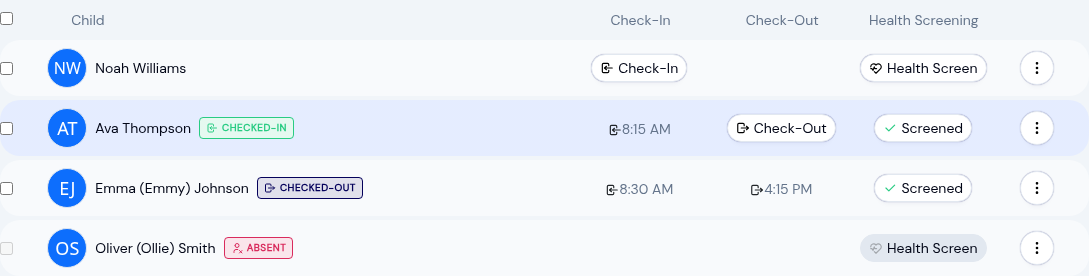
- Checked-In (green) — the child is currently at the center
- Checked-Out (blue) — the child came in and has since left for the day
- Absent (red) — the child was marked absent and hasn't arrived
- No chip — the child hasn't been marked yet today
A child who checks in, leaves, and comes back later shows Checked-In again, because the chip always reflects whether they are here right now. The same chip is the single source behind the status filters above, so the count you get from a filter always matches what the chips show.
Arriving after being marked absent
If a child is marked absent and then turns up, checking them in is all you need to do. The check-in wins: their chip changes to Checked-In, they stop counting as absent, and they start counting as attended. There's no correction to make and no record to delete.
This holds however the two were recorded and in whatever order. Any check-in on the day outranks an absent mark for that day, whether the child was marked absent by a staff member, by Safe Arrival, or checked in at the kiosk or by QR code.
Unclosed Check-Ins
If children are still checked in from previous days, a warning banner appears at the top of the page. Click Close Check-Ins to resolve them — you'll be prompted to set a check-out time and reason for each stale record.
On the roster, each of those children shows Open from an earlier day where their Check-In button would be, and their checkbox can't be selected for a bulk action. Until you close the old check-in, that child can't be checked in or marked absent today. Close the check-in from the banner and the row goes back to normal.
Opening Attendance from an Email
Three emails to Owners and Admins link straight to this page: the Safe Arrival alert, the warning that children are still checked in before Auto-Close runs, and the notice that a child did not pass a health screening. The link opens Attendance for the center the email is about, even if you work at more than one. If you're signed out, sign in and you land on the same page.
The health screening email opens the day's roster rather than the screening itself. Look for the child whose button reads Needs Review (see Health Screening at Check-In).
Viewing Past Days
Use the date navigator arrows to browse attendance for previous days. When viewing a past date, a banner reads Viewing historical data with the date, and a Today button takes you back.