

Parents
The Parents page is where you manage all parent and guardian accounts at your center. You can invite parents via email, create PIN-only access for kiosk check-in, link children, and view contact details.
Viewing the Parents List
Navigate to Parents in the sidebar to see all parents at your center.
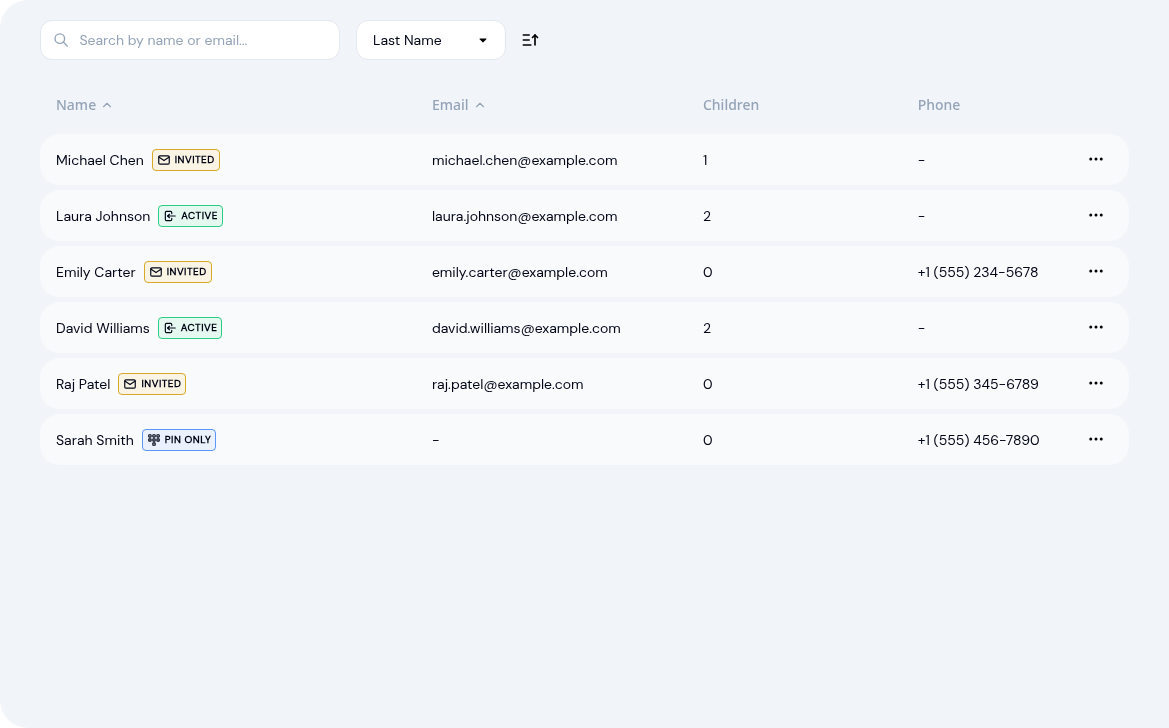
The list displays each parent's name, status badge, email, number of linked children, and phone number.
Status Badges
Each parent has a color-coded status badge:
- Active (green) — Parent has accepted their invitation and has a login account
- Invited (yellow) — Parent has been invited by email but hasn't accepted yet
- PIN Only (blue) — Parent uses a kiosk PIN only, without an email account
- No Access (gray) — Parent has no email, PIN, or login configured
Active and Invited Tabs
Use the Active / Invited tabs to filter parents:
- Active — Shows all parents who have been created (including those with pending invitations)
- Invited — Shows only parents with pending email invitations, with options to resend or cancel the invitation
Searching and Sorting
- Search: Type in the search box to filter parents by name or email
- Sort: Use the dropdown to sort by First Name, Last Name, Email, or Date Created
- Sort direction: Click the arrow button to toggle ascending/descending order
Adding a Parent
Click Add Parent
Click the + Add Parent button in the top-right corner of the Parents page.
Choose the access type
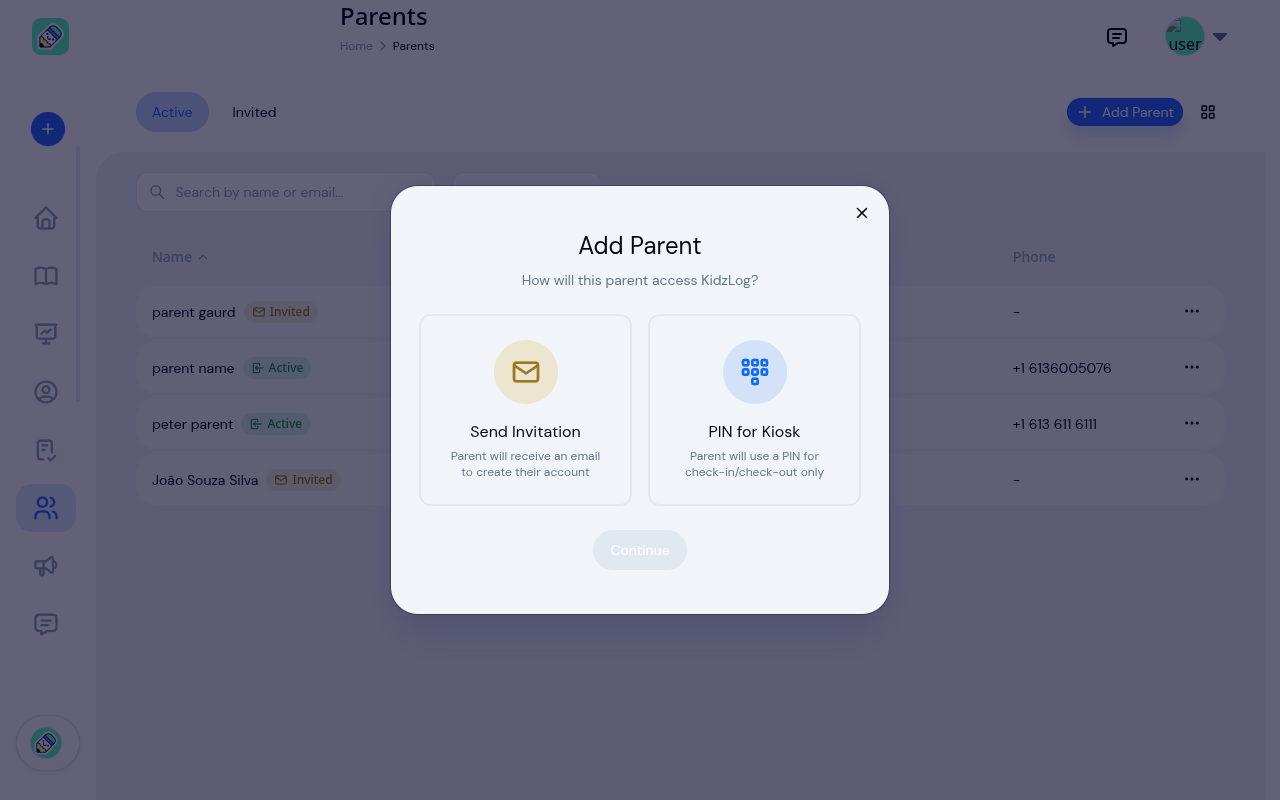
Select how the parent will access KidzLog:
- Send Invitation — The parent will receive an email to create their own account and access the Parent Portal
- PIN for Kiosk — The parent will be given a 4-digit PIN for check-in and check-out at the kiosk only (no app access)
Click Continue after selecting an option.
Fill in parent details
Enter the parent's information:
- First Name and Last Name (required)
- Email (required for invitation, optional for PIN-only)
- Phone (optional)
- Notes (optional)
Click Submit to create the parent.
View confirmation
For invitation parents, the invitation email is sent automatically. For PIN parents, the confirmation screen displays the generated 4-digit PIN — you can copy it to share with the parent.
Viewing a Parent's Profile
Click any parent in the list to open their detail page.
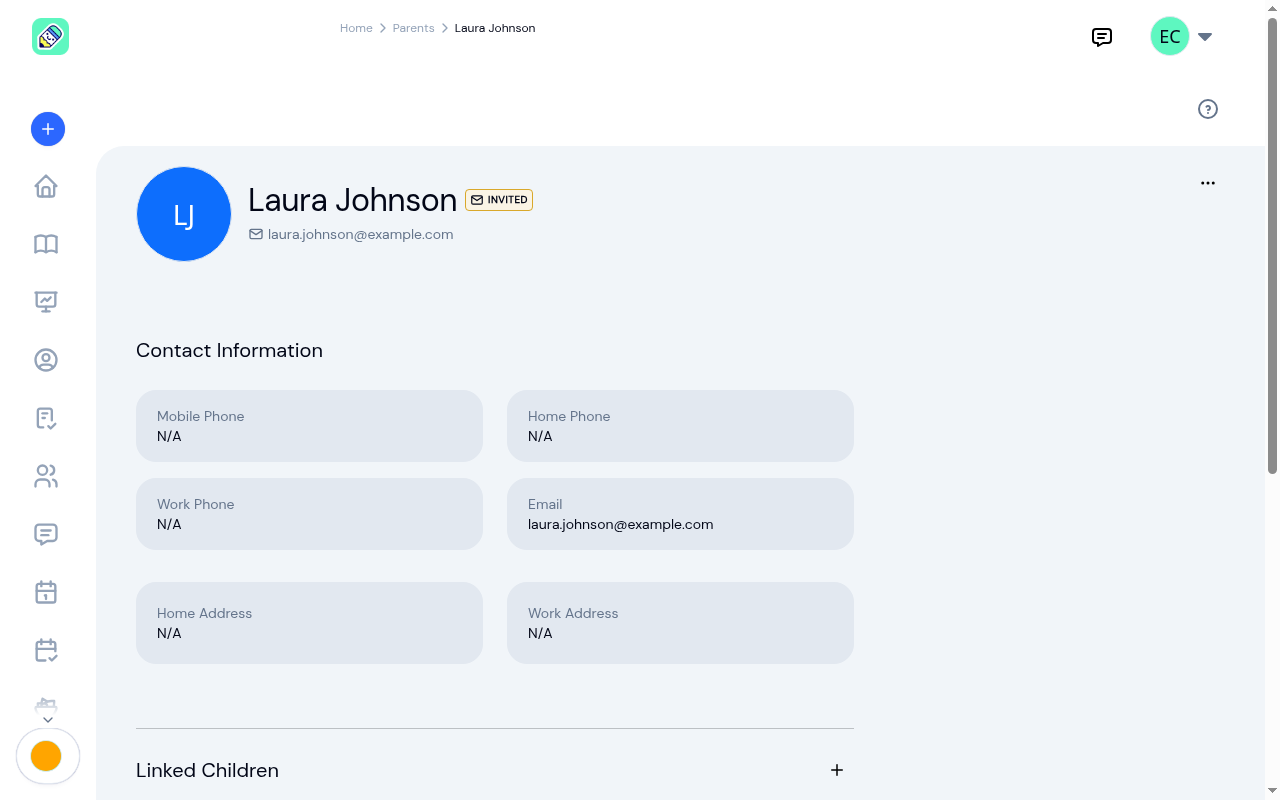
The profile page has two tabs:
- About — Contact information, linked children, and kiosk PIN management
- Email & SMS — History of all emails and SMS messages sent to this parent
Contact Information
The About tab displays:
- Mobile Phone, Home Phone, Work Phone
- Home Address, Work Address
Fields without data show "N/A".
Linked Children
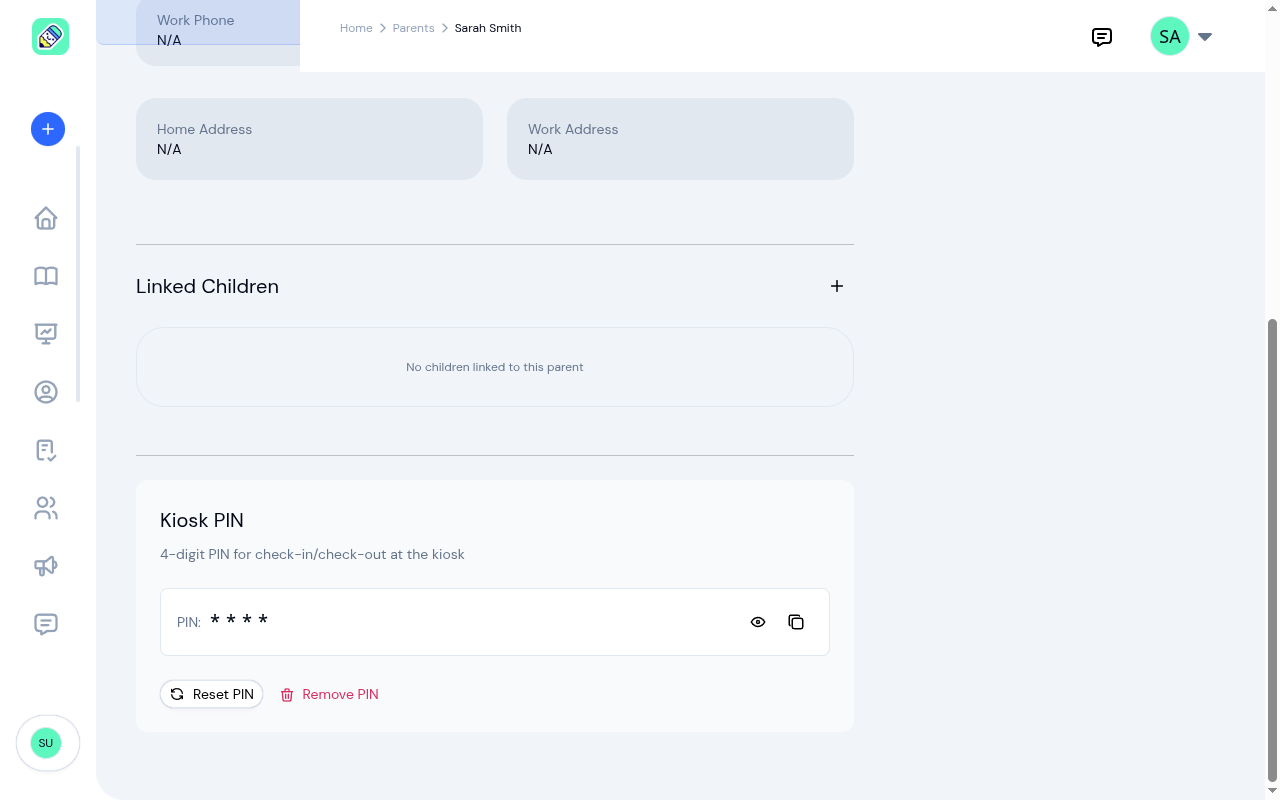
The Linked Children section shows all children associated with this parent. Click the + button to link an additional child — a modal opens with a searchable dropdown of children not yet linked to this parent. Click any child row to navigate to that child's profile.
Kiosk PIN
The Kiosk PIN section lets you manage the parent's 4-digit PIN for kiosk check-in and check-out:
- Show/Hide — Click the eye icon to reveal or mask the PIN
- Copy — Click the copy icon to copy the PIN to your clipboard
- Reset PIN — Generate a new random PIN (replaces the current one)
- Remove PIN — Delete the PIN entirely (requires confirmation)
If no PIN exists, you'll see a button to generate one.
Actions Menu
Click the ... (three dots) button on the parent's profile header to access:
- Message — Send an email or SMS to this parent
- Edit — Update the parent's name and phone numbers
- Delete — Permanently remove the parent from your center
Editing a Parent
From the parent's detail page, click ... → Edit. You can update:
- First name and last name
- Mobile phone, home phone, and work phone
- Home address and work address
Deleting a Parent
Click ... → Delete from the parent's detail page or from the actions menu in the list. A confirmation dialog appears before the parent is permanently removed.
Frequently Asked Questions
Send Invitation creates an account that the parent can use to log into the Parent Portal — they can view their child's daily reports, attendance, announcements, and messages. PIN for Kiosk creates a simple 4-digit PIN that the parent enters at the kiosk tablet to check their child in or out. PIN-only parents cannot access the Parent Portal.
Yes. Choose the PIN for Kiosk option to create a parent record without sending any email. You can also create a parent from a child's profile page. If you later want to give them app access, you'll need to remove and re-add them with the invitation option.
Go to the Invited tab on the Parents page, find the parent, click their ... menu, and select Resend Invitation.
Once a parent creates their account and logs in, they no longer need the kiosk PIN. The PIN management section will no longer be shown on their profile.
Yes. You can link a parent to as many children as needed from the parent's detail page using the + button in the Linked Children section, or from each child's profile page.