

Incidents
The Incident Reports page shows any approved incidents that have been reported involving your child. You can review the full details and provide your signature to acknowledge the report.
How to Access
Open the Incidents page from the sidebar navigation.
Incident List
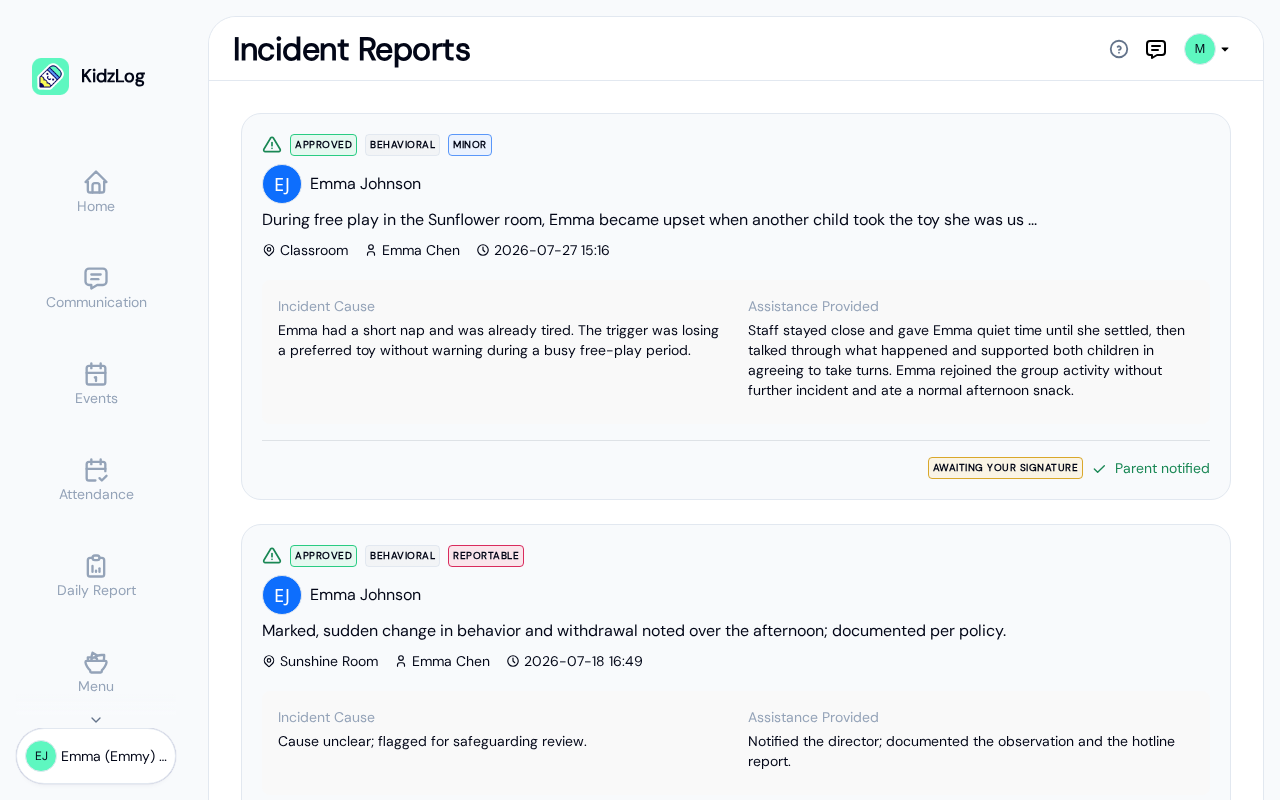
Each incident card shows:
- Status badge — "Approved" (green) indicates the report has been reviewed by an administrator
- Description — a summary of what happened
- Location — where the incident occurred
- Reporter — the staff member who filed the report
- Timestamp — when the report was filed
- Incident Cause — what caused the incident
- Assistance Provided — what actions were taken
- Signature status — "Awaiting your signature" if you haven't signed yet
Tap any incident card to view the full report.
Incident Detail & Signing
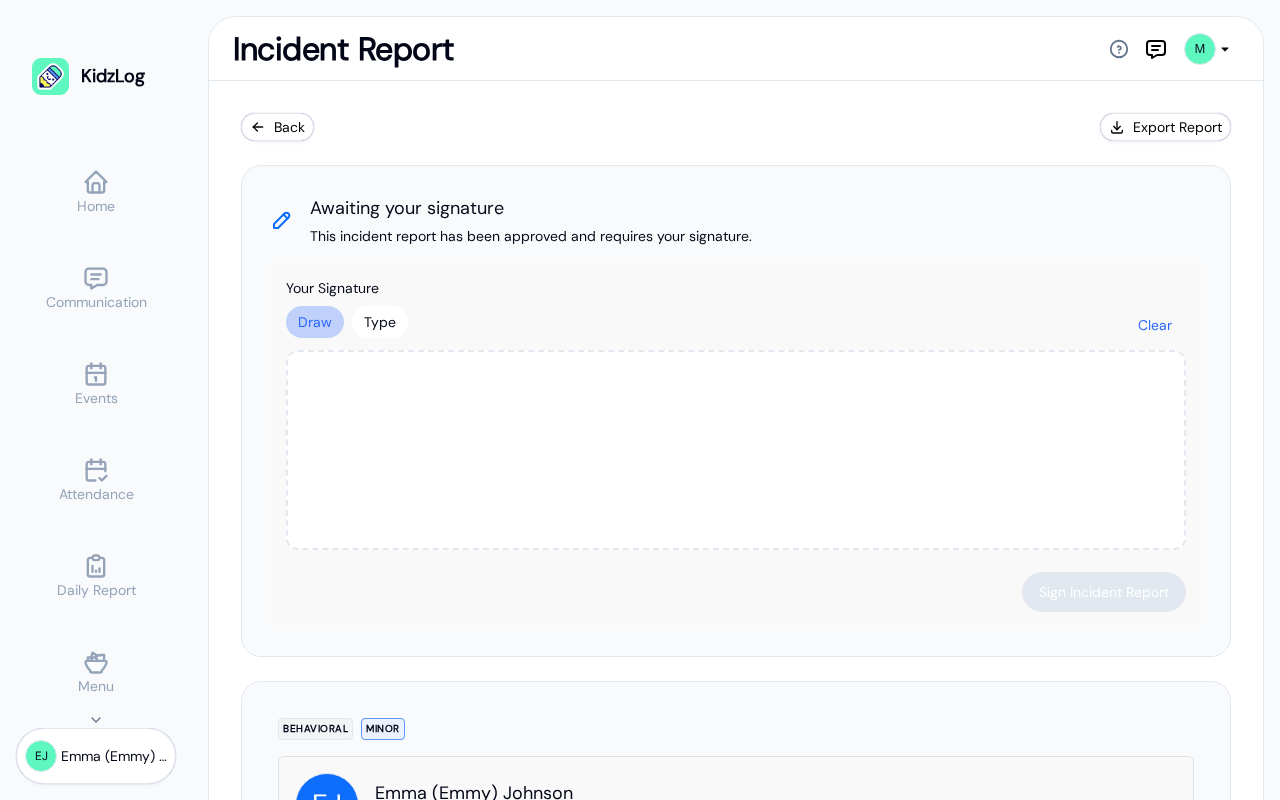
When you open an incident, you'll see:
Signature Banner
At the top, a banner indicates whether your signature is needed. If the report is awaiting your signature:
- Add your signature in the Your Signature box. You can Draw it with your finger, stylus, or mouse, or switch to Type and enter your name in a handwriting style. Your name is filled in for you, and you can tap Clear to start over. If you've saved a signature on your profile, it loads automatically.
- Tap Sign Incident Report
Once signed, the banner updates to confirm your signature has been recorded.
Incident Details
Below the signature banner, the full report includes:
- Child information — your child's name and age
- Description — detailed account of what happened
- Location and Cause
- Incident Time and Reported Time
- Affected body part(s) — for an injury or allergic reaction, the body parts involved (shown when the staff recorded them)
- Injury details — the type of injury and the surface involved, when recorded
- Witnesses — other people involved in the incident. Whether this section reaches you at all is your center's choice, and most reports arrive without it. See Who else appears on the report below
- Response & Actions — what was done for your child, any first aid given and by whom, and any outside medical attention
- Parent notification — when and how the center contacted you
- Reporter Information — the staff member's name and signature
Anything the staff didn't fill in is simply left out, so a short report stays short.
Who Else Appears on the Report
An incident sometimes involves people besides your child, including children from other families. Your center decides how much of that list appears on your copy, and by default it appears not at all. Depending on the choice your center has made, you will see one of three things:
- No witnesses section — the most common case, and what every center does until it chooses otherwise
- Staff named, everyone else numbered — the center's own staff appear by name, other children appear as Child #1, Child #2 and so on, and anyone else as Individual #1, Individual #2. Numbered people still show their relationship to your child and their age
- The full list — names included
The same choice applies to the copy you print, so nothing appears there that isn't on screen. If you need to know who else was involved, ask your center directly.
Saving a Copy
Use the Export Report button at the top of the page to keep a copy for your records. Confirm when asked, and a clean, print-ready copy of the report opens in a new browser tab with your browser's print dialog ready. From there you can print it or choose Save as PDF.
Frequently Asked Questions
Your signature acknowledges that you've reviewed the incident details. It helps the center maintain a complete record that both staff and parents are aware of what happened.
Yes. If your center has notifications enabled, you'll receive an email when an approved incident report is filed for your child.
The incidents page shows reports for your currently selected child. Use the child switcher in the sidebar to view incidents for a different child.
Someone else involved in the incident, shown without their name because that is how your center has chosen to share the witnesses list. Child #1 is another child; Individual #1 is an adult who is not on the center's staff. Their relationship to your child and their age are still there. Ask your center if you need to know more.
The report opens in a new browser tab, so a pop-up blocker can stop it. Allow pop-ups for KidzLog and tap it again.