

Placing Fields on a Document
A document in your library is a PDF. Placing fields is how you tell KidzLog where on that PDF a family should sign, tick a box, or type an answer. Once fields are placed, parents fill the form on screen instead of printing it.
How to Access
Go to Documents → Library and click Place fields on the document you want to mark up.
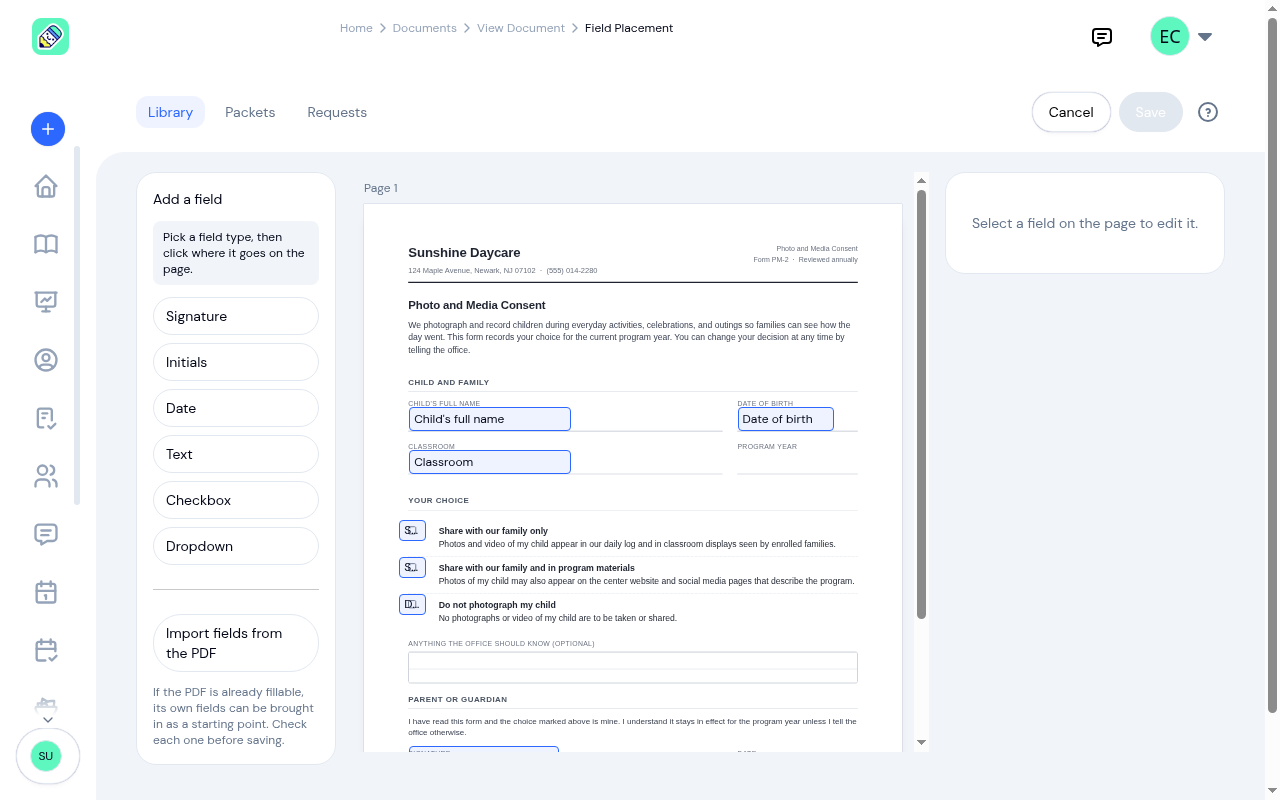
The screen has three parts:
- Add a field on the left, listing the field types
- The document in the middle, rendered page by page with the fields already on it
- The properties panel on the right, which fills in when you select a field
Placing a Field
Pick a field type
Click one of the six types on the left:
- Signature — a drawn or typed signature
- Initials — a short version of the same
- Date — a date
- Text — a line of typing
- Checkbox — a single tick box
- Dropdown — a choice from a list you define
Click where it goes
Click the spot on the page. The field lands there.
Nudge it into place
Drag the field to move it, or drag its edge to resize. With a field selected, the arrow keys move it a hair at a time and Shift with an arrow key moves it further. Delete removes it.
Small adjustments matter here: a signature box sitting a couple of millimetres low will overlap the printed line underneath it.
Setting Up a Field
Click any field on the page and the panel on the right fills in.
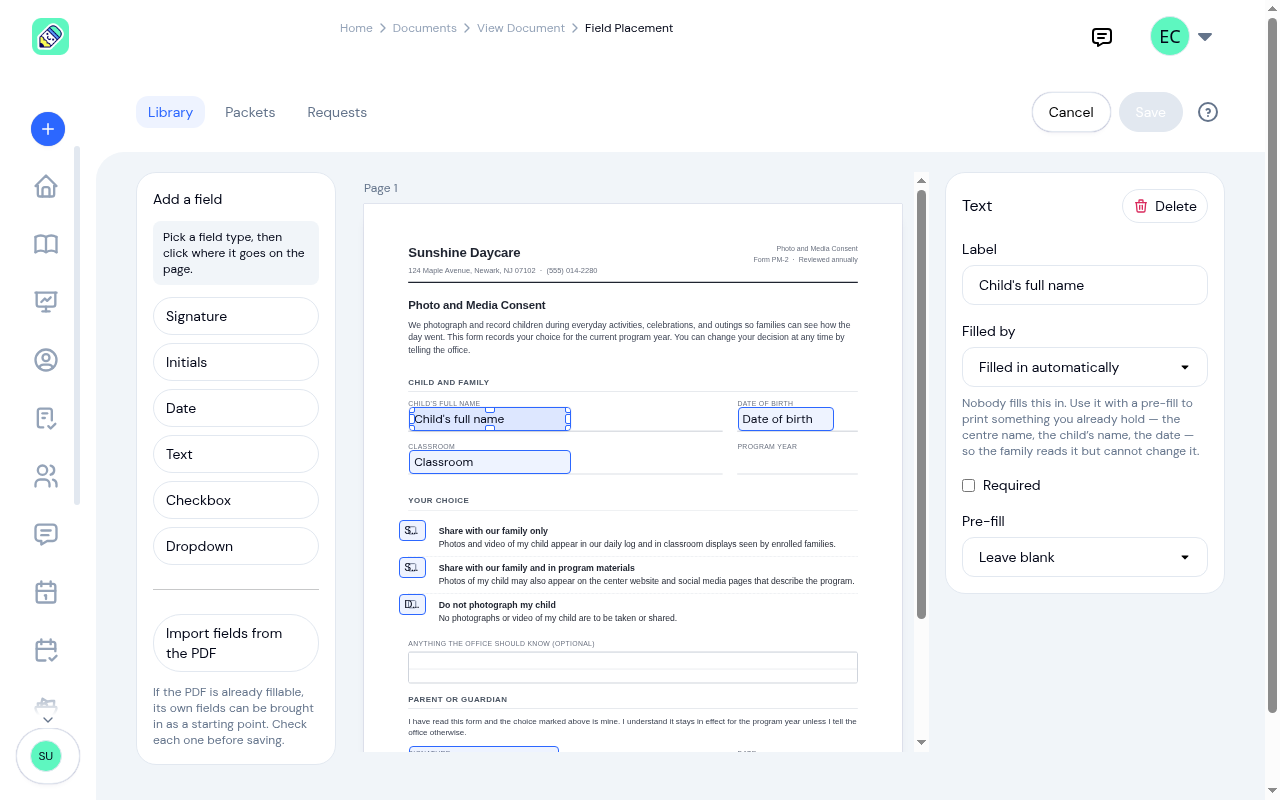
- Label — what the field is called. Parents see this, so make it read like a question or a caption: Child's full name, Print name, Date of birth.
- Filled by — who completes it. The list offers each step the document declares (for example Parent — Sign) plus Filled in automatically. Choose the automatic option for something you already hold and don't want changed: the family reads it but can't edit it.
- Required — tick this and the family can't finish the document while it's blank.
- Pre-fill — what's in the field before anyone touches it. Leave blank is the default. A fixed value puts the same text in for everyone. From the record fills it in from what KidzLog already knows: First name, Last name, Full name, Date of birth, Centre name, or Today's date.
A Dropdown field also asks you for its choices.
When you're happy with the page, click Save.
Starting From the PDF's Own Fields
If the PDF you uploaded is already a fillable form, click Import fields from the PDF and KidzLog brings its fields in as a starting point.
Checking Fields on a New Version
When you upload a new version of a document, KidzLog copies the field positions forward so you don't start over. It then asks you to check them before that version goes out, and the document shows a Fields need checking badge in the library until you have.
This is a review step, not a problem. A redesigned form moves its lines around, and fields copied from the old layout can end up over the wrong ones, which is how a parent ends up signing across a paragraph.
If you asked for signatures to be re-requested when you uploaded the version, that re-request waits for the same check rather than going out against unchecked positions.
Related
- Sending & Tracking Documents covers sending a marked-up document to families and following who has completed it.
- How Parents Sign Documents shows what the family sees when they open the form you've marked up.
- Document Library covers uploading documents, versions, and required steps.