

Managing Your Subscription
Once your 15-day free trial ends, you can subscribe to keep using KidzLog. You can also upgrade your plan, switch between monthly and yearly billing, or manage your payment details at any time.
How to Access
Go to Settings → Billing tab. Subscription management is only available to center Owners.
Subscribing
During your free trial, the billing page shows a checkout form:
- Choose Yearly (save 20%) or Monthly billing
- Set the number of children using the stepper (minimum 5)
- Review the total price
- Click Subscribe Now
You'll be redirected to Stripe's secure checkout page to enter your payment details. After payment, your subscription is active immediately.
Active Subscription
Once subscribed, the billing page shows your subscription details:
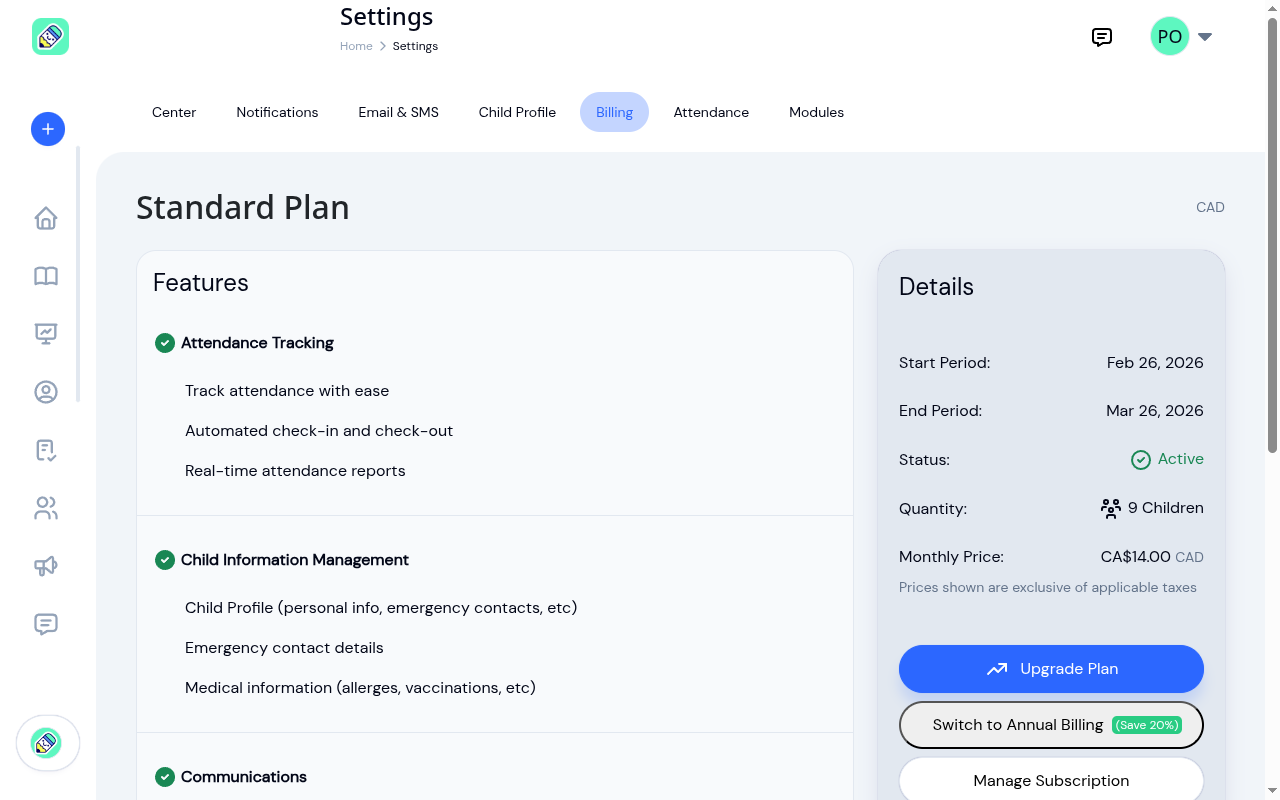
The Details card shows:
- Start Period and End Period — your current billing cycle dates
- Status — your subscription status (Active, Expired, etc.)
- Quantity — the number of children on your plan
- Monthly/Yearly Price — your current rate
Upgrading Your Plan
If you need to add more children than your current plan allows, click Upgrade Plan. This opens a preview showing:
- Your current child count
- The new child count you want
- The prorated cost for the remainder of your billing period
Review the details and click Confirm to apply the upgrade. The prorated amount is either charged immediately or added to your next invoice, depending on your billing cycle.
Switching Billing Interval
Click Switch to Annual Billing (Save 20%) to change from monthly to yearly billing, or Switch to Monthly if you're on a yearly plan.
A preview shows the price difference and any prorated credit or charge. Click Confirm to switch.
Managing Payment Details
Click Manage Subscription to open the Stripe customer portal in a new tab. From there you can:
- Update your credit card or payment method
- View billing history and past invoices
- Download receipts
- Cancel your subscription
After Your Trial Expires
If your trial ends without subscribing, a warning banner appears across the top of the app. You can still access your data, but some features may be restricted until you subscribe.
Frequently Asked Questions
No. Your currency (CAD or USD) is locked after your first checkout. Choose carefully before subscribing.
Your subscription remains active until the end of the current billing period. After that, your center's features will be restricted. Your data is preserved and you can re-subscribe at any time.
Go to Settings → Billing and you'll see the checkout form again. Choose your plan and complete the payment to reactivate your subscription.