

Invoicing
The Invoicing page (labelled Payments in the sidebar) is where you create invoices for parents, send them out, and track which ones are paid, sent, or overdue. Each invoice is tied to a child, can include multiple line items pulled from your program fees, and supports per-line discounts.
How to Access
Open Payments from the sidebar (Admin and Owner only). You'll land on the Active tab, which lists invoices in the sent, paid, overdue, and cancelled states.
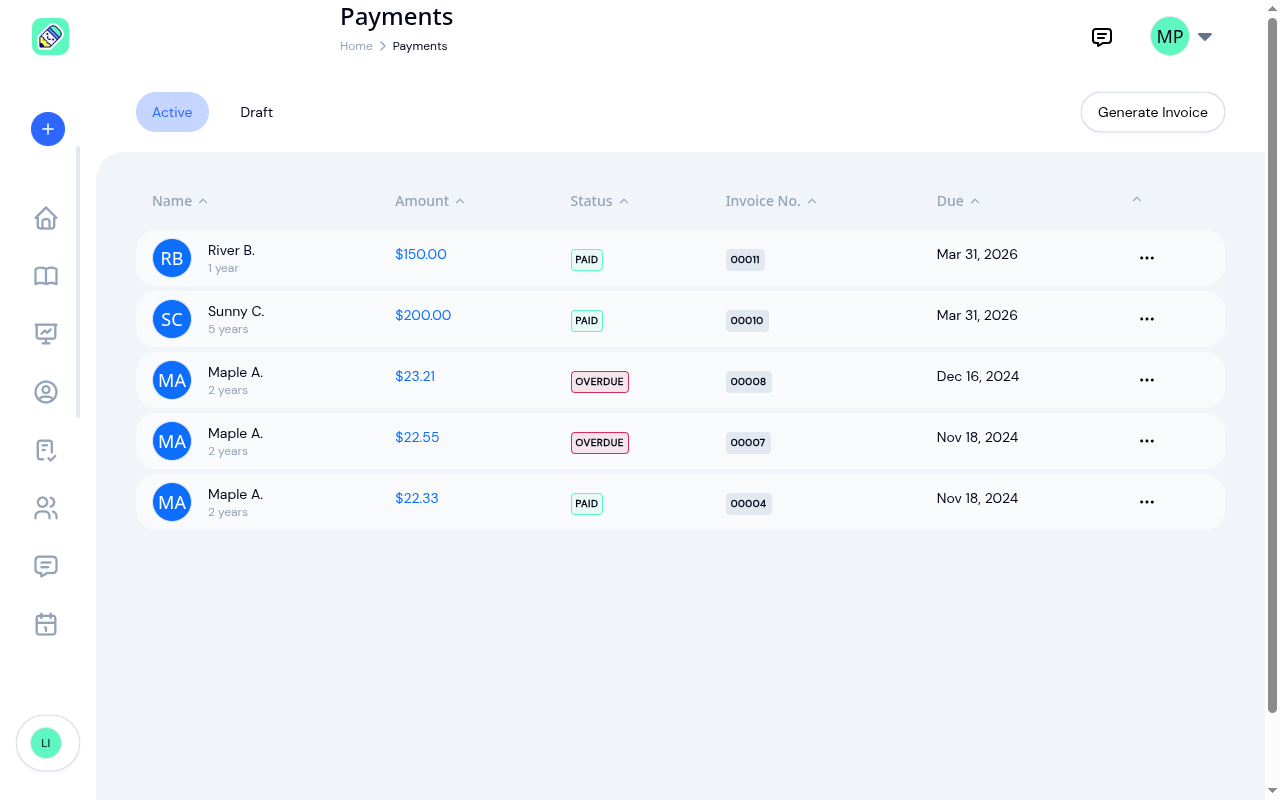
Status filter
Two tabs at the top of the page switch between:
- Active — invoices in sent, paid, overdue, or cancelled status
- Draft — invoices you've created but not yet sent
Sorting
Every column header (Name, Amount, Status, Invoice No., Due) is sortable. Click once to sort ascending, click again to reverse.
Invoice Statuses
KidzLog uses five statuses:
- Draft — created but not sent; only visible on the Draft tab
- Sent — sent to the parent, not yet paid
- Paid — payment received and the invoice closed
- Overdue — sent but past the due date and still unpaid (KidzLog marks it overdue automatically once the due date passes)
- Cancelled — voided; kept as a record but no longer billable
When you mark an invoice paid, KidzLog records the date and shows it as Paid on at the top of the invoice slip, next to the due date. That gives you the answer to "when did this family actually pay?" without going back through your own records.
Creating an Invoice
Click Generate Invoice in the top right.
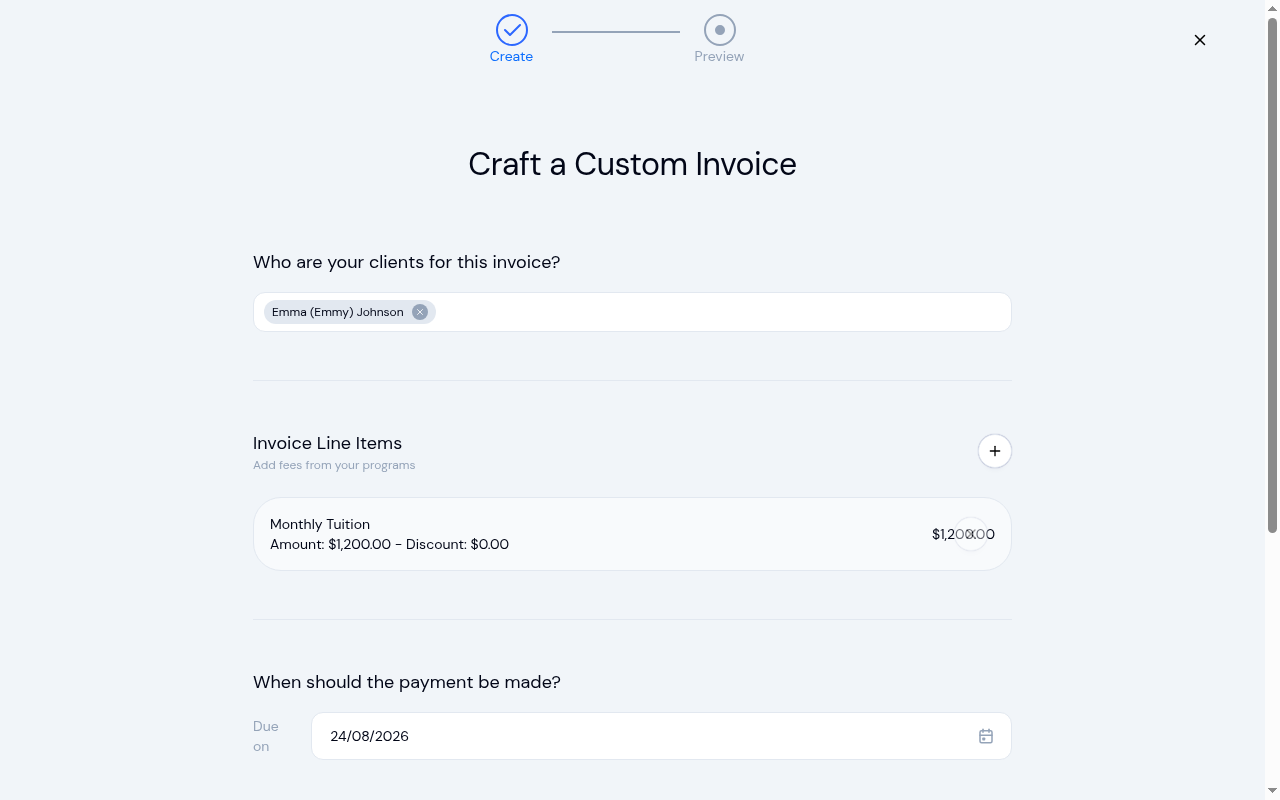
The wizard is two steps: Create and Preview.
Pick the clients
Click Select and choose one or more children. Each one you pick appears as a tag; click its x to drop it again.
The search box at the top of the list searches every child at your center, not just the ones showing. If a search turns up more matches than fit, a line under the list tells you how many you're seeing out of how many there are, so you know to keep typing. Clearing the box brings the list back.
KidzLog creates one invoice per child, so you can bill a whole class or program in a single pass.
Add line items
Click the + button next to Invoice Line Items to attach fees pulled from the child's enrolled programs. Each line item has an amount, an optional discount, and a calculated total. You can add as many items as you need; the running subtotal appears below the list.
Set the due date
The due date starts on today's date, filled in and visible in the field, so an invoice you send without touching it is due today rather than on a date you never saw. Change it to whenever payment is actually expected. KidzLog uses this date to flip the invoice to overdue automatically.
Add a note (optional)
A free-text note appended to the invoice — handy for "First month tuition" or "Includes summer camp deposit."
Review and send
Click Next to advance to the Preview step. Confirm everything looks right, then click Send Invoice. KidzLog emails the parent a notification with a link to view the invoice in their Parent Portal.
Acting on an Invoice
Click the ⋯ menu on any row to take action. The actions on offer depend on the invoice's status:
- Draft and sent invoices offer every action below
- Overdue invoices offer View Invoice, Update Status, Mark as Paid and Delete
- Paid and cancelled invoices offer View Invoice only
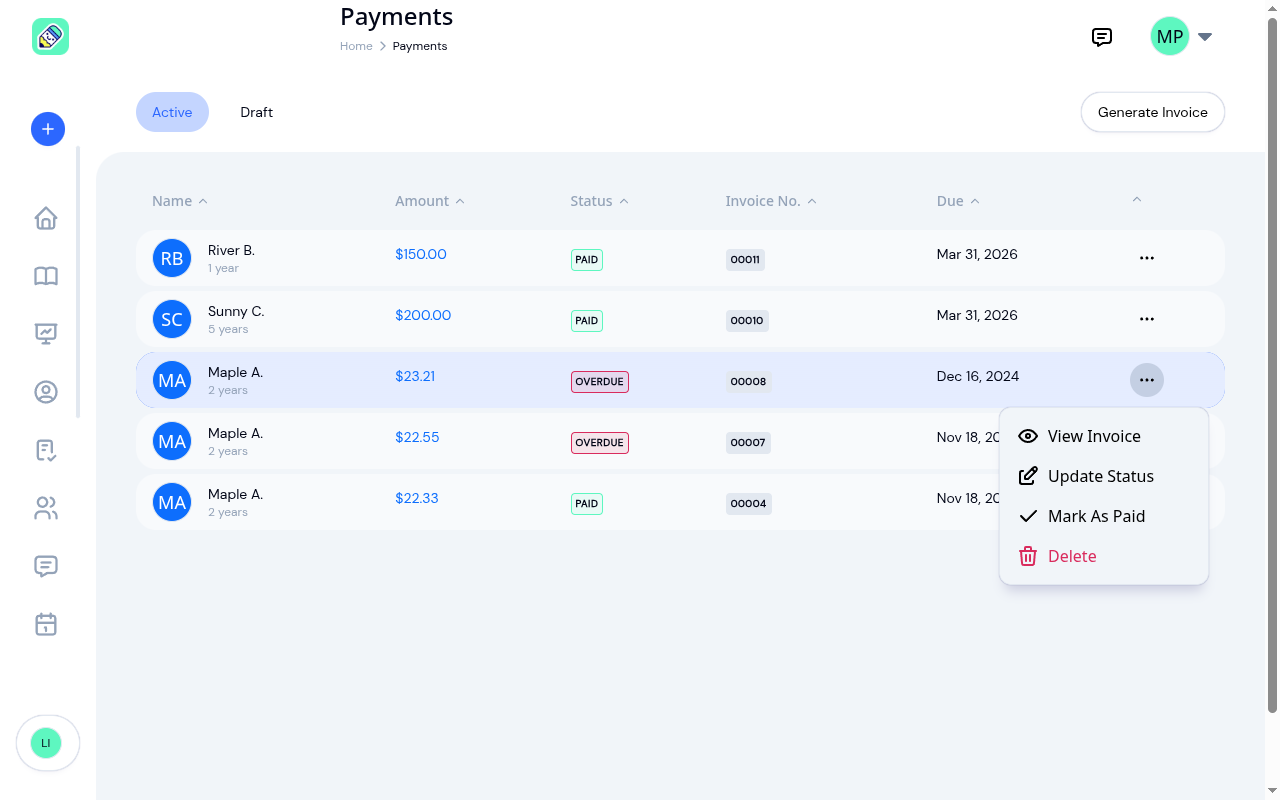
- View Invoice — opens a full-page preview with the line items, totals, and discounts. Available for every status.
- Edit — reopens the invoice so you can change its line items, due date and note. See Editing an invoice below.
- Update Status — change between sent, paid, and cancelled manually. Drafts cannot be updated this way; choosing it on a draft shows the message "Draft invoice status cannot be updated."
- Mark as Paid — one-click shortcut that flips the status to paid and emails the parent a receipt.
- Delete — permanently removes the invoice. Use cancelled instead if you need to keep a record of it.
Editing an invoice
Choose Edit to open Edit Invoice Details. It shows the child the invoice is for, the invoice's lines under Selected programs for client, the due date and the note. Make your changes, then click Next to save them and see the preview. For a draft, click Send Invoice on the preview when you're ready to send it.
- Lines keep the price they were issued at. If you've changed a fee in your program since the invoice went out, the lines already on the invoice stay at their original price. Changing only the due date or the note leaves the lines exactly as they were. A fee you add while editing is charged at its current price.
- Removing a line removes just that line. If an invoice has the same fee twice, clicking the x on one of them leaves the other in place.
- A discount can't be larger than its fee. The Add Fee window shows "Discount cannot be more than the fee" and won't add the line until the discount is lowered.
- Editing a sent invoice doesn't email the parent again, even if you click Send Invoice on the preview. The parent sees the updated invoice in their portal. Only sending a draft emails them.
If a save doesn't go through, the invoice stays exactly as it was before you started.
Invoice preview
Selecting View Invoice opens the full slip — the same view parents see in their portal.
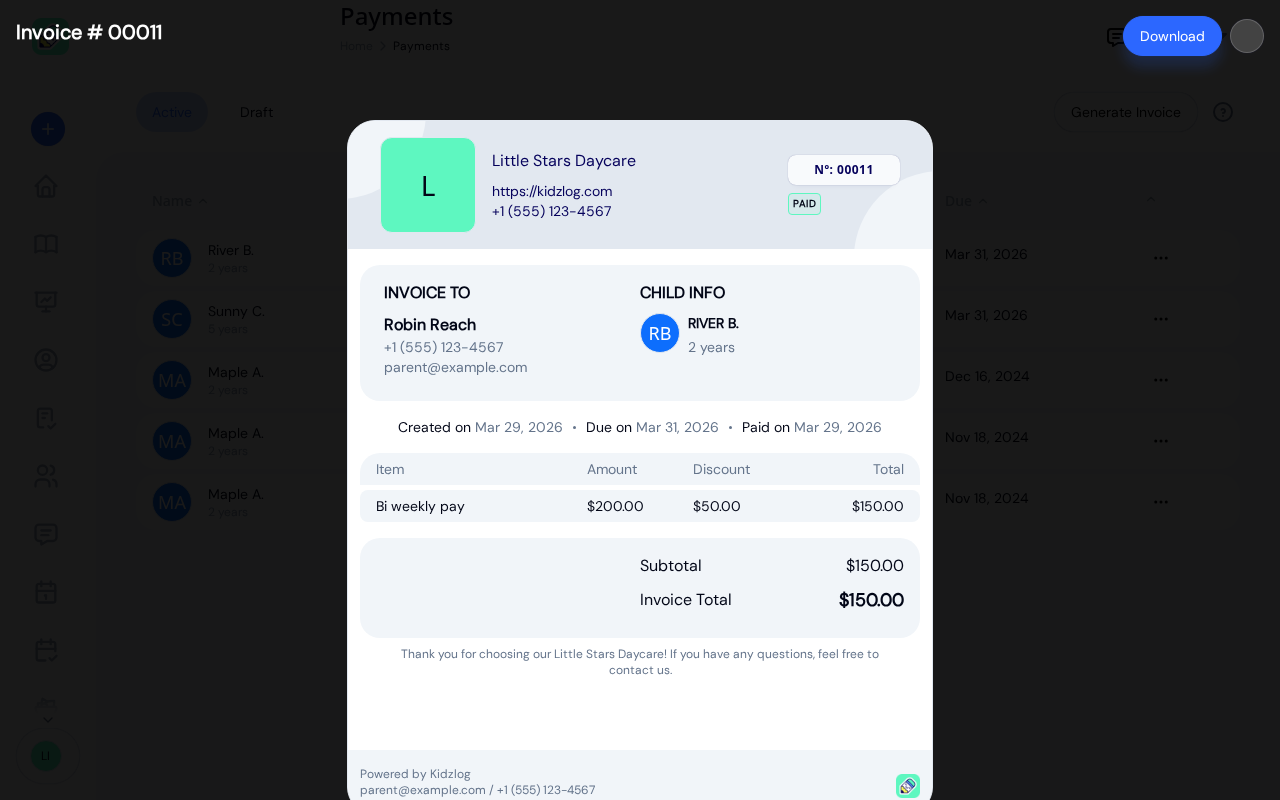
The slip includes the center's logo and contact information, the child name, line items with per-line discounts, the calculated total, and a thank-you message. The Download button in the top-right exports a PDF copy.
Receipts and Notifications
KidzLog sends the parent an email at two points in the invoice lifecycle:
- When you send the invoice — a notification with a link to view it in their Parent Portal
- When you mark it paid — a receipt confirming the payment was recorded
Parents can turn both emails off with the Notify me of new invoices switch in their own settings (see Parent Settings). KidzLog does not send a separate email when an invoice becomes overdue.
Other owners and admins at your center get an email when you create invoices, with a link that opens Payments in that center. Each of them can turn this off with the Invoice created by another admin switch in their own notification settings.
Related
- Parent Payments — how parents view their invoices
- Programs — where you configure the fees pulled into invoice line items
- Activity History — every invoice action (create, send, mark paid, delete) is recorded in Activity History under the Billing category, visible to Owners only