

Messaging
The Messages tab lets you communicate directly with teachers and staff at your child's center. Each message thread has a subject and keeps a full history so nothing gets lost.
How to Access
Tap Communication in the sidebar, then select the Messages tab.
Viewing Your Messages
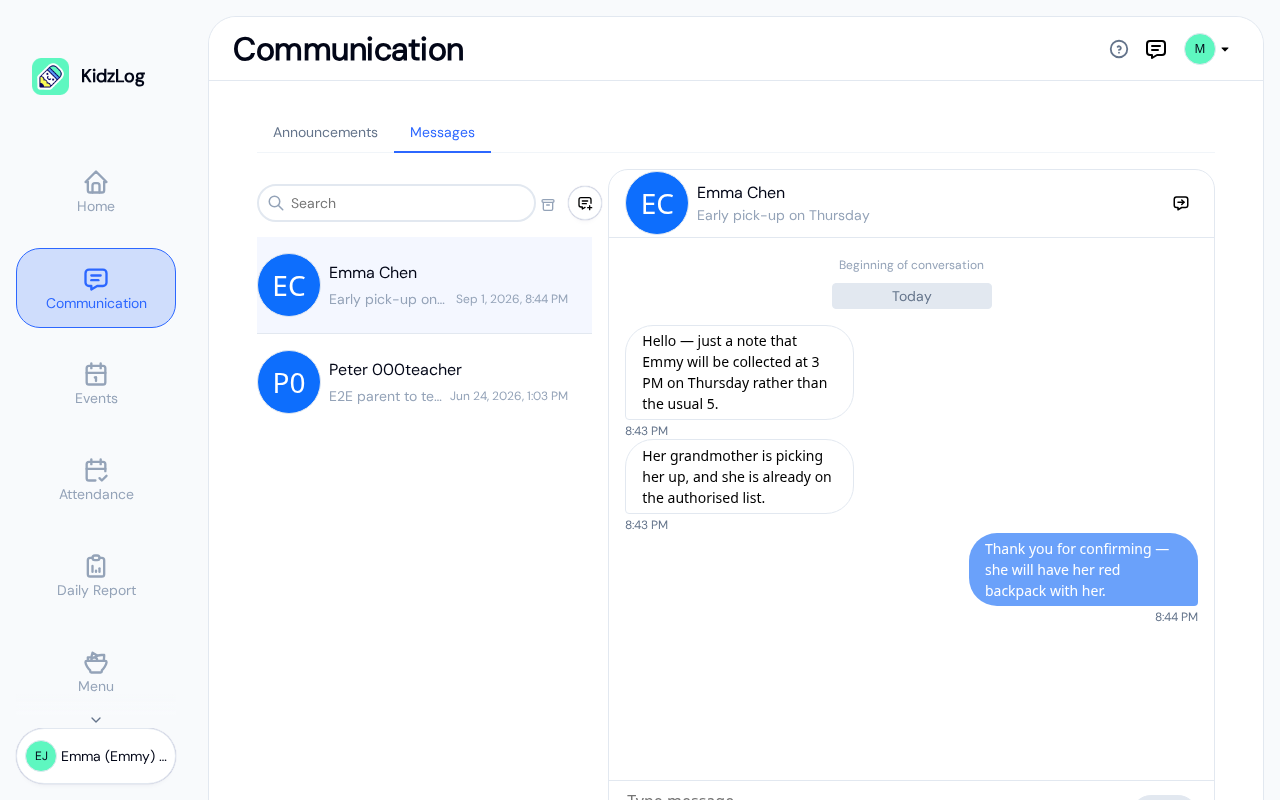
Your message threads are listed on the left, sorted by most recent activity. Each thread shows the staff member's name, the subject, and the date of the last message. Tap a thread to open it and see the full history.
Threads with unread messages show a blue badge with the count, which clears once you open the thread.
Starting a New Message
Tap the new message button (speech bubble icon with a plus) at the top of the thread list.
- Add a title — Enter a subject for the message (required).
- Select a recipient — Choose a teacher or staff member from the list. Use the search bar to filter by name.
- Tap Send to create the thread.
The recipient will be notified by email.
Sending Messages
Open a thread, type your message in the text area at the bottom, and press Ctrl+Enter (or Cmd+Enter on Mac) to send. You can also tap the Send button.
Your messages appear on the right in blue. Replies from staff appear on the left in white. Date separators group messages by day.
Archiving
To archive a thread, hover over it in the list and click the archive icon. Archived threads are hidden from the main list but not deleted. Toggle the archive button at the top to view and restore archived threads.