

Accepting Invitations
When a center administrator invites you to join their center — either as a team member or as a parent — you'll receive an email with a link to register or log in. The next time you log in, KidzLog shows you every pending invitation so you can review and decide one at a time.
Pending Invitations Screen
After you log in, if you have one or more pending invitations, you'll land on the Pending Invitations screen first. When you're done there, you go on to your dashboard, or to the page you were opening if you signed in by following a link, such as one from an email. Each invitation appears as a card with the center name, the role you've been offered (Owner, Admin, Teacher, or Parent), who invited you, and the invitation date.
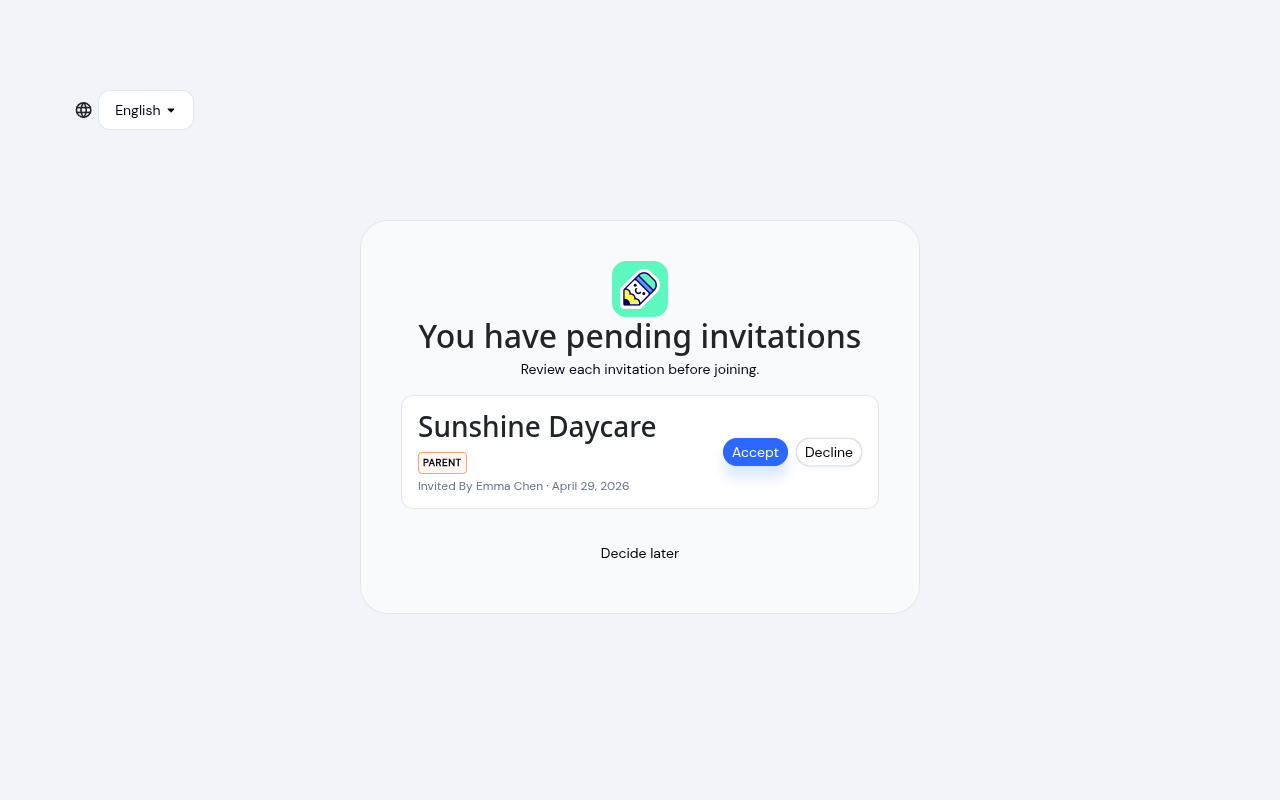
For each invitation, you can:
- Accept — Join the center in the assigned role. The center is added to your center switcher immediately.
- Decline — Reject the invitation. The card asks you to confirm — declining can't be undone, and the admin will need to re-invite you if you change your mind later.
- Decide later — Skip the screen and continue to a center you've already joined. Pending invitations remain and reappear next time you log in. This option only shows if you already belong to at least one center.
Confirming a Decline
When you click Decline, the card switches to a confirmation prompt before the invitation is removed:
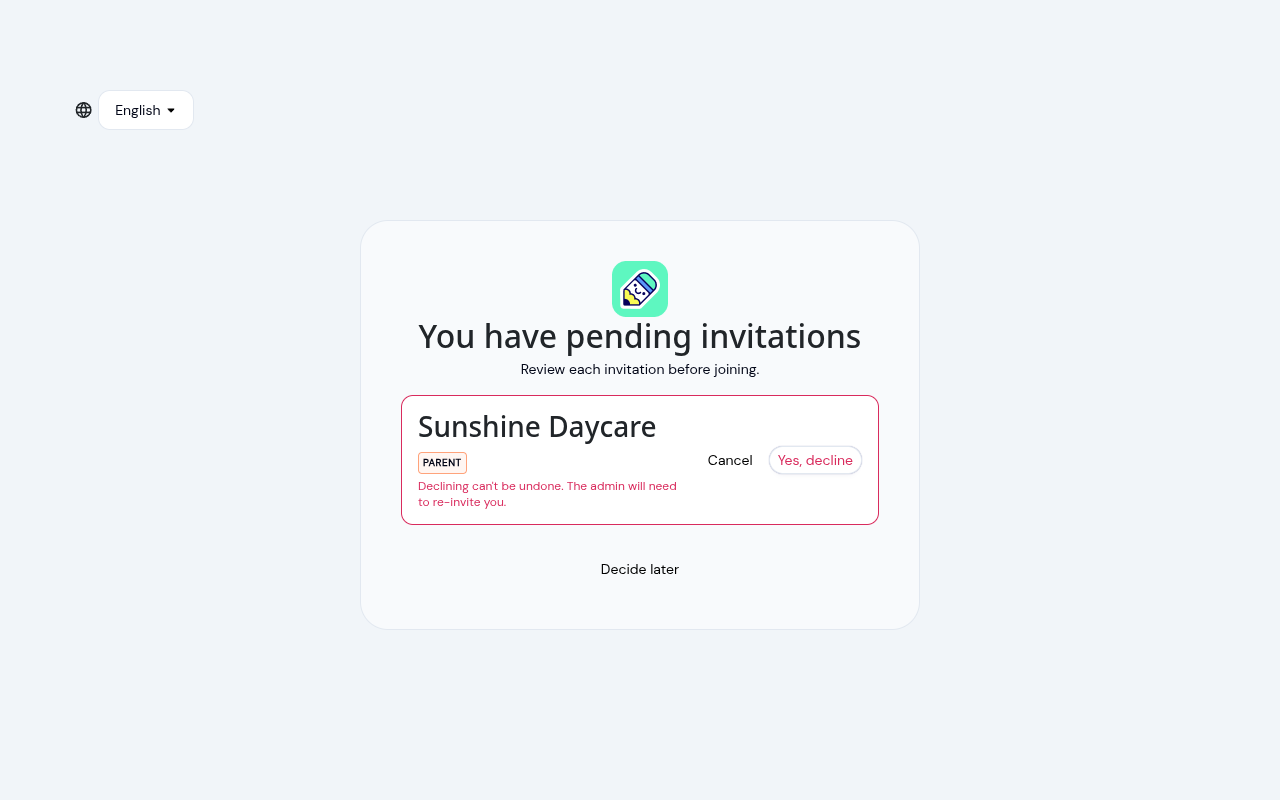
Click Yes, decline to remove the invitation, or Cancel to keep it pending.
Accepting Multiple Invitations
If you have two or more pending invitations, an Accept All button appears below the list so you can join every center in one click. Each invitation is accepted independently — if one fails (for example, because of a network issue), the others still go through and a message tells you how many couldn't be processed.
If You Don't Have a KidzLog Account Yet
If you're being invited as a brand-new user, you need to create your account first.
Click the invitation link
Open the email from KidzLog and click the invitation link. You'll be taken to the registration page.
Create your account
Fill in your first name, last name, email, and choose a password. Click Continue, or click Continue with Google to register with your Google account.
See Registration & Login for details on password requirements.
Verify your email
Enter the 6-digit verification code sent to your email and click Confirm.
Review your invitations
After verification, you'll land on the Pending Invitations screen described above. Accept the invitations you want, decline any sent in error, and you're in.
If You Already Have a KidzLog Account
If you already have an account at the email the invitation was sent to:
- Log in normally at
kidzlog.comwith your existing credentials - The Pending Invitations screen appears before your dashboard whenever you have any unanswered invitations
- Accept, decline, or skip from there
Frequently Asked Questions
Check your spam or junk folder. If you still can't find it, ask your center administrator to resend the invitation from the Team or Parents page.
Invitation links route you to the registration or login page. After you sign in with the email the invitation was sent to, the invitation appears on the Pending Invitations screen — you accept it from there, not from the link itself.
No. Declining is permanent. Ask the center administrator to send a fresh invitation.
It dismisses the Pending Invitations screen for this session without accepting or declining any invitations. They'll reappear the next time you log in. The option only shows once you already belong to at least one center, so you have somewhere to go.
Only a current owner of the center can make you an owner. If the invitation came from someone who isn't an owner there, accepting it shows "This invitation can't be accepted: only an owner of the center can make you an owner. Ask the owner to invite you." The invitation stays on your list, so ask an owner of the center to send you a new one and decline the old one.
Only another owner can change an owner's role. If you're an owner and accept an invitation to the same center for another role, for example the parent invitation sent when you add yourself as a guardian, you stay an owner and see "You're an owner of this center, so this invitation can't change your role. Another owner can change it from the Team page." Decline the invitation if you don't need it.
When two or more invitations are pending, an Accept All button appears below the list. Use it to join every center in a single click. Anything that fails (rare, usually network related) stays on the list for retry.